How to Use Custom Commands to Gamify Your WhatsApp Group
Forget long texts. Discover how to use shortcuts like "/tips" and "/rules" to gamify your community, reduce manual labor, and skyrocket interactions.
What are Custom Commands?
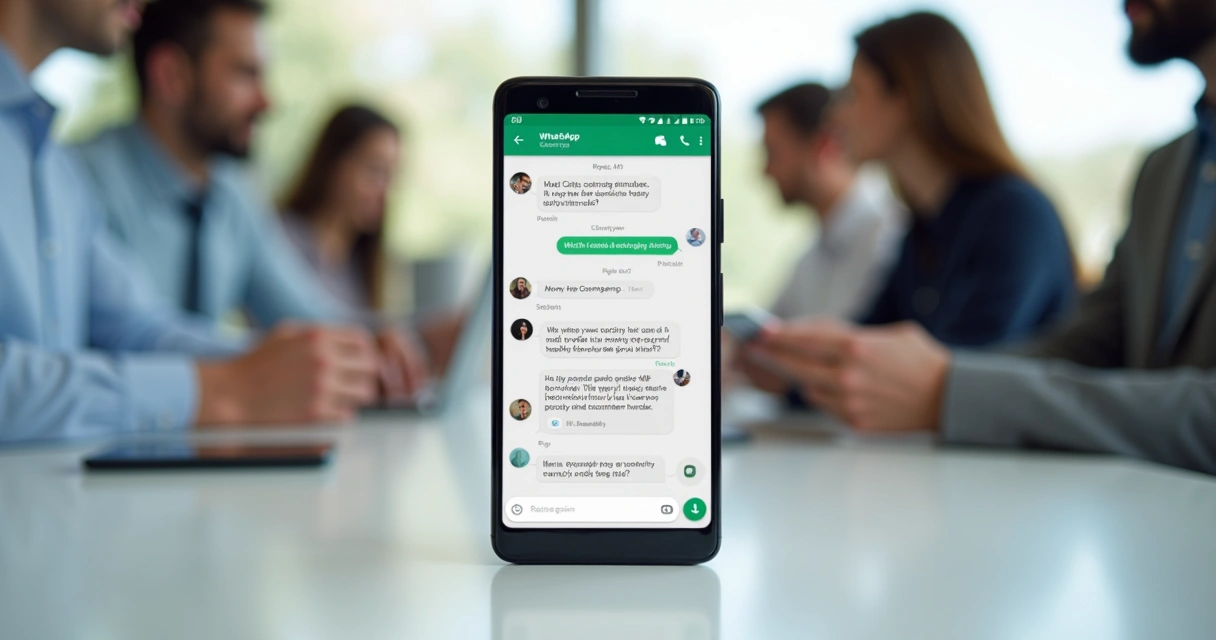
Have you ever joined a group and seen someone type something like /rules and, the very next second, a robot sends a perfectly formatted text with the group's guidelines? That is a custom command.
Technically, they are programmable text triggers within bots (like 9bot). When any participant types the chosen keyword, the system executes a task instantly. It can be sending a text, a link, an image, or even creating a real-time poll.
The Psychology of the Automatic "Click"
Why do people love using commands instead of simply asking the administrator? The answer lies in friction reduction.
Many members feel shy about bothering the group leader to ask for an old link or to inquire about how the community works. When you provide a command (e.g., `/materials`), you empower the user to consume your content in a "self-service" manner, without judgment, even at 3 AM.
Automation generates real participation. A well-configured command delivers instant gratification (a dopamine hit) to the user who receives the answer instantly.
The 6 Commands that Generate the Most Engagement
Don't know where to start? Here is the list of the most utilized shortcuts by professional administrators to gamify their communities:
Utility Commands (Retention)
- /rules: Sends the code of conduct. Essential to quickly end arguments by tagging the involved parties.
- /agenda: Shows upcoming events, live classes, or group schedules.
- /links: Consolidates all important URLs (Instagram, portal, checkout page) into a single message.
Interaction Commands (Gamification)
- /tips: Shares a random "Insight of the Day" registered in the system. Creates a daily habit in the group.
- /poll: Allows opening instant voting, acting as a great icebreaker for discussions.
- /news: Pulls the latest article from your portal via RSS and drops it in the chat.

How to Create Commands (3 Steps)
Thinking that creating a bot requires knowing how to code is a myth from 2015. Today, platforms like 9bot allow you to configure the logic in 3 visual steps:
Trigger (The Keyword)
You access the panel and define the word that will trigger the action. It can be something exact like "/help" or even loose words you want to monitor.
Action (The Response)
You write the text the bot will return. You can include formatting (bold, italics), Emojis, and trackable links.
Disclosure (The Secret)
It's useless to create amazing commands if nobody knows they exist. Pin a message with the "Command Menu" or add them to the group description.
Practical Quiz: The Right Way to Use Commands
Fatal Mistakes When Automating
While managing dozens of communities, I realized the line between a "useful bot" and an "annoying bot" is very thin. Avoid these slip-ups:
What NEVER to do:
- Complicated Commands: Do not use mixed capital letters or weird symbols. "/E-book2026_official" won't work. Just use "/ebook".
- Overly Long Responses: If the bot responds with a text that takes up three mobile screens, people will stop reading at the second line. Be direct.
- Forgetting to Update: If the user types "/agenda" and receives last month's events, they lose trust in the system instantly.
Related Articles
Conclusion
Custom commands are the most efficient shortcut between your lead's doubt and your brand's value delivery. They reduce the administrator's workload, standardize communication, and, most importantly, empower the community member to find answers on their own.
A group that masters the use of the bot becomes a self-sufficient and highly engaged ecosystem. Don't let repetitive questions bury your creative time.
Frequently Asked Questions about Commands
Do I need to know how to code to create WhatsApp commands?
Does the command only work with the forward slash ( / )?
What happens if two people type the command at the same time?
Stop Repeating the Same Answers
Create an unbeatable "Help Center" right inside your WhatsApp group. Let 9bot answer FAQs and distribute your links while you focus on the big strategy.
Create My First Commands in 9bot

