How to combat fake news in WhatsApp groups
Fake news in a WhatsApp group is not just an incorrect message. It becomes a major issue when it arrives with urgency, suspicious links, contextless screenshots, or forwarding requests. This guide provides a simple path for admins to maintain control.
How it works in practice

Step by step in the 9bot dashboard
The full path is Groups > your group > Automations > Link Moderation > Configure. The screenshots below come from the real dashboard, in a test group called "Seu Grupo". The numbers on the images follow the order of the clicks.
Against fake news and scams, the most useful part is stopping suspicious links before anyone clicks. Use Remove member mode in groups with a history of scams, list the sites that already spread hoaxes in Forbidden Domains and check the logs to see who repeats.
Step 1: Select the group
- In the side menu, click Groups.
- Type the group name in the search box.
- Click the group card. A badge with its name appears at the top of the dashboard, and everything you configure next applies only to that group.
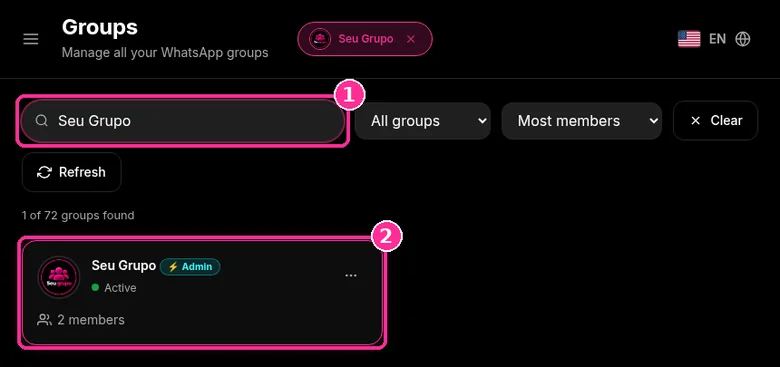
Quick checkpoint: the number connected to 9bot must be an admin of the group on WhatsApp. Without that it cannot delete messages or remove members. See the WhatsApp group admin powers to understand what each permission allows.
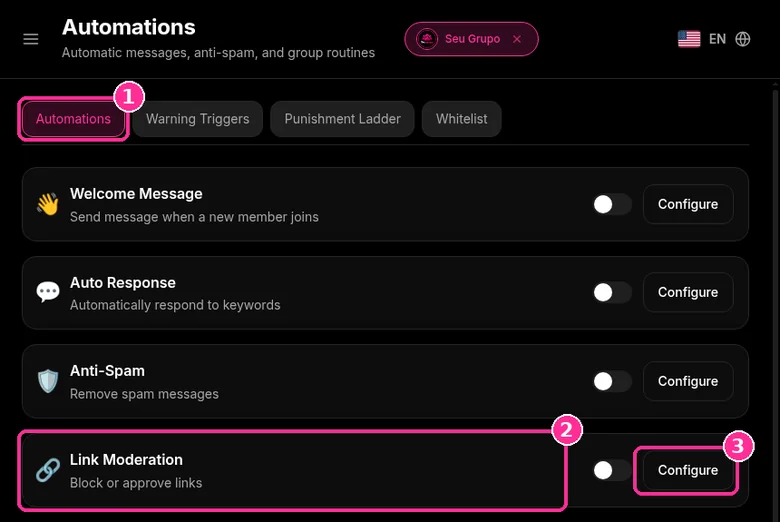
Step 2: Open Link Moderation
- Click Automations in the side menu.
- Find the Link Moderation card ("Block or approve links").
- Click Configure to open the Anti-Link window.
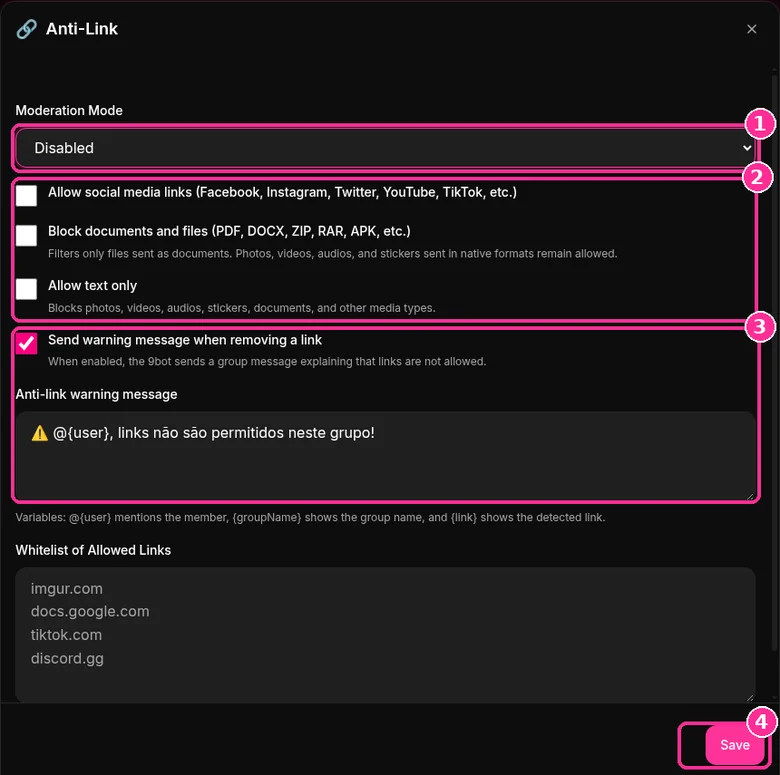
Step 3: Choose the Anti-Link mode and rules
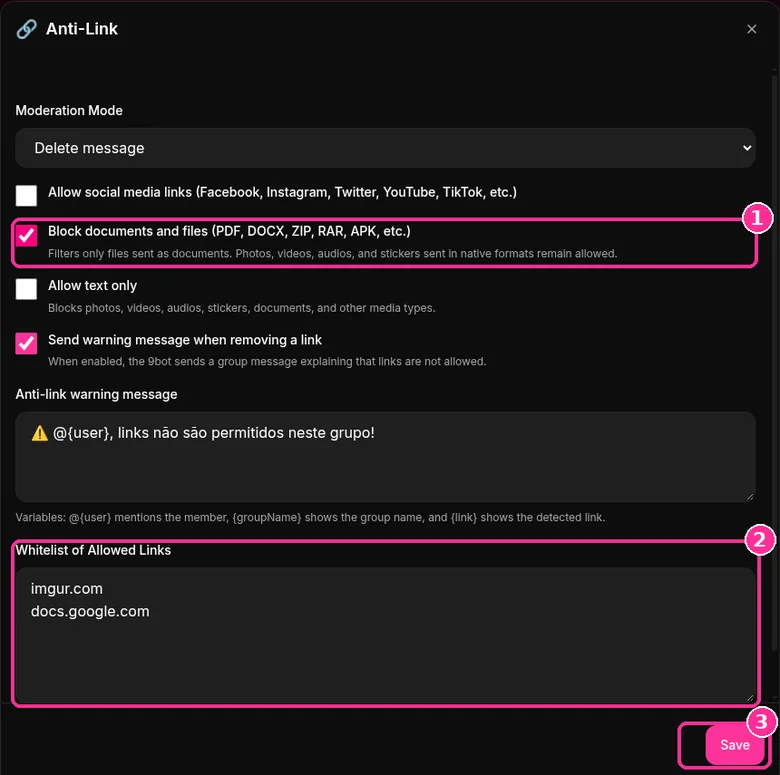
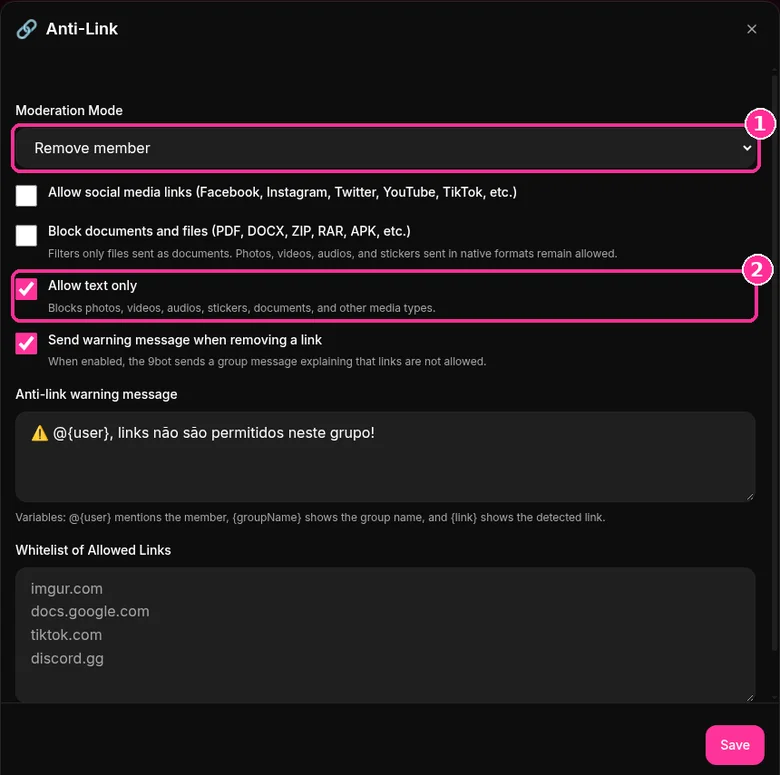
- In Moderation Mode, choose Delete message (deletes the link) or Remove member (deletes it and removes the person from the group). Disabled turns the filter off.
- Tick the options that suit the group: allow social media links, block documents and files, allow text only and send a warning message when removing a link.
- Edit the Anti-link warning message. Use
@{user}to mention the member,{groupName}for the group name and{link}for the detected link. - Click Save.
Step 4: Build the whitelist and block files
- Tick Block documents and files to stop PDF, DOCX, ZIP, RAR, APK and other files sent as documents. Photos, videos, audio and stickers sent in their normal format still go through.
- In Whitelist of Allowed Links, add one domain per line. A domain allows any address inside it:
imgur.comallowsimgur.com/abcandwww.imgur.com/a/xyz. - Click Save.
For a stricter group, use Remove member with Allow text only. Photos, videos, audio, stickers and documents are then blocked too.
Step 5: Connect links to the warning system
- Still in Automations, open the Warning Triggers tab.
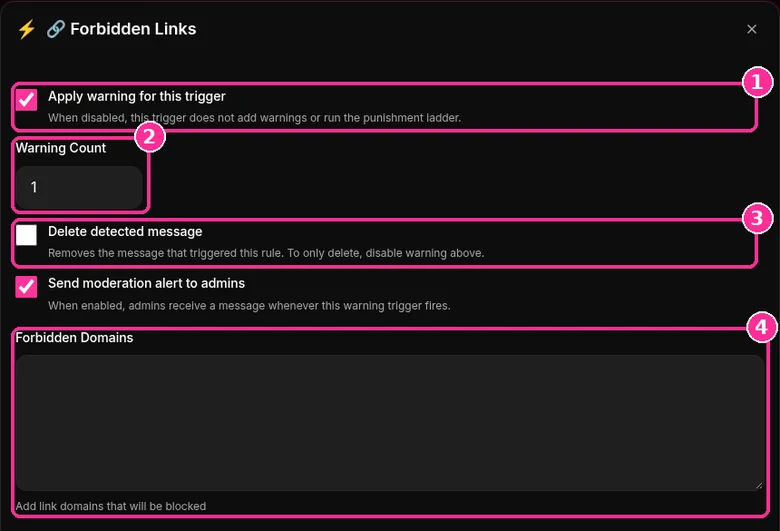
- On the Forbidden Links trigger, click Configure and keep Apply warning for this trigger ticked.
- Set the Warning Count that each forbidden link adds (the default is 1).
- Choose whether to Delete detected message and Send moderation alert to admins.
- In Forbidden Domains, list the domains that should trigger a warning.
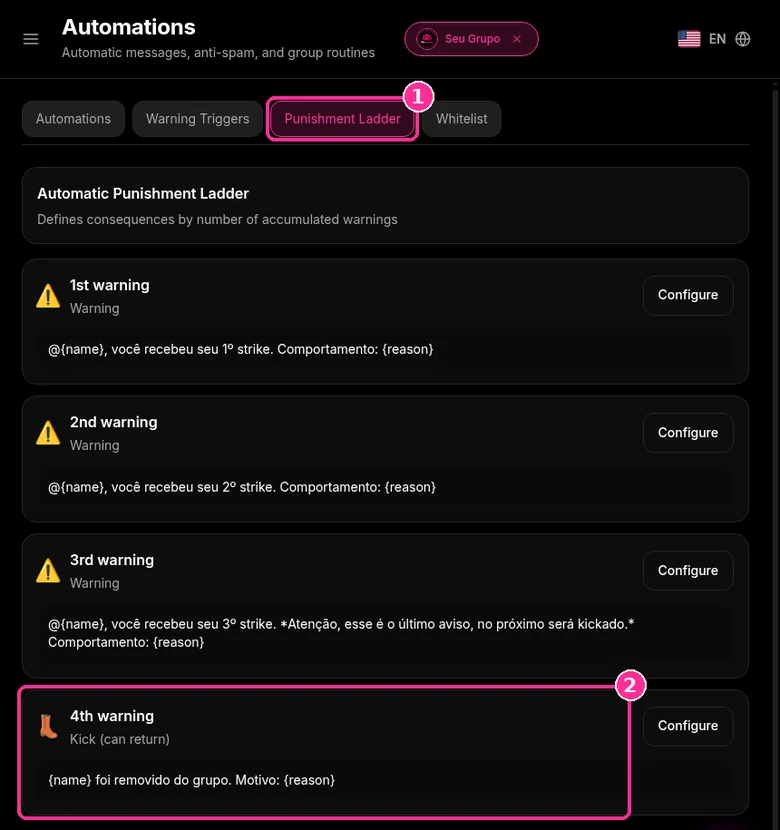
The Punishment Ladder tab defines what happens at each accumulated warning. By default, the 1st, 2nd and 3rd are warnings with their own message (the 3rd says the next one removes) and the 4th is a kick, after which the person can return. In the Whitelist tab you mark members who never receive warnings. To deal with people who keep pushing anyway, see how to handle difficult members and conflict in a group.
Step 6: Check the logs
- Click Moderation in the side menu.
- Scroll to Moderation Deletion Logs and open the Anti-Link tab to see the messages deleted by the filter. The Anti-Spam tab shows the ones removed by Anti-Spam.
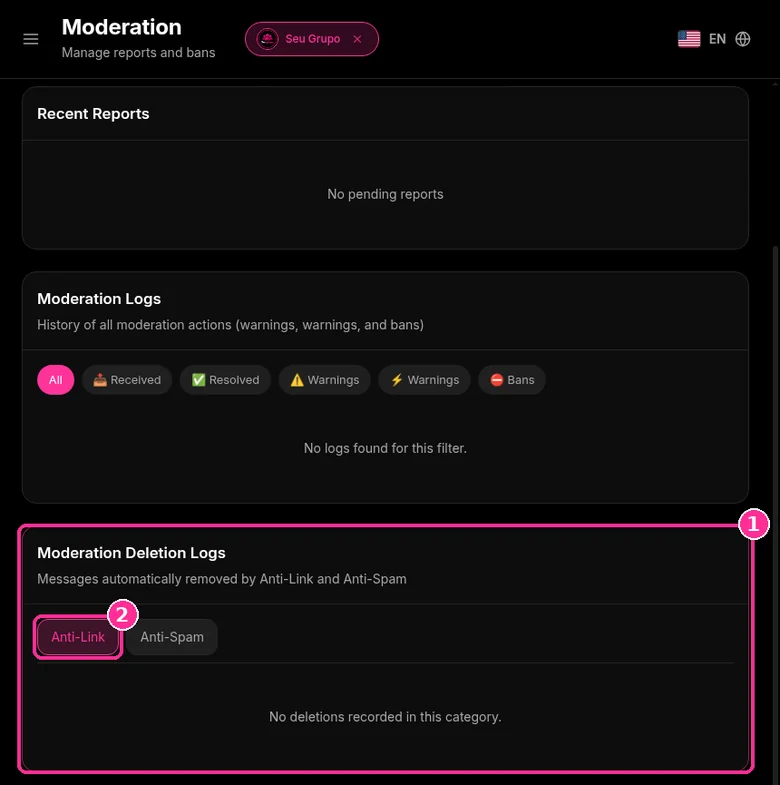
Quick checkpoint: always click Save before closing the window. To review the rest of your moderation routine, use the moderation checklist for large groups.
Anti-Link options at a glance
| Option | What it does | When to use it |
|---|---|---|
| Delete message | Deletes the message with a link that is not allowed | Open groups where you only want to clean up spam |
| Remove member | Deletes the message and removes the sender | Groups with a history of scams and raids |
| Allow social media links | Lets Facebook, Instagram, Twitter, YouTube, TikTok and similar through | Creator and networking communities |
| Block documents and files | Stops PDF, DOCX, ZIP, RAR, APK sent as documents | Large groups, against malicious files |
| Allow text only | Blocks photos, videos, audio, stickers and documents | Announcement groups or text only discussion |
| Warning message | Tells the group when a link is removed | When you want members to see the rule |
| Whitelist | Allows specific domains and everything inside them | Your site, your store and trusted tools |
Recommended setups
- Sales group: Delete message, Block documents and files and your store domain in the whitelist. Customers talk freely and only your link circulates.
- Announcement group: Allow text only with the warning message on. Nothing but text gets through.
- Creator community: Delete message with Allow social media links ticked, so members can show their profiles without opening the door to invites from other groups.
- Job openings group: Remove member with Block documents and files, since fake links and files are how scams get in. See more in job openings group without scams.
What the member sees
When someone sends a link outside the whitelist, the message disappears from the group. If the warning is on, 9bot posts the message you configured, for example "⚠️ @Marcos, links are not allowed in this group!". If the Forbidden Links trigger is on, the warning goes into the Punishment Ladder and the member gets the message for that step. Want to try it in your group? Start with the 9bot plans with a 7-day trial.
In short:
- "Forwarded many times" = it passed through 5+ chats; it can only be forwarded to 1 chat at a time.
- Regular messages can be forwarded to up to 5 chats at once.
- WhatsApp doesn't read content: the forward counter is end-to-end encrypted.
- Report the message or group inside WhatsApp and check the source before sharing.
What recent reports indicate
Recent research shows a clear gap: suspicious links and scams enter the group rapidly. The admin needs a simple process to decide what stays, what goes, and how to guide the group.
- Scammers use fake profiles with links resembling familiar domains and groups that appear normal.
- Rotating links or QR codes helps, but does not solve the problem alone if member entry remains too open.
- Posting restrictions reduce risk, but still require active monitoring and incident logging.
- Groups without objective rules take longer to react when false messages start circulating.
The real impact on the group
Simple verification protocol
A good rule is short, visible, and repeatable. The administrator does not need to write a manual.
Hold the forward
Do not let the message circulate while the source remains unclear.
Verify the domain
Check if the link points to the correct site and does not use strange variations.
Request context
Date, original source, and author matter more than a loose screenshot.
Remove if risky
In case of a scam, remove the message and notify the group objectively.
Log recurrence
Those who repeat rumors after warnings should receive strikes or restrictions.
Before and after active moderation
A job board group with 800 people. Every week false registration links and source-less screenshots appear.
Before
- 08:17 — suspicious link enters the group
- 08:21 — members ask if it is true
- 08:34 — admin deletes it, but several have clicked
- 09:10 — the same rumor returns
After
- 08:17 — anti-link holds the domain out of the rule
- 08:17 — the system sends guidance with !check
- 08:18 — the event enters the dashboard log
- 09:10 — recurrence triggers a warning or restriction
How 9bot helps in this routine
Automation does not replace judgment. It removes mechanical tasks.
| Feature | What it does |
|---|---|
| Anti-link | Holds suspicious or unauthorized links |
| Anti-spam | Reduces repetition and rapid sequence messages |
| Custom commands | Allows creating /rules, /sources and /verify |
| Automatic welcome | Explains group policy before the first post |
| Metrics and reports | Identifies active hours and members causing extra work |
Checklist for fake news and scams
Use these signs to identify fake news. The more boxes checked, the higher the risk.
How to tell if a WhatsApp message is true
"How to check fake news on WhatsApp" and "how to report fake news on WhatsApp" are the top searches. WhatsApp gives native clues every member should know.
What "Forwarded" and "Forwarded many times" mean
- Forwarded: the message wasn't written by the person who sent it to you.
- Forwarded many times (double-arrow icon): it went through a chain of five or more chats and can only be forwarded to one chat at a time.
- Regular messages can be forwarded to up to five chats at once; if already forwarded, only one of them can be a group.
According to WhatsApp, these limits help curb spam and misinformation, and the forward counter is end-to-end encrypted, so WhatsApp can't see how many times a message was shared (Help Center: forwarding limits).
How to report fake news on WhatsApp
- Long-press the message and choose Report, or open group info and tap Report group.
- As admin, delete the message for everyone and explain why with a pinned group rule.
- If it's a scam (fake link, payment request, fake support), follow How to Prevent Scams in WhatsApp Groups.
Read also
Automatic X-ray screening against hoaxes
Managing a highly active group without automated moderation is like being the chief of security at a busy international airport terminal, attempting to manually open every single suitcase, search every passenger, and resolve boarding gate arguments all at the same time. The sheer volume of luggage (messages) is overwhelming, security gaps are inevitable, and dangerous items (scams and rumors) easily slip onto the airplane.
With 9bot, it is like installing state-of-the-art automatic X-ray conveyors equipped with smart security sensors. The system instantly scans every suspicious link and flags flooding anomalies or restricted keywords in milliseconds. If a high-risk item is detected, the bot intercepts it at the boundary gate before it ever reaches the passenger cabin, securing a smooth, risk-free flight for everyone on board.
Conclusion
Combating fake news in WhatsApp groups requires less talking and more processing. Clear rules, quick verification, automatic moderation, and objective warnings reduce conflict and build trust.
For admins of paid communities, businesses, portals, and large groups, 9bot functions as operational support: it applies rules, organizes alerts, and handles repetitive tasks.

Frequently Asked Questions
Where can I see the links 9bot deleted?
Does the whitelist allow only the exact page or the whole site?
Does blocking documents also block photos and audio?
How to identify fake news on WhatsApp?
Should I delete fake news from the group?
Does anti-link solve fake news?
How to deal with a member who repeats rumors?
Should the group accept any news links?
What does "Forwarded many times" mean on WhatsApp?
How do I report fake news in a WhatsApp group?
Can WhatsApp see how many times a message was forwarded?
How many chats can I forward a WhatsApp message to?