How to Automatically Filter Links & Files on WhatsApp
Configure Link Moderation and file blocking in 9bot to shield your group against spam, scams, and malware automatically.
How it works in practice
Want this running in your group today? 9bot's anti-link, file filter and strikes are included in the plan. Start the 7-day free trial, connect your bot number and turn on Link Moderation in a few minutes. Start free for 7 days. New to bots? Read the WhatsApp group bot guide.
How to block links in a WhatsApp group (anti-link)
WhatsApp has no built-in option to block only links. Under Group permissions, an admin can turn off Send new messages, but then only admins can post and the whole conversation stops, not just the links. Admins can also remove another member's message with Delete for everyone, as long as they do it within two days of it being sent (WhatsApp Help Center).
Anti-link is the name for a filter that automatically deletes links posted by anyone who isn't an admin. In 9bot it's called Link Moderation and lives under Automations. It handles three common situations:
- Scam and spam links: any link outside your whitelist is deleted as soon as it lands in the group.
- Invites to other groups: a
chat.whatsapp.com/…invite is just another link. If that domain isn't whitelisted, the anti-link filter removes the invite before anyone can poach your members. - Approved links: your website and official social profiles go on the whitelist and keep working as usual.
Admins-only messages (built-in)
- Locks the whole chat, not just links.
- No list of allowed links.
- No warning or penalty for repeat offenders.
9bot anti-link
- The conversation stays open to everyone.
- Only links outside the whitelist are deleted.
- Members get a warning, and repeat offenders get strikes.
For anti-link to work, the WhatsApp number connected to 9bot must be a group admin, because WhatsApp only lets admins delete other members' messages. The full setup is in the steps below.
Why automatic link and file filtering makes a difference
Anyone who manages a WhatsApp community knows how frustrating it is: as soon as the group grows, bad actors start spreading phishing links, invitations to competing groups, malware, and suspicious files.
This spam destroys the community's trust. Members begin silencing or leaving the group because they feel exposed or simply tired of the noise. Moreover, manual moderation is impossible, as administrators cannot watch the chat 24/7.
Automatic protection of links and attachments solves the problem immediately: it intercepts and deletes unwanted content the millisecond it is posted, maintaining order without requiring administrators to monitor their screens continuously.

The problem in practice
In open or large-scale groups (such as news portals or customer communities), sharing suspicious links or files is the fastest way to compromise everyone's security. Redirections to viruses, scams, and financial fraud heavily damage your brand's credibility.
Without an active filter, a single wrong click from an unsuspecting member can trigger a security crisis. Surgically blocking dangerous file formats and restricting generic links ensures that only legitimate, safe conversations thrive.
Automatic filtering is not meant to restrict healthy discussions, but to create invisible shields that repel malware and spam bots while keeping genuine conversations safe.
What you will configure
By the end of this tutorial, you will have:
- An active Link Filter (Anti-Link) with a whitelist of approved domains (e.g., your website and social media).
- A complete block on sensitive or potentially dangerous files (such as executable documents).
- Automated progressive warnings (strike system) for repeat offenders.
- A practical test to confirm that the moderation is operating on the correct group.
Before you begin
- A WhatsApp group connected to 9bot.
- Access to the 9bot Dashboard.
- The correct group selected in the Groups tab.
- Admin permissions granted to the 9bot in WhatsApp settings.
- A list of trusted websites that your group can share (whitelist).
Step-by-step in the Dashboard
Step 1: Select the right group
- Access the 9bot Dashboard.
- Click on the Groups menu.
- Select the community where you want to apply the filtering rules.
Quick Checkpoint: Make sure the bot has the "Bot admin" tag active in the groups list. Without admin permissions on WhatsApp, 9bot will not be able to delete messages or remove abusive users.
Step 2: Configure Link Moderation
- Go to Automations.
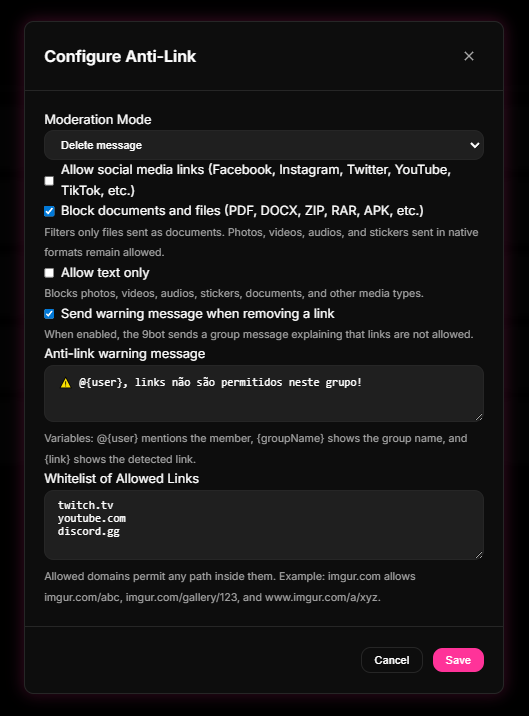
- Locate and click configure on Link Moderation (or Configure Anti-Link modal).
- Enable the feature and choose the desired action (e.g., "Delete message" or "Remove member").
Quick Checkpoint: If your group relies on sharing social media links, enable the "Allow social media links" option to prevent legitimate Instagram or LinkedIn profiles from being deleted by mistake.
Step 3: Define the Whitelist and File Blocking
- In the allowed links Whitelist field, enter your company's domain (e.g., `yourwebsite.com`) and other approved sites.
- In the documents and files blocking area, check the option to restrict dangerous uploads or enable "Text-only mode" if the group is strictly for text conversations.
- Configure a custom warning message that 9bot will send to the group whenever it deletes a forbidden link.
Step 4: Connect to the Strike System and Reports
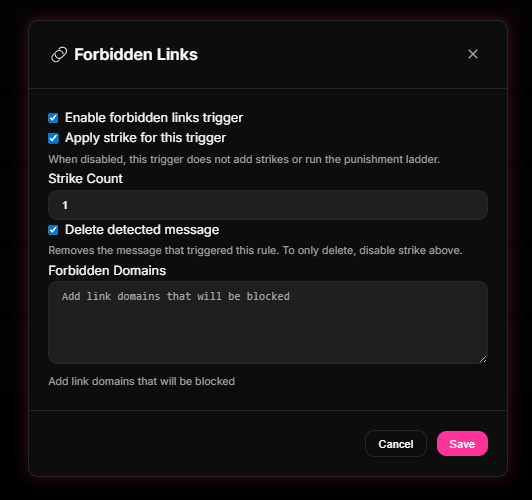
- Go to the Moderation menu and enable the Strike System.
- Set sending a forbidden link to trigger 1 strike, and set the progressive penalty (e.g., 3 strikes result in automatic removal).
- Save the settings and track the results under the Reports > Moderation tab to identify the main rule-breakers.
Quick Checkpoint: Don't forget to click save at the bottom of the page. An unsaved change will leave your old group rules running.
The filter as a smart receptionist
Think of the 9bot filter as the smart lobby receptionist of a secure corporate building.
If a visitor arrives carrying unsolicited advertising flyers (spam) or suspicious packages that could pose a risk, the receptionist stops them at the entrance. However, if a visitor shows an authorized partner company ID (whitelist), they pass through with no issues.
This way, the building remains busy and productive, but completely free of disruptions and security hazards.
Secure group checklist
- Anti-Link filter enabled and configured to delete forbidden messages immediately.
- Brand domains added to the allowed links whitelist.
- Strike System active to educate and penalize repeat offenders fairly.
- Direct warning message configured with a helpful tone, pointing users to the rules.
- Moderation report reviewed weekly to refine restricted words and links.
Test it now in your group
- Enter the group using a secondary test account (that does not have admin rights).
- Attempt to send a forbidden link (e.g., `randomwebsite.com`).
- Confirm that the 9bot deletes the message immediately and sends the configured warning.
- Try sending a link from your whitelist and check that it goes through without being deleted.
If the bot deleted the forbidden link and spared the whitelisted one, your group is successfully protected. Otherwise, verify if the test account has admin privileges (bots do not block admins) or if the bot lacks admin permissions on WhatsApp.
Read also

Frequently asked questions
What is 9bot Link Moderation?
How does the website whitelist work on WhatsApp?
Can I block audio files, images, or PDFs?
Does 9bot notify the user when it deletes a link?
How does the Strike System work for links?
Are group administrators affected by the filter?
How do I stop people from sending links in a WhatsApp group?
Can I allow some links and block all the others?
Does 9bot need to be a group admin to filter links?
Can I try the link filter for free?
What is anti-link on WhatsApp?
How do I automatically delete invite links to other groups?