Difficult members and conflict in a WhatsApp group
For admins who need to settle arguments, trolling and rule testing without turning the group into a courtroom.
How it works in practice

Step by step in the 9bot dashboard
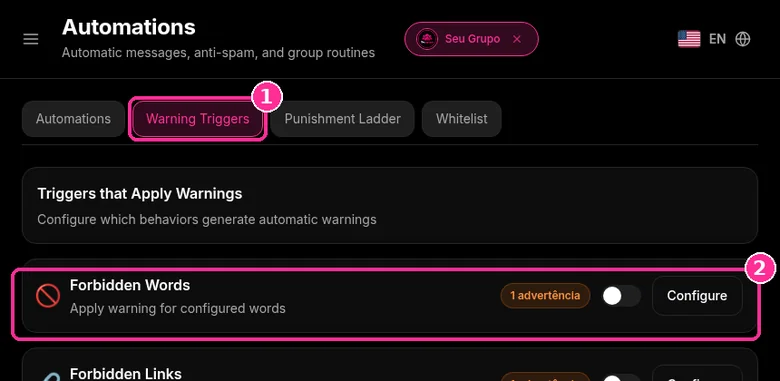
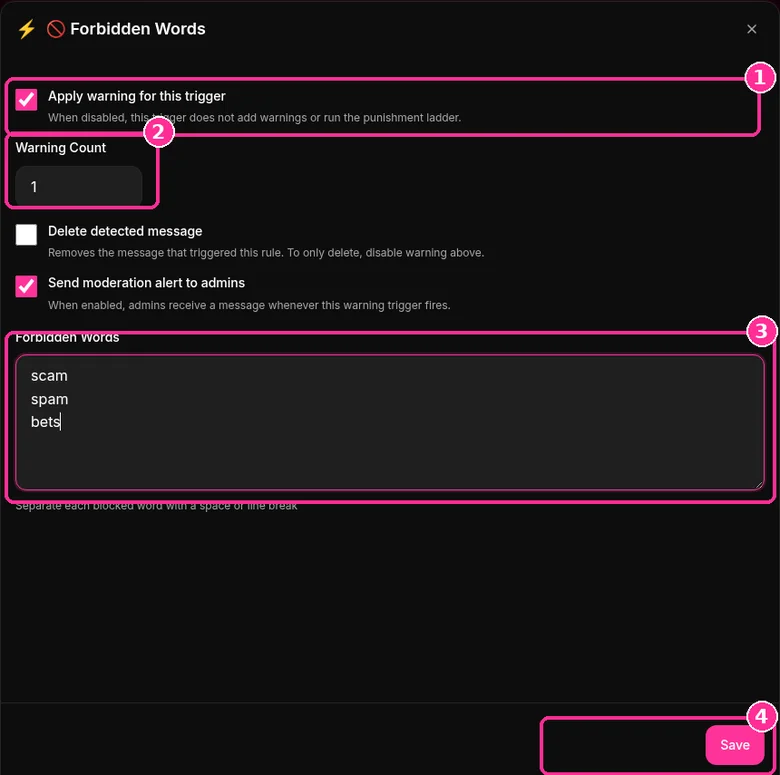
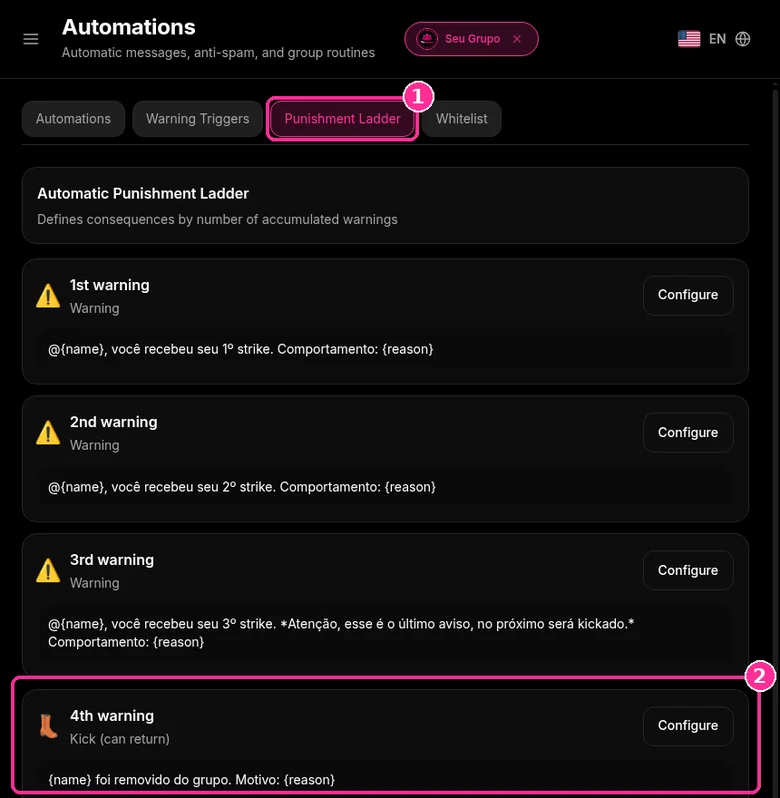
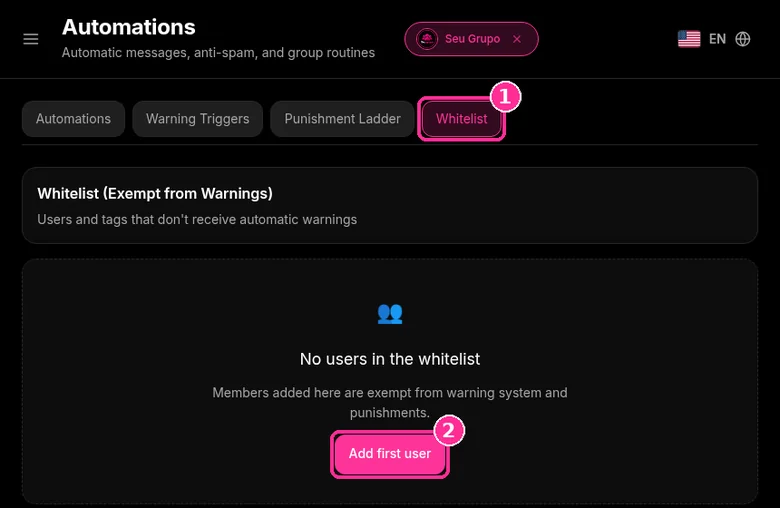
In the side menu, open Automations. The Warning Triggers, Punishment Ladder and Whitelist tabs control when 9bot warns and what happens next. The screenshots below come from the real dashboard, in a test group called "Seu Grupo", with member names and contacts blurred. The numbers on the images follow the order of the clicks.
With difficult members, the ladder takes the decision out of the heat of the moment: each hit adds warnings and the punishment follows the rule you set.
Step 1: Pick the trigger
- Open the Warning Triggers tab ("Triggers that Apply Warnings").
- Find the trigger, for example Forbidden Words or Forbidden Links, and click Configure.
Step 2: Set up the trigger
- Tick Apply warning for this trigger.
- In Warning Count, set how many warnings each hit adds.
- If you want, tick Delete detected message and Send moderation alert to admins.
- Write one word per line in the word field and click Save.
Step 3: Review the Punishment Ladder
- Open the Punishment Ladder tab.
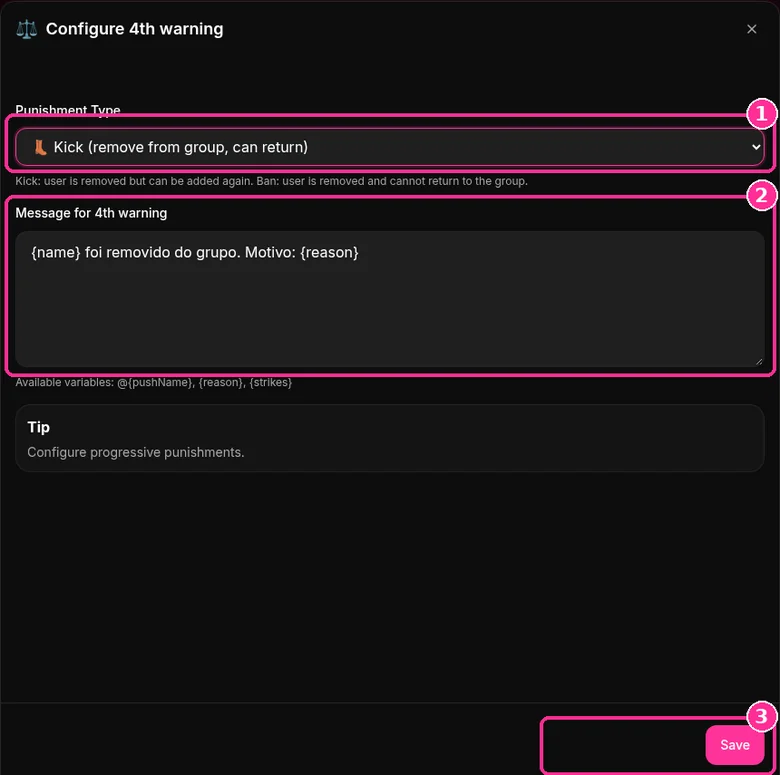
- By default, the 1st, 2nd and 3rd warnings send a notice and the 4th warning applies Kick (remove from group, can return).
Step 4: Adjust a step
- Click Configure on the step you want to change.
- Choose the Punishment Type and edit the message. The {name} and {reason} variables go into the text.
- Click Save.
Step 5: Exempt who needs it
- On the Whitelist tab, click Add first user to free someone from automatic warnings.
Want to try it in your group? See the 9bot plans with a 7-day trial.
Direct answer: To handle a difficult member in a WhatsApp group, focus on the behavior rather than the person and always follow the same order: restate the rule in the group in neutral terms, talk to them privately, give progressive warnings and remove them if the behavior continues. When two members argue, take the discussion out of the group, hear each side privately and post only the decision. For scams, threats or illegal content, remove the member and report them through WhatsApp right away.
In short:
- Written rules and a warning ladder keep decisions from feeling personal.
- Conflicts are solved in private; the group only sees the rule and the final decision.
- Scams, threats and illegal content mean immediate removal and a report, no warning.
The most common types of difficult member
Naming the behavior helps you pick the right response and keeps moderation from becoming a battle of opinions.
| Behavior | What it looks like | First response |
|---|---|---|
| Provoker | Sarcastic remarks, attacks on anyone who disagrees | Restate the respect rule without naming anyone |
| Off topic | Chain messages, politics, unrelated subjects | Restate the group purpose and suggest another place |
| Pushy seller | Links and offers without permission | Delete the message and warn them privately |
| Always right | Long debates that stall the group | Offer to continue privately with an admin |
| Rule tester | Breaks a rule to see what happens | Apply the warning the rules describe, no exceptions |
Scams, threats, harassment or illegal content are not on this table: the answer is to remove and report.
Step by step for a difficult member
- Check that a written rule exists. Without one, a warning looks like a personal attack. If it is missing, post it first; see WhatsApp group rules for templates.
- Restate the rule in the group, without names. Something like "Reminder: personal discussions go to private chat." It corrects behavior without exposing anyone.
- Talk privately. Say what happened, which rule was broken and what happens next time. A short message solves most cases.
- Use progressive warnings. Note the date and reason. The same rule applies to friends, customers and long time members.
- Remove when the limit is reached. On WhatsApp, only admins can remove participants, from the group menu (WhatsApp Help Center).
- Record the decision. A simple note (date, rule, action) prevents future arguments and helps other admins act the same way.
How to settle arguments between members
When two people argue, the admin is not there to decide who is right but to bring the group back to its purpose.
- Ask for a pause in the group with a neutral message.
- If it continues, temporarily change the setting so only admins can send messages. The WhatsApp Help Center shows how in Group permissions.
- Hear each side privately and separately.
- Return to the group only with the decision and the rule behind it.
- Reopen messaging for everyone once things calm down.
Template: "Everyone, let's pause this topic here. Anyone who wants to continue can message me privately. Back to running."
Avoid posting screenshots of private chats in the group. It usually makes the conflict worse and can create privacy problems.
When to remove right away and report
Some situations do not call for a warning:
- scam links, requests for payments or verification codes;
- threats, harassment or hate speech;
- non consensual sexual content or anything involving minors;
- fake profiles pretending to be admins.
In these cases, delete the message, remove the participant and use WhatsApp's report option. According to the WhatsApp Help Center, when you report a group or user WhatsApp receives up to the last five messages sent, and the person is not notified. Blocking someone does not stop them from seeing your messages in a shared group, so removal is still needed. On admin liability, see whether admins can be held responsible.
Limits that protect the admin
Moderating does not mean being available all day. Define and post when admins reply, who decides each kind of case and which decisions are not debated in the group. Sharing decisions between two or more admins reduces the strain; see also how to avoid admin burnout.
Automate the repetitive part
Much of the conflict starts with messages the group already banned: links, offensive words, flooding. With 9bot, the number connected to the group (which must be an admin) removes links outside the allowlist, filters banned words, applies warnings with progressive penalties and keeps a moderation history, while sensitive decisions stay with people. 7-day trial; with the coupon FIRST9, monthly plans are 50% off for the first 3 months after the trial.
Read also

FAQ
At which warning does 9bot remove a member?
How do I handle a difficult member in a WhatsApp group?
What should I do when two members argue in the group?
Should I warn someone before removing them?
Does the person I report on WhatsApp find out?
Does blocking a member solve the problem in the group?