How to Create Quick Satisfaction Surveys on WhatsApp
Improve your community's pulse. Learn how to create automatic polls and surveys with 9bot to collect actionable feedback effortlessly.
The Importance of Fast Feedback in Communities
Maintaining an active WhatsApp group or online community depends directly on knowing what your audience really thinks, expects, and feels. When administrators operate blindly without hearing their members' demands, engagement plummets, the chat falls silent, and the perceived value of the community drops. Active listening is the absolute key to member retention in business communities, content portals, and corporate groups.
Traditional surveys sent via external links (such as lengthy forms) face a massive engagement barrier: users have to leave WhatsApp, load a new page on their mobile browser, fill out exhausting text fields, and submit. Less than 5% of members complete this process. Quick surveys inside the chat itself eliminate this friction, seamlessly integrating feedback collection into the members' daily routines.
Automation with bots turns data collection from an administrative burden into a lightweight, continuous process. By programming automated responses and structured polling, you show respect for your participants' time, foster a highly interactive environment, and collect real-time actionable data to steer your brand's next moves.
The Problem in Practice
The lack of proper survey strategies in communities leads to chronic operational bottleneck issues:
- Apathy and Silence in the Chat: Without knowing what topics interest the members, the administrator pushes irrelevant content, causing members to mute or leave the group.
- Ignored Long Forms: Distributing complex external links results in abysmal response rates, forcing the admin to make business decisions based on statistically irrelevant samples.
- No Closed-Loop Feedback: When opinion is collected informally and messily in normal chat flows, suggestions get lost in history, and members feel their voices are ignored.
Active listening transforms community silence into an open and secure dialogue, boosting the participation of qualified members.
What You Will Configure and Resolve
In this step-by-step guide, you will learn how to configure a quick survey system in the 9bot Dashboard to:
- Create interactive triggers (e.g., `/poll`) that activate objective questions instantly.
- Configure emoji reactions or dynamic multiple-choice response numbers.
- Define automated schedules and polite reminder intervals.
- Audit real-time aggregated metrics and charts in your reports panel.
Before You Start
- A WhatsApp group connected and active with 9bot.
- Complete administrator access to the 9bot Dashboard.
- Administrator permissions granted to the bot in the target group.
- A clear survey question and limited, short options (keep options simple and direct).
Step-by-Step on Dashboard
Step 1: Create the custom survey command
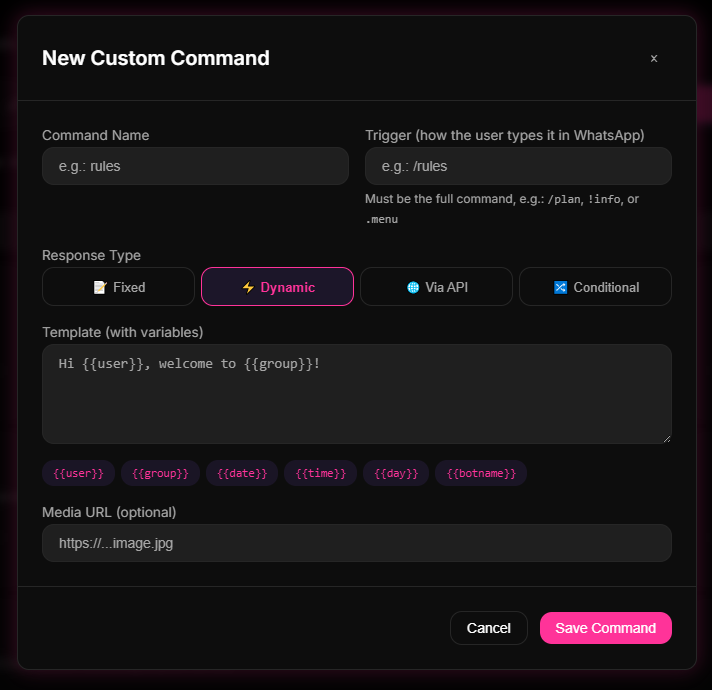
- Open your 9bot Dashboard and navigate to the Commands menu in the sidebar.
- Click on the Custom Commands button or select New Command.
- Define the keyword that will trigger the survey in the group (e.g., `/survey`, `/feedback`, or `/poll`).
- Write your survey question in the main text box. Add clear voting instructions (e.g., "Reply from 1 to 3 to cast your vote").
- Associate corresponding reactions or multiple-choice options and save the command.
Step 2: Calibrate delivery schedules and reminders
- Access the Schedules tab in the dashboard or use the command setup tool to define when the poll should automatically dispatch in the group.
- Schedule deliveries for peak activity times, when members are naturally browsing their WhatsApp chats.
- Set up a gentle automated reminder to be sent by the bot after a few hours to catch distracted members.
Quick Checkpoint: Send a test trigger in a private moderation group to ensure that the layout, emojis, and voting system look clean and professional on mobile devices.
Step 3: Audit consolidated metrics in the Reports tab
- Once the voting period is closed, head over to the Reports section in the admin sidebar.
- Select the Overview tab or search for logs related to the custom survey command you created.
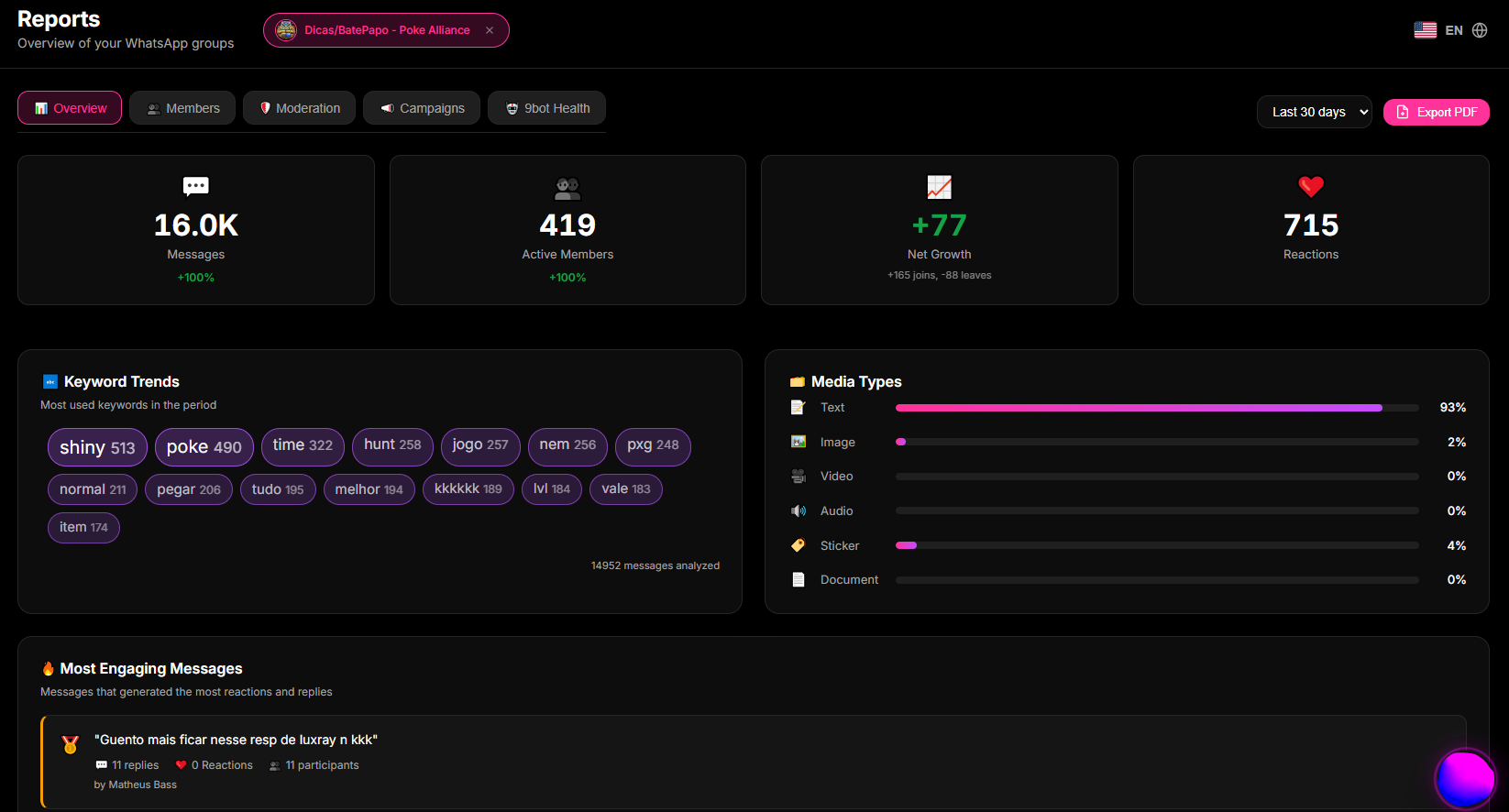
- Analyze the aggregated pie chart, the net number of active participants, and answer fluctuations over time to guide your improvements.
Quick Checkpoint: If your response rate is low, refine your target lists or limit the number of choices in your next poll to make it even easier for members to decide instantly.
How it works in practice
Collecting feedback and satisfaction without automation is like conducting a customer census by asking every member's opinion one by one in text chat, then manually copying each response into an Excel spreadsheet to count them. With 9bot, it's like installing an interactive voting terminal with real-time telemetry. The bot deploys native polls or interactive buttons. Members cast their votes in a single click directly from their phone screens. In the background, the 9bot API aggregates the selections and updates your reports dashboard with dynamic charts, providing immediate insights without interrupting the chat flow.
Test It Now in Your Group
- Create a quick poll command with the question: "How do you rate our weekly updates?" (Options: 1 - Excellent, 2 - Good, 3 - Needs Improvement).
- Schedule it to dispatch in the next few minutes in your private testing group.
- Invite your team members or close partners to interact with the bot.
- Open the Reports > Overview panel in your Dashboard and verify that the votes were instantly aggregated into clean, readable graphs.
If your test results display instantly with high-fidelity charts, your mechanical voting booth is active and ready to bridge the gap with your readers!
Read also
FAQ
What is a WhatsApp bot satisfaction survey?
Can running automated surveys get my WhatsApp account blocked?
How can I encourage members to participate in surveys?
Can I ask open-ended questions where members type text responses?
Do the automated reports update in real-time?