12 Creative Commands to Personalize Your WhatsApp Group
Engage your community dynamically. Explore 12 creative WhatsApp group commands to personalize your chat, automate reminders, and save hours of manual moderation.
Why Personalizing Your Group is Vital
Managing a WhatsApp group or channel requires more than just gathering contacts in a shared list. With over 90% of users actively participating in at least one group, providing a distinguished experience is what defines the success of your brand or community.
When a group lacks identity or organization, communication breaks down, leading to member dissatisfaction and an uncomfortable silence. Smart personalization through automated commands removes the operational weight from your daily routine and delivers a dynamic space where members find instant value and engage naturally.
Using creative commands allows you to establish clear community guidelines, run exclusive engagement loops, and automate repetitive tasks. With 9bot, you bring order and energy back to your community, allowing you to focus on real growth strategies.
Creative Commands: What Do They Solve?
Commands act as smart shortcuts configured to resolve three fundamental community pain points:
- Chat Noise and Repetitive FAQs: Instead of answering the same question about your address, schedule, or pricing twenty times a day, a quick command returns the exact response instantly.
- Lack of Organic Engagement: Through organized raffles, quick polls, or thematic quizzes, members interact in a fun, structured, and safe manner.
- Control of Chat Rhythm: Automatically muting the group after business hours or delivering scheduled announcements ensures order and preserves the well-being of your moderators.
By taking repetitive tasks off the manager's shoulders, the community becomes self-running and co-moderators are freed to work on strategic upgrades.
12 Creative Commands to Enable Right Now
Based on the operations of successful communities powered by 9bot, here are the best creative commands you can set up:
- Smart Welcome Messages: Greet each newcomer with their name and custom emojis the second they join the group.
- Quick Rules Summary: A simple command (like `!rules`) to explain boundaries and group purposes visually.
- Instant Polls: Launch native polls to decide meeting times, collect community feedback, or schedule event topics.
- Weekly Agenda / Calendar: Automatically or via trigger, keep everyone updated on upcoming collective commitments.
- Birthday Celebrations: Send automated congratulations and personalized notes to members on their special day.
- Transparent Digital Raffles: Host exciting giveaways, giveaways, or beta-access raffles directly within the chat.
- Emergency Chat Muter: A quick admin-only command to immediately toggle chat permissions during announcements.
- Integrated RSS News Feed: Connect your portal's RSS feed to automatically deliver major headlines at set times.
- Spam & Term Alerts: Monitor inappropriate language and automatically alert users or apply strikes.
- Gamification Challenges & Quizzes: Run friendly, themed weekly quizzes to stimulate interactive and fun threads.
- After-Hours Automated Muting: Lock the group automatically on nights and weekends to protect co-moderator schedules.
- Doubt Auto-Response (FAQs): Instantly answer common inquiries about prices, sign-ups, and partner platforms.
Before You Begin
- A WhatsApp group connected successfully to 9bot.
- Access to the 9bot Dashboard.
- Your target group selected in the active Groups sidebar.
- Admin permissions granted to the bot in the WhatsApp group.
- A draft of your most common FAQs ready to be saved.
Step-by-Step Dashboard Setup
Step 1: Access Commands and Configure Quick Responses
- Log in to your 9bot Dashboard.
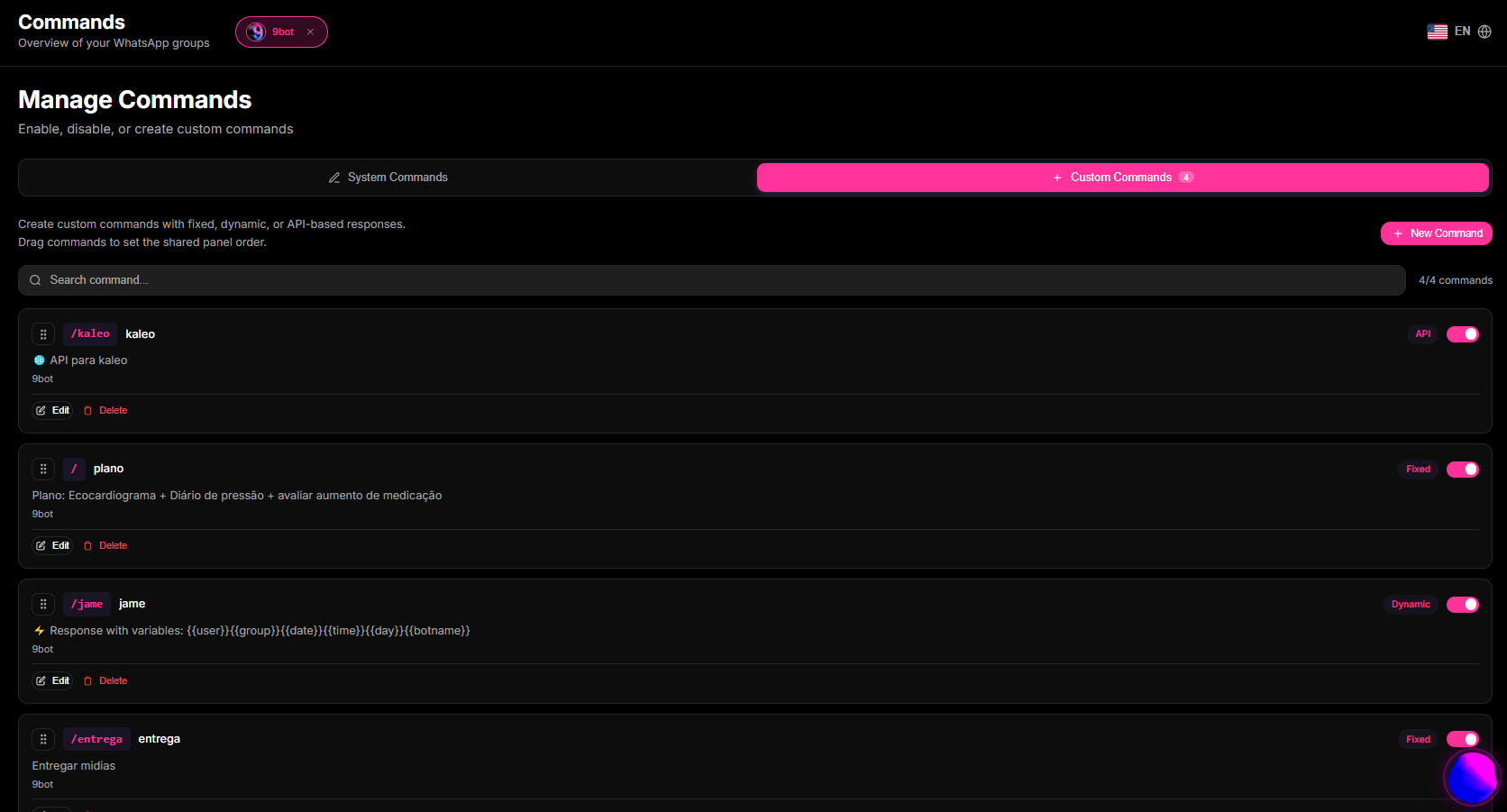
- On the sidebar navigation, click Comandos and select the Comandos Personalizados (Custom Commands) tab.
- Review your active list and click Novo Comando (New Command) to begin.
Step 2: Create a Dynamic Custom Command
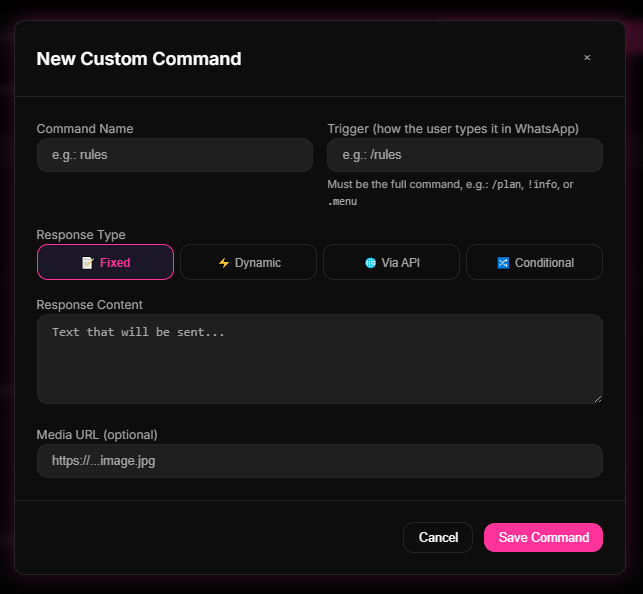
- In the New Command builder form, input your short trigger with a prefix (e.g., `!info` or `/link`).
- Choose your response type (static text reply or dynamic integration via API webhook).
- Draft your informative response and assign the group where this trigger will be active.
Quick Checkpoint: Ensure you keep triggers short and intuitive. Standard prefixes (like slashes `/` or exclamation marks `!`) help users understand immediately that they are executing a bot command.
Step 3: Build an Interactive Button Menu
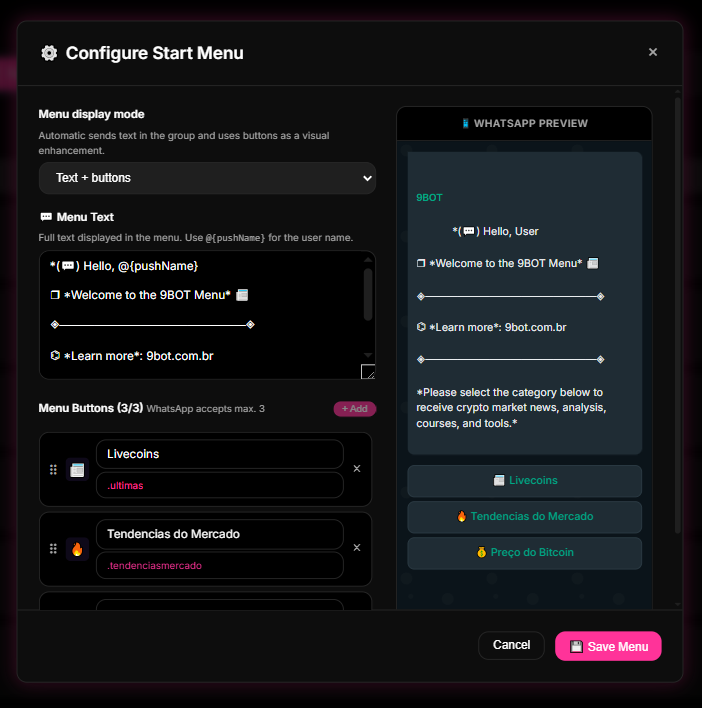
- Under the same Comandos tab, select Menu Personalizado (Custom Menu).
- Enter your main text body (e.g., "Please select one of the options below").
- Add up to 3 interactive buttons linked to external URLs or other automated commands, then click save.
Quick Checkpoint: Test the links attached to your Menu Personalizado buttons before promoting them in the group. Broken links in interactive buttons generate complaints and reduce community trust.
How it works in practice
Think of running a busy WhatsApp group as managing a High-Traffic Fast Food Restaurant during rush hour.
Without commands (relying 100% on manual management), the group admin is like the only cashier behind the counter. They have to take orders, brew the coffee, clean the tables, and individually answer every single customer in line asking: "What's on the menu?", "Do you have vegan options?", "How much is the combo?", "Where is the restroom?". The line grows out the door, customers get impatient, and the cashier ends up completely burned out, with zero time to cook the signature dishes.
Configuring 9bot is like installing a sleek Self-Service Touchscreen Kiosk at the front of the restaurant. The customer walks in and simply taps the screen to see the menu, check prices (via *automated FAQs*), view the weekly specials (via *Agenda*), and get their receipt. The kiosk handles all the trivial, repetitive questions instantly. The cashier is now free to focus on preparing gourmet meals and greeting guests with care, while the kiosk keeps the operations moving smoothly without lines or stress.
Modern Admin Personalization Checklist
- Review Comandos Personalizados list weekly to keep data updated.
- Verify Menu Personalizado buttons contain working, active links.
- Map and save quick-replies for your top 5 repetitive customer doubts.
- Enable the After-Hours lock rule in the Automações tab.
- Check moderation logs regularly when running gamified raffles.
Test Your Setup Now
- Using a secondary test number (non-admin), send your configured trigger (e.g., `!info`) in the group chat.
- Verify that 9bot returns the corresponding response instantly and cleanly.
- If you set up a Menu Personalizado, send its command and click one of the interactive buttons to validate the redirect.
If the bot responded on the spot with the exact information and the buttons redirected to the correct links, your self-service kiosk is fully calibrated and ready to impress your members.
Read also
Frequently asked questions
What are creative commands for WhatsApp groups?
How do I create replies with interactive buttons on WhatsApp?
Can I schedule commands to be sent automatically?
Can I use commands to host giveaways or gamified quizzes?
How many custom commands can I keep active simultaneously?