How to create automatic welcome rules for WhatsApp groups
Set up 9bot welcome rules to guide new members, reduce early spam, and test whether your group onboarding is clear.
Direct answer: Automatic welcome rules are messages that guide people as soon as they join a WhatsApp group. In 9bot, the admin selects the group, opens Automations, edits the Welcome Message, and tests whether new members receive short rules, useful commands, and participation guidance without manual posting.
Why automatic welcome rules make a difference
Many WhatsApp group admins face the same cycle: new people join every week, the same questions come back, and someone has to repeat the basic rules manually.
This is not only an operational issue. When onboarding is unclear, members do not understand the group purpose, ignore agreements, and lower the quality of discussion from day one.
A good welcome message creates context before the problem appears: it explains the community purpose, shows how to participate, and points members to useful rules or commands.
The real problem
As a WhatsApp group grows, the same onboarding issues repeat: new members ask what the group is for, post links before reading the rules, or stay silent because they do not know how to participate.
The welcome message sets the first impression. It does not need to be long. It needs to explain where the person is, which rules matter, and what to do next.
The welcome message should be useful before it is pretty: short rules, a clear next step, and the right group context.
What you will configure
By the end of this tutorial, you will have:
- A single-entry welcome message for one new member.
- A group welcome message for multiple people joining close together.
- A support path with .menu, .rules, or .help.
- A practical test to confirm 9bot replied in the correct group.
Before you start
- A WhatsApp group connected to 9bot.
- Access to the 9bot Dashboard.
- The correct group selected in Groups.
- WhatsApp admin permission when moderation actions are needed.
- A short draft with 3 to 5 main rules.
Dashboard steps
Step 1: Select the right group
- Open Groups in the Dashboard.
- Choose the group that will receive the automation.
- Confirm the bot is an admin if moderation will be used.
Quick checkpoint: Is the selected group the same group where you want to test onboarding? If not, the message may be saved in the wrong place.
Step 2: Open Welcome Message
- Go to Automations.
- Click Configure on Welcome Message.
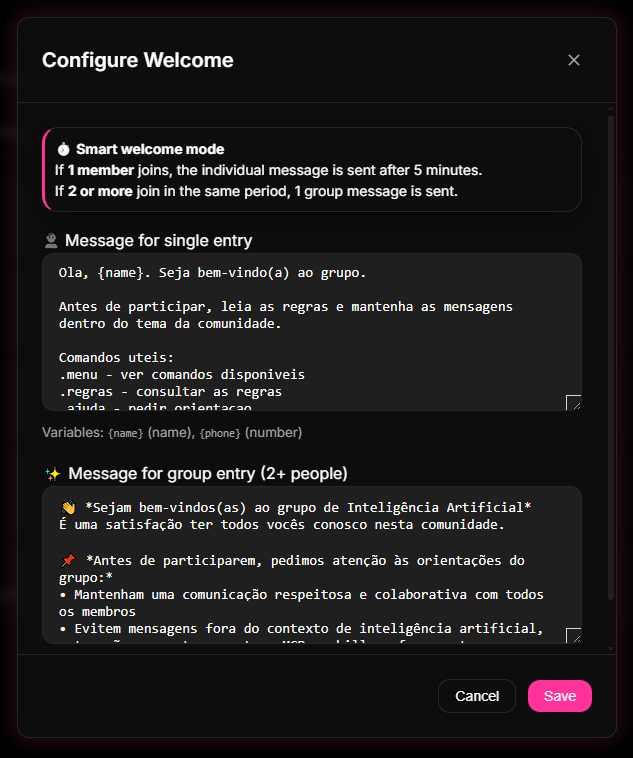
- Review the single-entry message and the group-entry message.
Quick checkpoint: Did you edit both the individual and collective messages? If several people join together, 9bot may use the collective text.
Step 3: Write short rules
- Use a greeting with {name} when useful.
- List no more than 5 rules in short sentences.
- Include useful commands such as .menu, .rules, and .help.
Step 4: Save and connect with reports
- Save the automation.
- Join with a test account or ask someone to help.
- Later, use Reports to review messages, active members, and friction signals.
Quick checkpoint: Do not judge the setup only in the first minute. Use Reports with the right period to see whether repeated questions and friction decrease.
How it works in practice
A welcome message is like a sign at the entrance of a building. It does not control every person, but it shows the right path before someone gets lost.
If the sign is confusing, everyone asks a different question. If it is simple, the group starts in a more organized way.
Message checklist
- It explains the purpose of the group.
- It includes 3 to 5 essential rules.
- It shows how to ask for help.
- It avoids long text and threatening tone.
- It includes useful commands when they exist in the group.
Test it in your group
- Ask a test account to join the group.
- Check whether 9bot sends the expected message.
- Type .rules or .menu if those commands are configured.
- Adjust the text if the person still does not know what to do.
If the test works, the onboarding flow is ready for real members. If it fails, review the selected group, the saved text, and the bot permissions.
Read also
FAQ
What are automatic welcome rules?
Where do I configure welcome messages in 9bot?
Should the message be long?
Can I include commands like .menu and .rules?
How do I know if the welcome setup worked?
Does 9bot replace human admins?