WhatsApp group admin commands for moderation and management
Simplify your WhatsApp group management. Learn how to configure native and custom commands in 9bot to automate rules, support menus, and moderation.
How it works in practice
Need to notify the whole group at once? See how to tag everyone in a WhatsApp group with @all and when not to use it.
About this guide: this one covers admin and moderation commands and how to turn them on. To build your own commands, see How to create custom commands to engage your WhatsApp group. For ready-made ideas, see 12 creative command ideas for your WhatsApp group.
Why admin commands make a difference
Managing a WhatsApp community can feel like a full-time job if you have to do everything manually: answering the same pricing questions all day, sending the rules to every new member, or trying to stop spammers.
Admin commands act as smart shortcuts. Instead of typing long explanations repeatedly, you or the participants can send a quick trigger (such as `.rules` or `/support`) so the bot instantly sends the correct response.
This automation improves the experience for members, who receive immediate answers at any time of day, and frees up administrators to focus on group growth and strategy instead of getting lost in tedious manual chores.
The problem in practice
As a group grows, the absence of a self-service menu creates overload. FAQ queries clutter the chat, critical information gets lost in the history, and new participants feel lost without knowing the community's goal.
If an admin must intervene manually to answer every basic question, management becomes inefficient and exhausting. A lack of quick answers drives potential customers away and dampens the group's overall engagement.
Automating answers with system commands reduces the stress of manual moderation and creates a structured navigation experience for users.

What you will configure
By the end of this tutorial, you will have:
- Active, ready-to-use native system commands (like group rules).
- A Custom Command configured for self-service (e.g., support information).
- A complete Custom Menu structured with interactive buttons.
- A practical test performed to validate the bot's responses.
Before you begin
- A WhatsApp group connected to 9bot.
- Access to the 9bot Dashboard.
- The correct group selected in the Groups tab.
- Admin permissions granted to the bot in the WhatsApp group.
- Drafts of the information you want to automate (e.g., rules, links, contacts).
Step-by-step in the Dashboard
Step 1: Select the right group
- Access the 9bot Dashboard.
- Click on the Groups menu.
- Select the community that will receive the commands automation.
Quick Checkpoint: Make sure to select the correct group in the active top bar before proceeding. Setting up rules in the wrong group can confuse your users in other chats.
Step 2: Enable System Commands
- Access the Commands tab.
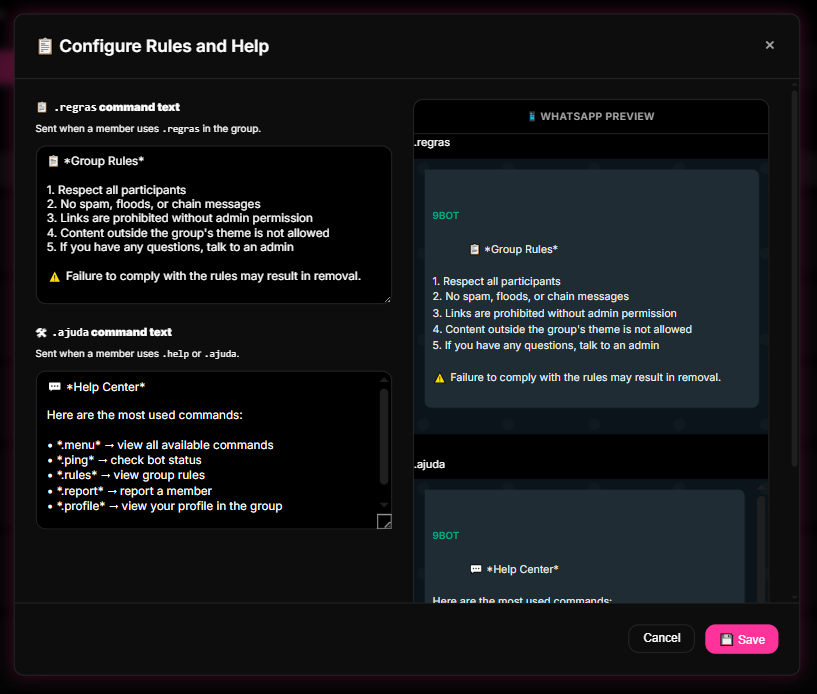
- Under the System Commands sub-tab, enable essential native commands (such as rules and help).
- View the command previews to confirm how the response will be displayed on WhatsApp.
Quick Checkpoint: Check which trigger character (prefix) is active in your settings (e.g., `.` or `/`). If the bot is configured with a dot and you type a slash on WhatsApp, it will not respond.
Step 3: Create a Custom Command
- Switch to the Custom Commands sub-tab and click on New Command.
- Define the desired trigger (e.g., `.support` or `.faq`).
- Choose the response type as "Fixed Response" and write the corresponding informative text.
Step 4: Assemble the Custom Menu and Save
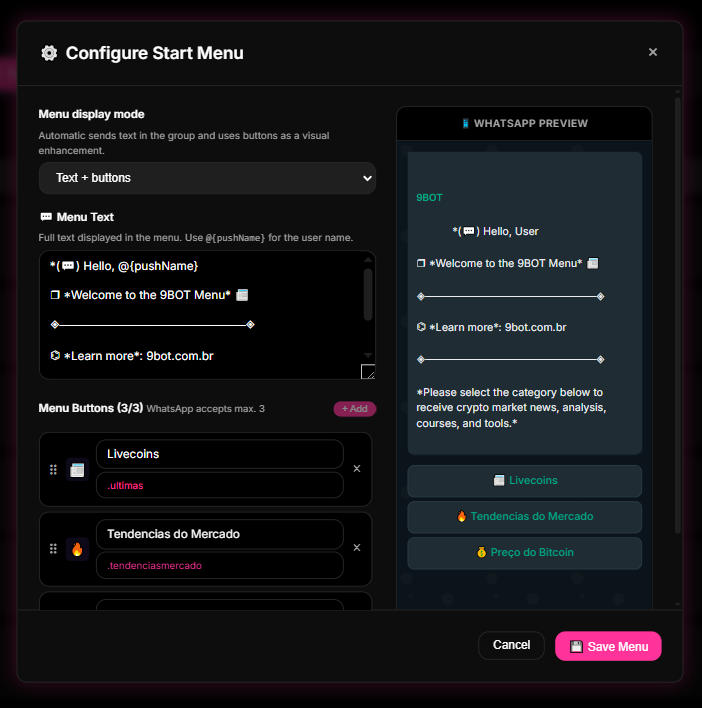
- Enable the Custom Menu feature.
- Configure the menu header message and add up to 3 interactive buttons linking to your custom commands.
- Click Save at the bottom of the page and track usage metrics under the Reports > Overview menu.
Quick Checkpoint: Remember that WhatsApp limits interactive messages to a maximum of 3 physical buttons. Avoid adding more options than the interface supports to prevent the menu layout from breaking.
Commands as a self-service kiosk
Think of admin commands as those self-service kiosks at fast-food chains or bank branches.
Instead of every customer having to walk up to the main counter and ask the manager where the ATM is or what the specials of the day are, they simply tap the kiosk screen and get their answer in seconds.
The manager (admin) is free to oversee the general operations of the venue, while the terminal (bot) handles the quick and repetitive questions autonomously.
Efficient administrator checklist
- Essential native commands (rules and help) activated.
- Command prefix unified and communicated to all members.
- At least one custom command configured to answer the group's main commercial question.
- Active Custom Menu with buttons to simplify self-service.
- Usage report reviewed monthly to adjust automatic answers.
Test it now in your group
- Enter the group using a regular test account (that does not have admin rights).
- Type the activated native command (e.g., `.rules`).
- Verify that 9bot sent the correct text instantly.
- Type the created custom trigger (e.g., `.support`) and confirm that the response was delivered without errors.
If the bot responded promptly to both commands, your self-service is configured successfully. If the bot does not respond, confirm if the messages are using the wrong prefix or if the bot is disconnected from the group.
Read also

Frequently asked questions
What are System Commands in 9bot?
How can I create a custom command?
Can I create commands with click buttons on WhatsApp?
Do commands work even if I am offline?
Is it possible to integrate commands with external APIs?
Can any group member use the commands?