Security Settings for Large WhatsApp Group Administrators
Protecting large digital communities goes far beyond basic options. Learn the best security settings to fortify your groups, prevent data leaks, and safeguard member privacy.
Why Speak About Security in Large Groups?
Managing large virtual communities requires much more than just mediating conversations and sharing content. As a WhatsApp group grows, attracting hundreds or thousands of participants, it becomes a highly valuable asset for your business — but also an appealing target for malicious agents, spammers, and online fraudsters. Ensuring the integrity of this channel goes far beyond the members' well-being: it is about safeguarding your brand's reputation and protecting valuable private data.
The urgency for efficient security barriers is backed by alarming data on digital crime and mobile device theft. According to official public safety statistics, over 442,000 mobile phone thefts were registered in key metropolitan areas in 2023 alone. This high rate means that at any moment, an active phone number within your community could be physically compromised, allowing unauthorized third parties to launch social engineering attacks, spread malicious links, and steal information from your members.
Security is not a minor operational detail: it is the invisible infrastructure that determines whether a digital community will grow sustainably or collapse entirely under the weight of spam, leaks, and disorder.
Relying solely on the default tools provided by traditional messaging apps is insufficient for large-scale operations. You must adopt corporate cyber-protection strategies, establishing dynamic layers of automated moderation and screening to continuously mitigate operational risks.
The Problem in Practice
The lack of a shielded security ecosystem in highly populated groups generates severe vulnerabilities in the administrator's daily routine:
- Massive Spam Intrusions: Invite links shared without preliminary screening allow coordinated bot entry, flooding chats with unwanted ads, adult content, and malicious links.
- Social Engineering and Scams: Fraudsters impersonate group administrators or scrape active member lists to initiate private messages, attempting to steal data or money.
- Participant Data Leaks: Unsupervised sharing of media files and sensitive documents exposes members' privacy to legal and regulatory compliance risks.
- Moderator Overload: Attempting to manually monitor thousands of messages in real-time 24/7 leads to extreme burnout and missing fast-paced attacks.
What You Will Configure and Resolve
In this practical, step-by-step guide, you will learn to configure key digital defenses on your 9bot Dashboard to:
- Create an automated approval workflow for new members.
- Block links and media files before they even appear in the chat.
- Establish an authorized whitelist of domains and trusted contacts.
- Secure administrative credentials and audit suspicious interactions in real-time.
Before You Begin
- A WhatsApp group actively connected to your 9bot Dashboard.
- Full administrative access to the 9bot Control Panel.
- Two-Factor Authentication (2FA/MFA) active on the primary administrator's WhatsApp number.
- Admin permissions granted to the bot inside your WhatsApp group settings.
Step-by-Step in the Dashboard
Step 1: Enable Manual Approval for New Members in Automações
- Log in to your 9bot Dashboard and select your target group.
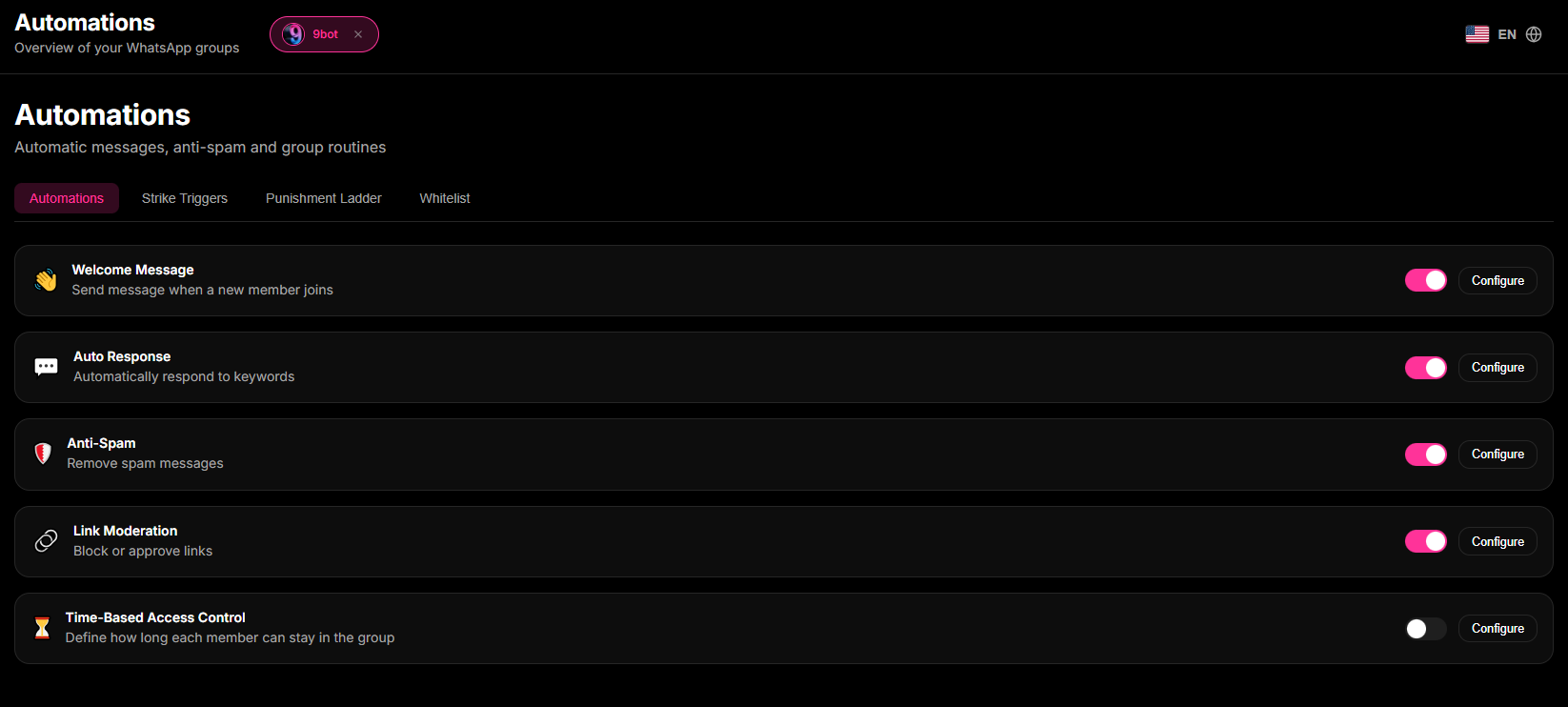
- In the left-hand menu, click the Automações tab and open the Aprovação Automática module.
- Instead of allowing immediate access through standard invite links, activate the supervised approval rule.
- Set up automated verification filters. Define baseline criteria for new contacts: accounts with no profile picture, foreign phone numbers (unusual international codes), or profiles sending repeated requests during abnormal traffic hours should be flagged for manual audit.
Quick Checkpoint: Test this by sharing the invite link with a test phone number. Confirm that the new contact is held in the pending approval list on the 9bot Dashboard and cannot send messages directly in the official group chat.
Step 2: Configure Active Moderation Filters and Banned Words
- Inside the Dashboard menu, navigate to the Moderação tab.
- Enable global restriction rules for unauthorized content.
- In the Banned Words panel, register high-risk keywords associated with fraud and personal data leaks (such as banking terms, credentials, offensive language, or get-rich-quick schemes).
- Calibrate the automatic warning system (strikes): a user violating these rules receives an automated warning in the chat, and upon three strikes, 9bot executes an instant kick and account ban.
Step 3: Calibrate Link Filters and Manage the Whitelist
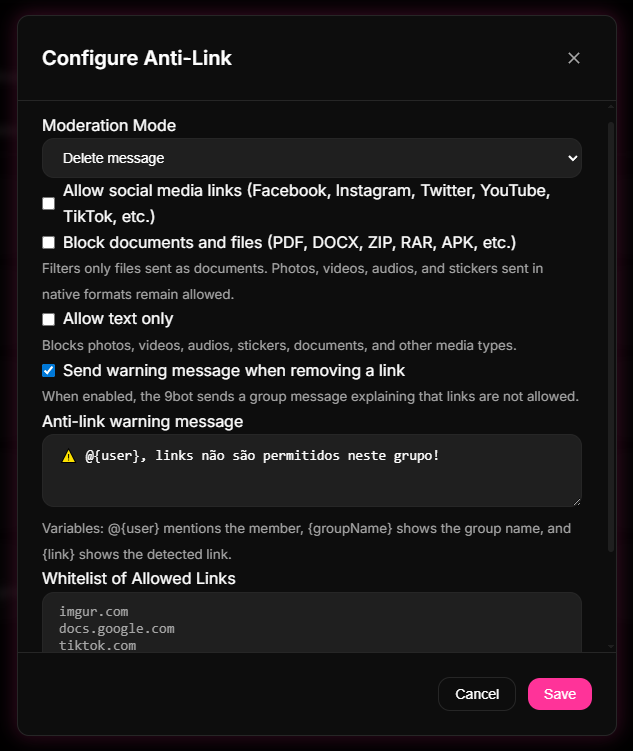
- In the Moderação tab, open the Link Filters options.
- Enable a strict ban on any external links shared by regular participants to prevent digital infection.
- Build a trusted link Whitelist, adding only your corporate domains (e.g., `yourbrand.com`) and authorized support platforms.
- Delegate moderation bypasses to trusted administrators and coordinators selected in the member list, ensuring their official accounts are not intercepted by the bot's dynamic firewall.
Quick Checkpoint: Post an unauthorized link using a regular participant account. Verify that 9bot deletes the message instantly, sends a strike warning in the chat, and registers the operational log in the Dashboard.
How It Works in Practice
Managing the security and integrity of a large WhatsApp group manually is like trying to guard the entrance of an enormous residential complex with thousands of residents, without any automatic gates, intercoms, or security cameras. Any stranger can slip in quietly at any time, paste scams on the walls, and harass residents, and you would only find out hours later, after the damage has been done.
With 9bot, security operates like an integrated surveillance and automatic control system running 24/7. The bot acts as a highly trained electronic security guard at the gate. It filters out suspicious links (anti-link) and repetitive spam messages (anti-spam) in milliseconds, preventing scams from reaching the chat even when human admins are asleep. The environment remains protected and peaceful, and you only need to step in for exceptional cases.
Test It Now in Your Group
- Ask a test contact to send a link from an unauthorized domain in the official group chat.
- Confirm that 9bot deletes the link within milliseconds and triggers the corresponding strike warning.
- Access the audit tab in your Dashboard and verify the security incident was logged in real-time.
- Type a sensitive blacklisted term and ensure the moderation filter acted instantly and without lag.
If the blocking filters and automated kicks performed perfectly in your internal tests, your corporate WhatsApp security ecosystem is 100% active and ready to defend your community!
Read also
Frequently Asked Questions
How does 9bot prevent intrusions and spam in large WhatsApp groups?
Can I choose which specific domains are allowed in the group?
What happens if a participant shares sensitive personal data in the chat?
How does two-factor authentication protect group administration?
Can I generate safety incident reports with 9bot?