How to configure participant permissions on WhatsApp
Avoid chaos in large communities. Learn how to configure member and co-administrator permission levels in the 9bot Dashboard to shield your group.
How it works in practice
In short:
- Native permissions live under group name > Group permissions.
- Only admins can remove members, promote admins and delete other people's messages for everyone.
- Blocking a contact doesn't remove them from the group: you still see their messages there.
- 9bot adds anti-link, strikes and a whitelist on top.
WhatsApp's built-in permissions: what admins control in the app
Before you set up 9bot, it helps to know what WhatsApp already handles on its own. Almost everything lives under group name > Group permissions, and only admins can change it (WhatsApp Help Center).
How to let only admins send messages
- Open the group and tap its name.
- Tap Group permissions.
- Turn off Send new messages. From then on, only admins can post.
That's the right setting for announcement groups. If you want the conversation open and just need to stop links or spam, use 9bot's anti-link filter and strikes instead.
Who can edit group info and pin messages
Edit group settings controls whether regular members can change the group name, icon and description. It also controls who can pin messages. WhatsApp lets you pin up to four messages for 24 hours, 7 days or 30 days, and people who join after a message was pinned can't see it (How to pin a message). In groups with more than 256 members, this setting defaults to admins only.
Who can add members and share the invite link
- Add other members: turn it off so only admins can add people.
- Invite via group link or QR code: turn it off so only admins can create invites.
- Approve new members: turn it on so every join request goes through an admin.
How to add or remove a group admin
Tap the group name, tap the member and choose Make group admin. To remove the role, tap the admin and choose Dismiss as admin. To change several at once, go to Group permissions > Edit group admins. There's no limit on admins, and the group creator stays an admin unless they leave (How to manage group admins).
How to delete another member's message
Admins can tap and hold the message and choose Delete > Delete for everyone. This only works up to two days after the message was sent, and members can see which admin deleted it (How to delete messages). To delete rule-breaking messages automatically, at any hour, the 9bot number needs to be a group admin.
In short: WhatsApp decides who can post, edit, invite and approve. 9bot picks up where the app stops: it deletes links and banned words automatically, applies strikes and lets trusted members through with a whitelist.

Why managing permissions makes a difference?
Managing WhatsApp communities without structured permissions is like leaving the doors of a commercial company open for anyone to enter, mess with files, change signs, and bother customers without any control.
Group permissions work like access badges. They clearly determine who can send messages, who is allowed to share links or files, and who can mute the chat or ban unwanted profiles.
By defining these ground rules, the administrator drastically reduces the risk of spam invasions, internal conflicts, and sensitive data leakage. Furthermore, it guarantees a professional, safe, and focused environment for the community's theme.
The problem in practice
In large, open-to-chat groups, the lack of clear boundaries exposes all participants to scammers and spammers. Malicious links and inappropriate sharing can be posted at any time, tarnishing your brand's reputation and overloading moderation.
If you don’t have control over the actions of common members, the group quickly loses focus. Worse yet, the administrator can be civilly and criminally held responsible for omission if illegal acts occur in the chat and no action is taken.
Configuring restrictions and whitelist protects your participants from digital fraud and ensures the legitimacy of the shared content.
What you will configure
By the end of this tutorial, you will have:
- A complete mapping of member access levels in your community.
- Moderation rules by behavior and strikes associated with infractions.
- Whitelist activated to protect trusted members against automatic blocks.
- A practical privilege validation test.
Before you begin
- A WhatsApp group connected to 9bot.
- Access to the 9bot Dashboard.
- The correct group selected in the Groups tab.
- The bot configured as an administrator in the WhatsApp group.
- A draft with forbidden terms and links that require whitelisting.
Step by step in the Dashboard
Step 1: Select the right group
- Access the 9bot Dashboard.
- Click on the Groups menu.
- Select the community you want to audit and configure permissions for.
Quick Checkpoint: Confirm in the listing if the bot appears with the "Bot admin" tag. Otherwise, configure the bot as an admin directly in your WhatsApp app, or 9bot won't be able to apply punishments or mute members.
Step 2: Audit members and active strikes
- Open the Members tab.
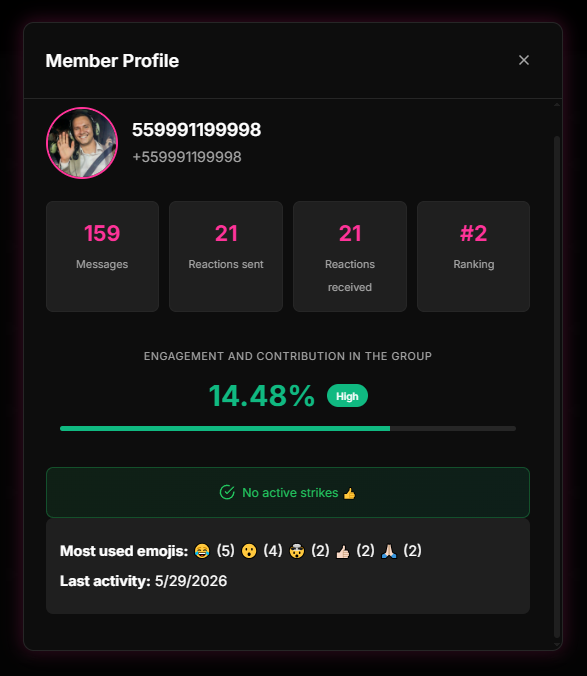
- Use the search field to audit active participants and analyze each one's profile.
- If necessary, send direct warnings or reset accumulated strikes for specific members.
Quick Checkpoint: Do not abuse manual punishments without first auditing the profile. Use pagination to review the member list and ensure only suspicious accounts receive warnings.
Step 3: Activate the behavioral Strike System
- Access the Moderation tab.
- Activate the Strike System and configure progressive punishment rules (e.g., warn on 1st strike, kick on 3rd strike).
- Define triggers for sending restricted words, prohibited links, or invitations.
Step 4: Configure the security Whitelist and save
- In the Moderation menu, go to Whitelist.
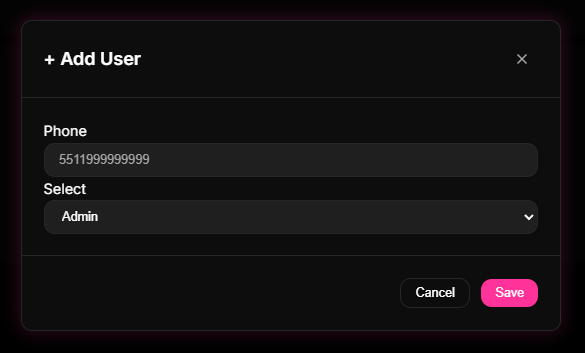
- Add the phone numbers of trusted moderators or business partners to the user whitelist.
- Click Save and track automatic punishments in the Reports > Moderation menu.
Quick Checkpoint: Remember to save your changes in the Dashboard before closing the panel. Otherwise, new whitelist members will remain exposed to the bot's automatic filters.
Permissions as security badges
Think of 9bot's permission control as the security badge system of a bank or a high-security agency.
Common visitors receive a basic visitor badge (common member). They can walk through public rooms and talk to people, but they don't have access to vaults or secret files, let alone change the building's rules.
Managers and security guards receive special badges (whitelist / co-administrators) that open locked doors, authorize access, and allow removing from the building (banning) any visitor who violates coexistence rules.
Checklist of a protected group
- Member list audited periodically to remove inactive or fake profiles.
- Whitelist configured with phone numbers of the entire support and moderation team.
- Strike system active with fair progressive punishments explained in the rules.
- Moderation configured to automatically delete messages containing prohibited terms.
- Moderation report consulted weekly to refine restricted terms and users.
Test it now in your group
- Ask a test contact (without admin privileges and not in the whitelist) to send a prohibited term in the chat.
- Confirm if 9bot deleted the message, applied 1 strike, and sent the automatic warning.
- Now, add this test number to the user Whitelist in the Dashboard and save.
- Ask the contact to send the prohibited term again and confirm if the message passed without blocking.
If the bot applied the punishment in the first case and ignored it in the second, your permissions are correctly calibrated. Otherwise, check if the test account already had administrative privileges on WhatsApp itself.
What can a WhatsApp group admin do?
- Add and remove participants and approve join requests when approval is on.
- Promote or dismiss other admins.
- Set permissions: who edits the name, photo and description, who sends messages and who adds members.
- Delete other members' messages for everyone, reset the invite link and pin messages.
If a message breaks the rules, an admin can delete it for everyone for up to two days after it was sent, and members see which admin deleted it. Source: Help Center: how to delete messages.
Can you block or hide someone inside a group?
- There is no block inside a group. Blocking a contact only affects private chats: you still see each other's messages in shared groups (Help Center: reporting and blocking).
- Can someone who blocked me see my group messages? Yes, blocking changes nothing inside the group.
- To keep someone out, an admin has to remove them. The removal shows as a notice in the group, so it isn't silent.
- You can't block a group: you can exit it and block the admin (how to block a group admin).
Hiding the participant list of a regular group isn't possible. Community announcement groups and usernames offer other options, explained in How to Hide Your Phone Number in WhatsApp Groups: Usernames, Communities and Privacy Settings.
Participant limits and broadcast lists
- Regular groups have a participant cap; communities bring several groups together to go beyond it.
- Group vs broadcast list: in a group everyone talks to each other; in a broadcast list each person gets the message as a one-to-one chat and nobody sees the other recipients.
- Only people who saved your number receive broadcast messages.
- Adding many strangers at once leads to reports; use the invite link instead.
Current numbers for each format are in WhatsApp Limits in 2026: Groups, Communities, Broadcast Lists and Channels. To agree on what is forbidden in the group, use WhatsApp Group Rules: Copy-and-Paste Templates.
Read also

Frequently asked questions
What are permissions on WhatsApp?
Where do I configure member privileges in 9bot?
What is the 9bot user Whitelist?
How does the 9bot Strike System work?
Can I grant temporary specific permissions?
Are WhatsApp co-administrators affected by filters?
How do I make a WhatsApp group admins-only?
How do I delete another member's message in a WhatsApp group?
How do I add or remove a WhatsApp group admin?
What can a WhatsApp group admin do?
Can you block someone inside a WhatsApp group?
Can someone who blocked me see my messages in a group?
What is the difference between a group and a broadcast list?