What to monitor every day in WhatsApp groups
Keep your community organized. Learn what to monitor daily in WhatsApp groups to prevent spam, resolve conflicts, and engage members with 9bot.
How it works in practice
About this guide: this is the 10-minute daily check. To choose your long-term metrics, see WhatsApp group metrics: which KPIs to track to measure success. For the full moderation routine, see Moderation checklist for large WhatsApp groups: the admin routine.
Why Daily Monitoring is Indispensable
With the surge of WhatsApp groups for businesses, paid communities, education, and customer support, running a successful group requires continuous attention. Without regular checkups, what should be an asset for engagement and customer acquisition can quickly devolve into a chaotic and spam-heavy chat.
WhatsApp groups are highly dynamic and operate as small digital social environments. Minor oversights or a total absence of moderation create room for unproductive debates, fake news, and noise. When the user experience degrades, member churn is inevitable. Since more than 90% of WhatsApp users actively participate in groups, delivering a highly curated space is critical.
Performing daily community management means safeguarding the value of your brand, closely auditing interactions to act surgically and intelligently whenever needed.
The Problem in Practice
A lack of daily group tracking results in three key issues for community managers:
- Silent Spread of Spam and Dangerous Links: Spammers exploit off-peak hours to join groups and post phishing URLs. If these links are not removed immediately, members can be compromised, and the business can face reputational damage.
- Drama and Internal Conflict: Aggressive arguments escalate in minutes. Without quick manual intervention or automated rules, the positive environment disappears, forcing high-value members to leave.
- Loss of Value and Group Silence: When a group is flooded with off-topic content or repetitive questions, users mute notifications or leave entirely, causing engagement rates to drop.
Preventing these issues requires actively tracking member additions, what is posted, and how members interact throughout the day.

What You Will Monitor and Solve
By the end of this tutorial, you will know how to use 9bot to structure a daily checkup routine that solves:
- Automatic blocking of virus links, spam, and unapproved URLs.
- Quick audits of strikes and warnings applied to misbehaving participants.
- Accurate reporting of net member growth and bot activity trends.
- Automated distribution of guidelines and smart welcome notes.
Before You Begin
- A WhatsApp group successfully connected to 9bot.
- Access to the 9bot Dashboard.
- The correct community selected in the active Groups sidebar.
- Admin privileges granted to the bot in your WhatsApp group.
- Drafted group guidelines to calibrate your bot parameters.
Step-by-Step Dashboard Setup
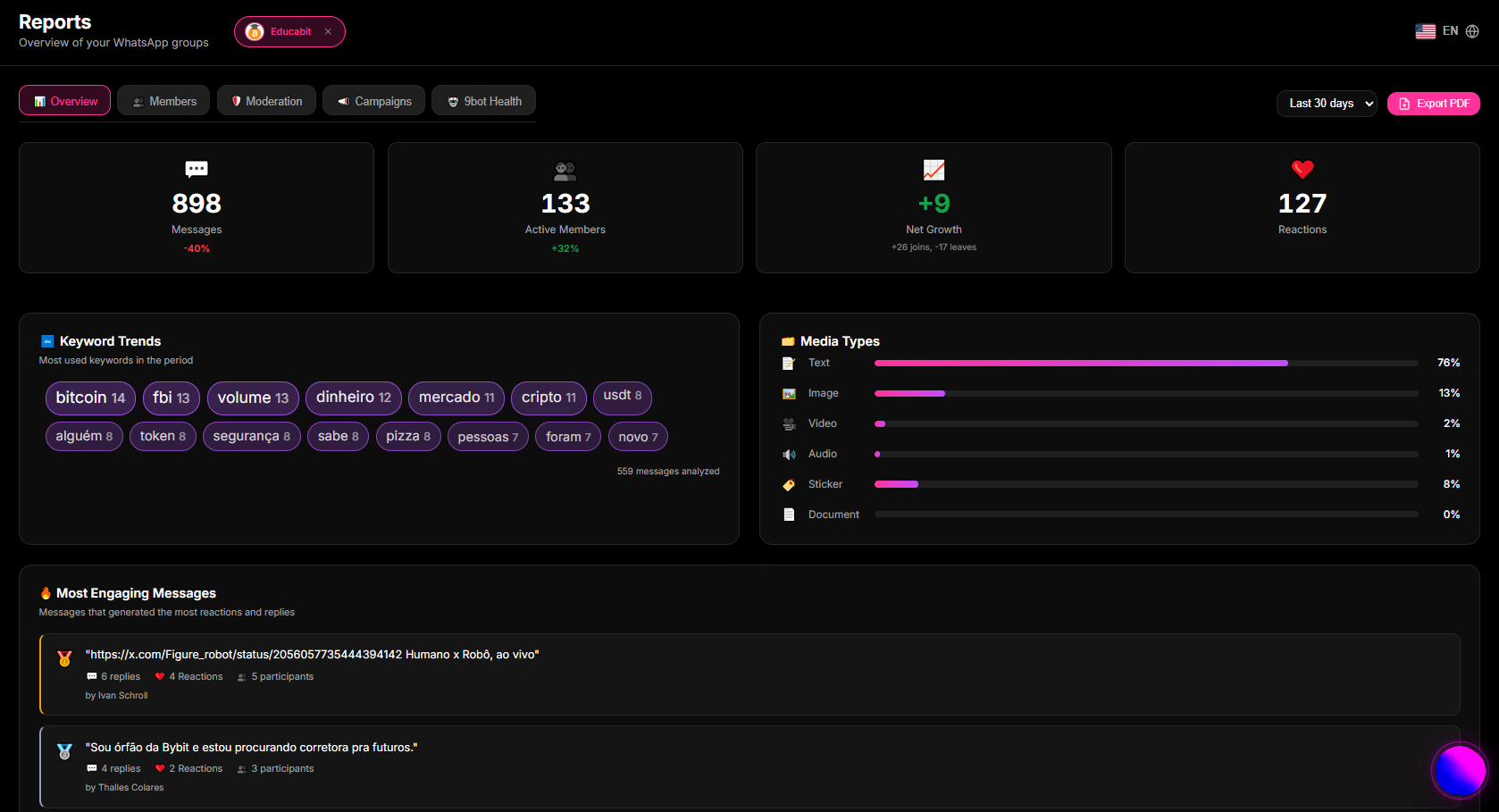
Step 1: Access Reports to Audit Community Engagement
- Log in to your 9bot Dashboard.
- On the sidebar menu, click Reports and select Overview.
- Select your desired date range (e.g., last 7 days) to check message volume, active participants, reactions, and daily engagement peaks.
Step 2: Set Up Link Moderation and Anti-Spam Rules
- On the sidebar navigation, click Automations.
- Open the Link Moderation settings and toggle on link deletion. Customize the whitelist by adding your brand's official URLs.
- In the same menu, access Anti-Spam and define the maximum message threshold per user within a specified time window to block flooding scripts and self-automated spambots.
Quick Checkpoint: Make sure the penalty for repeated Anti-Spam violations is set to a progressive model (such as warning/strike first before banning). This prevents automatic kicks of legitimate members who just happen to post rapid-fire messages.
Step 3: Audit Infractions via Moderation Logs
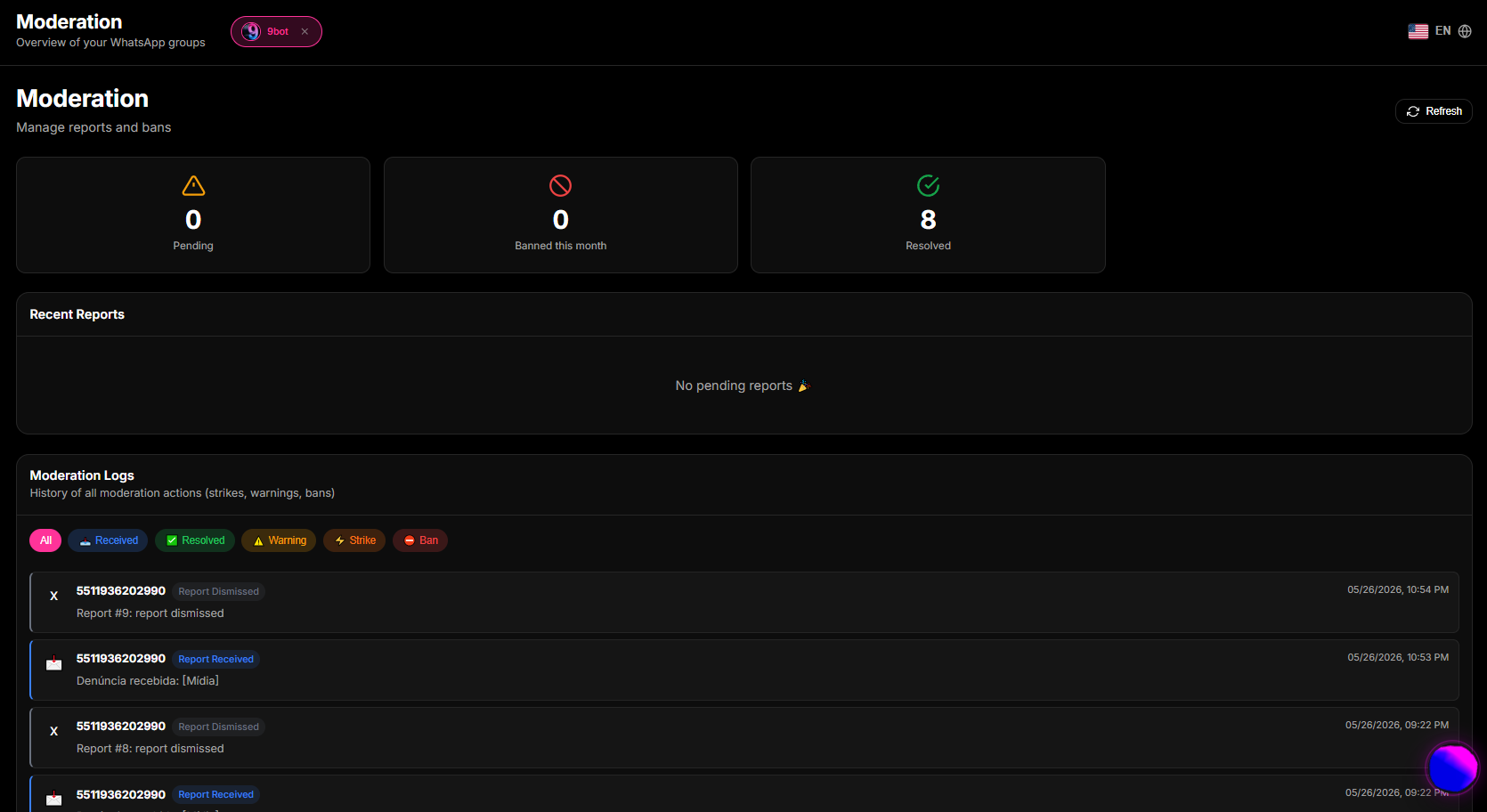
- Click Moderation on the main sidebar and select the Moderation Logs tab.
- Review the list of recent actions to see which messages were deleted automatically for violating blacklisted words or sharing banned links.
- If you identify a repeat offender with multiple strikes, go to Members, search for their profile, and apply a direct warning or a preventive ban.
Quick Checkpoint: Audit the Members list daily before resetting user strikes or pardoning a banned contact. This ensures your group policies are applied consistently and transparently by all co-moderators.
Your group's heart monitor
Think of daily WhatsApp group management as a Hospital Patient Monitor and Central ICU Dashboard.
Without 9bot (relying purely on manual monitoring), the group admin is like a doctor who must stay awake 24 hours a day, sitting next to dozens of hospital beds, manually measuring every patient's pulse and blood pressure with a stethoscope. If the doctor blinks or falls asleep, a patient might have a sudden crisis (a spammer joins and floods a group with malware at 3 AM) and no one will notice until it is too late. The doctor ends up burned out, and the ICU is compromised.
With 9bot configured, it is like installing smart automatic sensors and heart monitors on every patient. The central dashboard displays continuous health statistics and readouts (the *Reports* tab). If blood pressure spikes suddenly (a spammer starts flooding), the sensor fires an automatic alarm and delivers immediate therapy (the *Anti-Spam* filter deletes the messages and silences the spammer). The doctor only needs to check the consolidated dashboard once or twice a day to review trends, knowing that all emergencies are resolved on the spot.
Daily Modern Admin Checklist
- Review message volume and daily activity spikes in the Reports tab.
- Audit moderation logs to identify and whitelist false-positive links or keywords.
- Analyze strikes in the Moderation panel to apply permanent bans to repeat spammers.
- Check that the Anti-Link whitelist contains all recently approved partner domains.
- Confirm the smart welcome automated triggers are delivering active guidelines.
Test Your Setup Now
- Using a secondary test phone number (which is not an admin), send a link that is not whitelisted into the WhatsApp group chat.
- Verify that 9bot deletes the message in under three seconds and posts the default warnings notice.
- Log in to the 9bot Dashboard, go to Moderation > Moderation Logs, and confirm that the event and the associated user strike were logged successfully.
If the unauthorized URL was instantly deleted and the event appeared on your Dashboard, your community health monitor is fully operational and protecting your group.
Read also

Frequently asked questions
What should be monitored daily in a WhatsApp group?
How can I identify and block dangerous URLs automatically?
How many strikes does 9bot allow before kicking a member?
How can I avoid moderator burnout in high-traffic groups?
Does the 9bot dashboard consume my mobile data plan?