How to share affiliate links on WhatsApp without getting banned
A guide for affiliates who run deals groups with hundreds or thousands of members and want to keep their number and groups active.
How it works in practice

Step by step in the 9bot dashboard
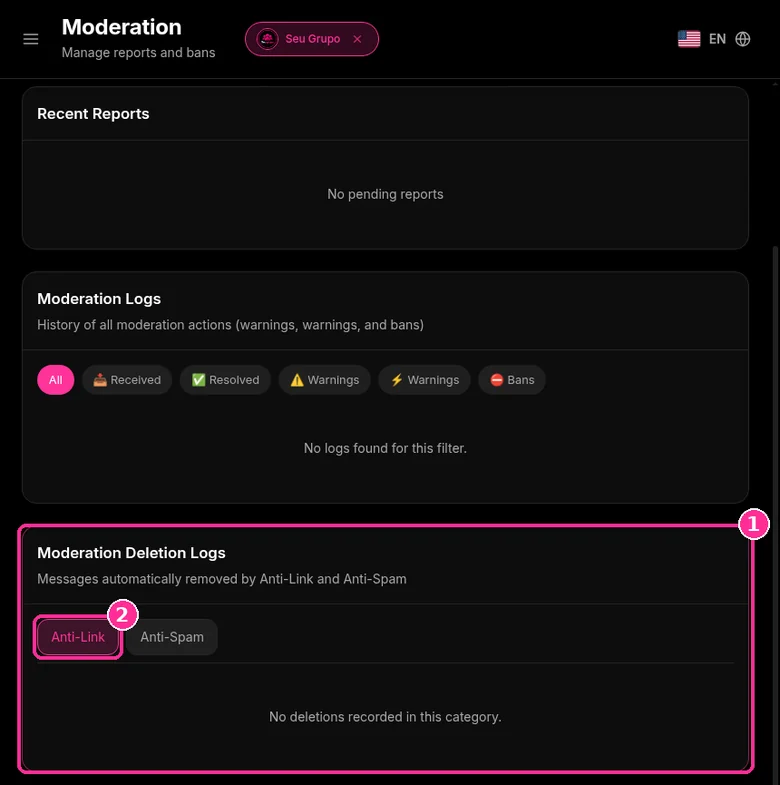
The full path is Groups > your group > Automations > Link Moderation > Configure. The screenshots below come from the real dashboard, in a test group called "Seu Grupo". The numbers on the images follow the order of the clicks.
If you share deals, the key part of this setup is the whitelist: add your store domain and the affiliate programs you use, and 9bot deletes links from anyone else. The group keeps your links and loses competitor offers and invites.
Step 1: Select the group
- In the side menu, click Groups.
- Type the group name in the search box.
- Click the group card. A badge with its name appears at the top of the dashboard, and everything you configure next applies only to that group.
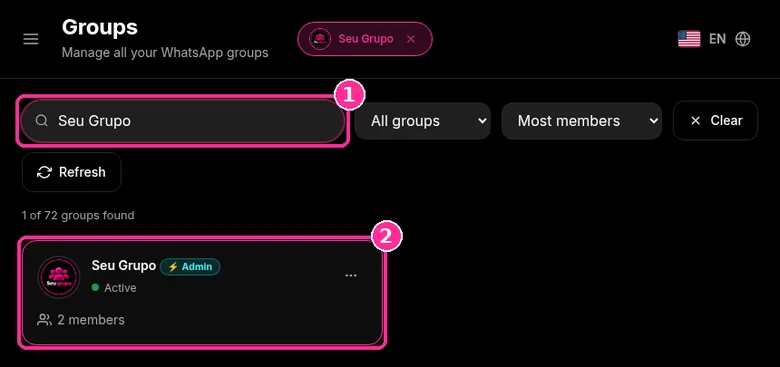
Quick checkpoint: the number connected to 9bot must be an admin of the group on WhatsApp. Without that it cannot delete messages or remove members. See the WhatsApp group admin powers to understand what each permission allows.
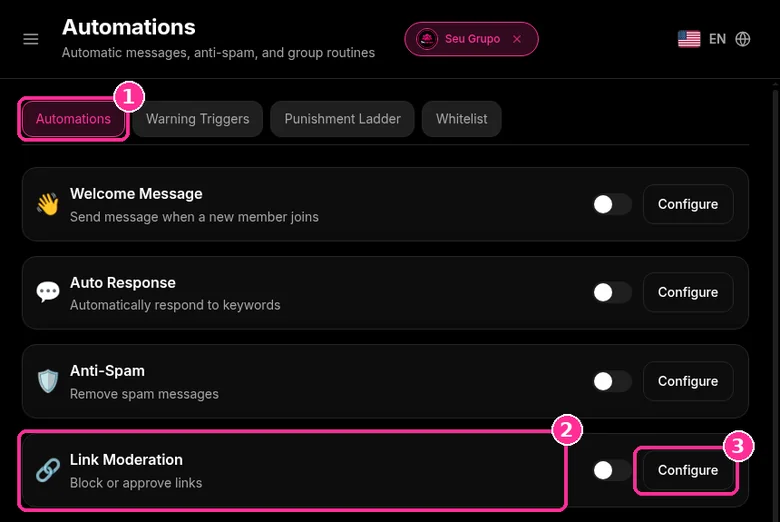
Step 2: Open Link Moderation
- Click Automations in the side menu.
- Find the Link Moderation card ("Block or approve links").
- Click Configure to open the Anti-Link window.
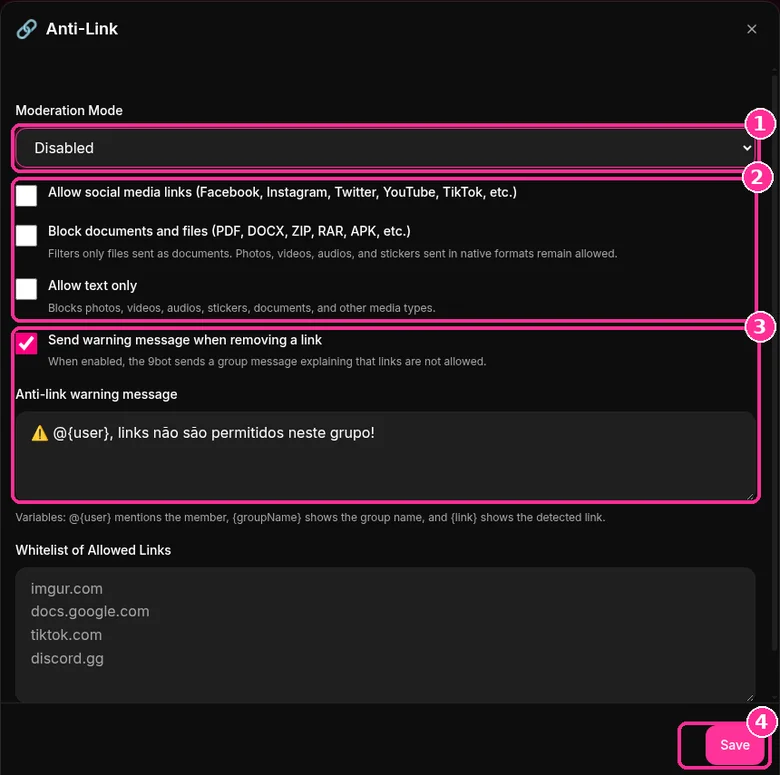
Step 3: Choose the Anti-Link mode and rules
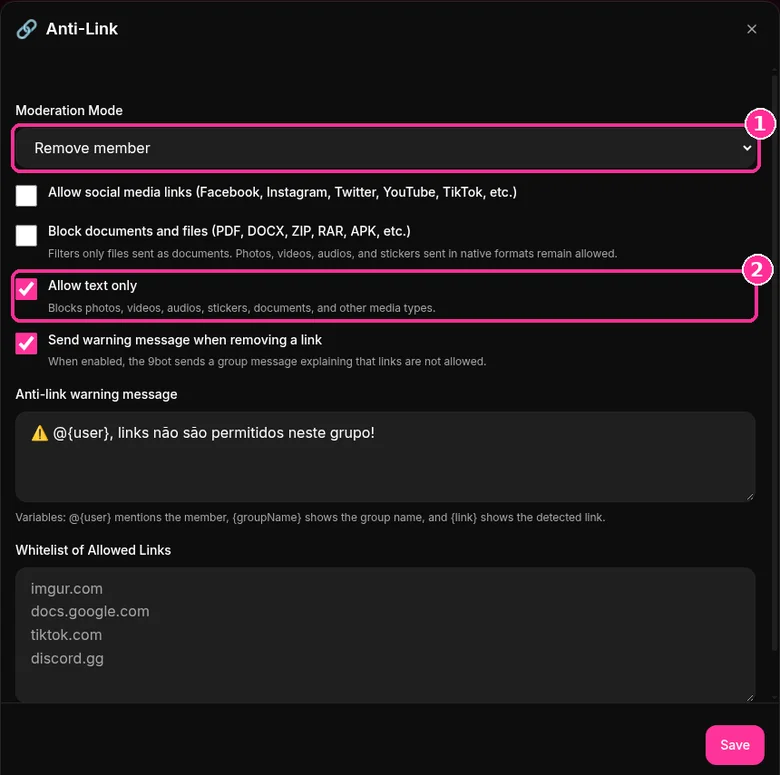
- In Moderation Mode, choose Delete message (deletes the link) or Remove member (deletes it and removes the person from the group). Disabled turns the filter off.
- Tick the options that suit the group: allow social media links, block documents and files, allow text only and send a warning message when removing a link.
- Edit the Anti-link warning message. Use
@{user}to mention the member,{groupName}for the group name and{link}for the detected link. - Click Save.
Step 4: Build the whitelist and block files
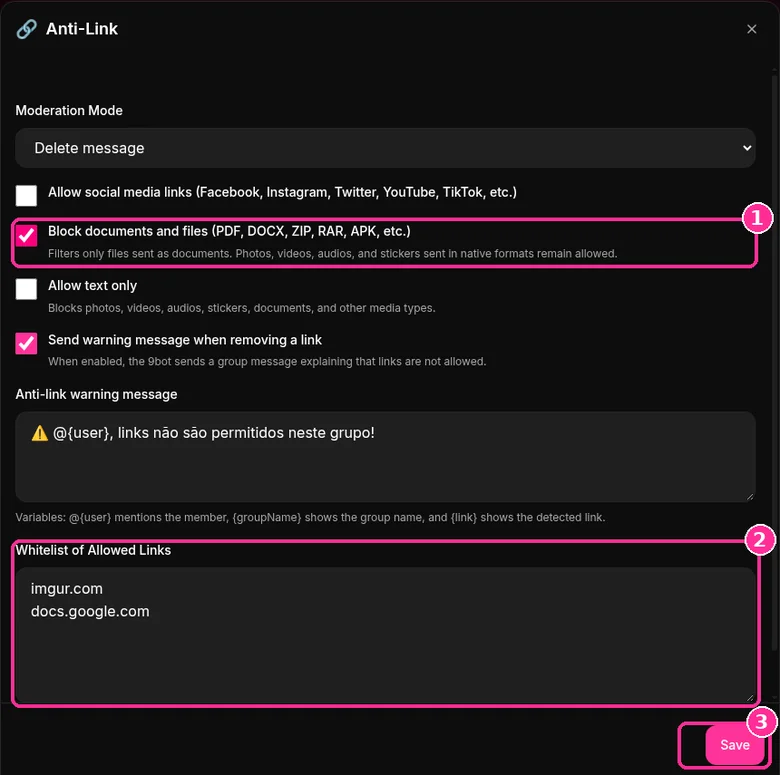
- Tick Block documents and files to stop PDF, DOCX, ZIP, RAR, APK and other files sent as documents. Photos, videos, audio and stickers sent in their normal format still go through.
- In Whitelist of Allowed Links, add one domain per line. A domain allows any address inside it:
imgur.comallowsimgur.com/abcandwww.imgur.com/a/xyz. - Click Save.
For a stricter group, use Remove member with Allow text only. Photos, videos, audio, stickers and documents are then blocked too.
Step 5: Connect links to the warning system
- Still in Automations, open the Warning Triggers tab.
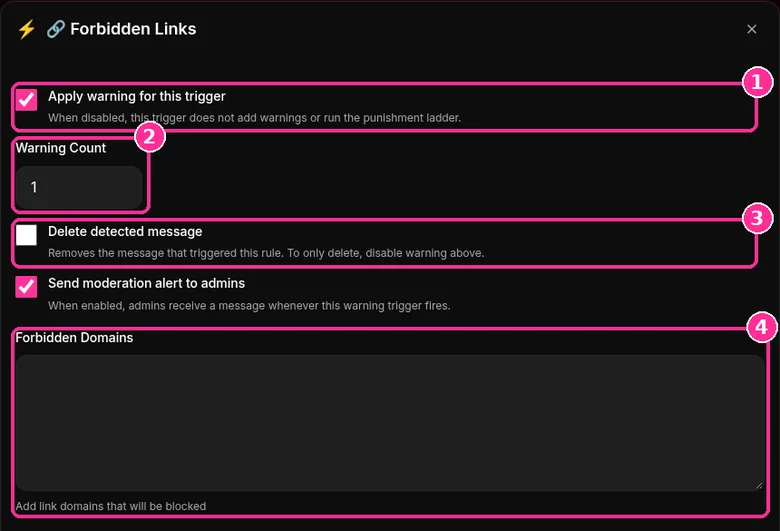
- On the Forbidden Links trigger, click Configure and keep Apply warning for this trigger ticked.
- Set the Warning Count that each forbidden link adds (the default is 1).
- Choose whether to Delete detected message and Send moderation alert to admins.
- In Forbidden Domains, list the domains that should trigger a warning.
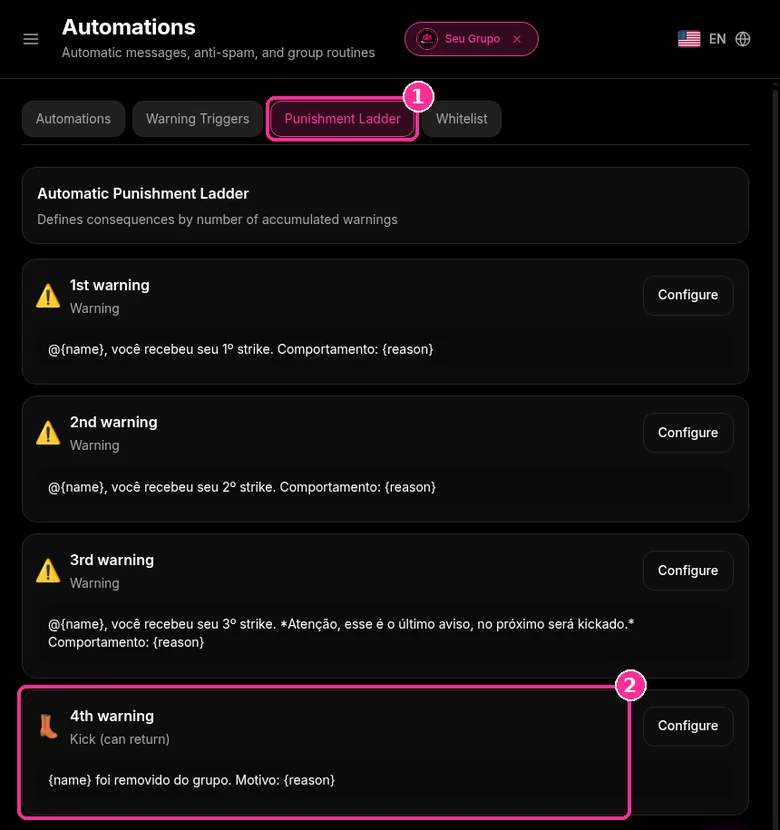
The Punishment Ladder tab defines what happens at each accumulated warning. By default, the 1st, 2nd and 3rd are warnings with their own message (the 3rd says the next one removes) and the 4th is a kick, after which the person can return. In the Whitelist tab you mark members who never receive warnings. To deal with people who keep pushing anyway, see how to handle difficult members and conflict in a group.
Step 6: Check the logs
- Click Moderation in the side menu.
- Scroll to Moderation Deletion Logs and open the Anti-Link tab to see the messages deleted by the filter. The Anti-Spam tab shows the ones removed by Anti-Spam.
Quick checkpoint: always click Save before closing the window. To review the rest of your moderation routine, use the moderation checklist for large groups.
Anti-Link options at a glance
| Option | What it does | When to use it |
|---|---|---|
| Delete message | Deletes the message with a link that is not allowed | Open groups where you only want to clean up spam |
| Remove member | Deletes the message and removes the sender | Groups with a history of scams and raids |
| Allow social media links | Lets Facebook, Instagram, Twitter, YouTube, TikTok and similar through | Creator and networking communities |
| Block documents and files | Stops PDF, DOCX, ZIP, RAR, APK sent as documents | Large groups, against malicious files |
| Allow text only | Blocks photos, videos, audio, stickers and documents | Announcement groups or text only discussion |
| Warning message | Tells the group when a link is removed | When you want members to see the rule |
| Whitelist | Allows specific domains and everything inside them | Your site, your store and trusted tools |
Recommended setups
- Sales group: Delete message, Block documents and files and your store domain in the whitelist. Customers talk freely and only your link circulates.
- Announcement group: Allow text only with the warning message on. Nothing but text gets through.
- Creator community: Delete message with Allow social media links ticked, so members can show their profiles without opening the door to invites from other groups.
- Job openings group: Remove member with Block documents and files, since fake links and files are how scams get in. See more in job openings group without scams.
What the member sees
When someone sends a link outside the whitelist, the message disappears from the group. If the warning is on, 9bot posts the message you configured, for example "⚠️ @Marcos, links are not allowed in this group!". If the Forbidden Links trigger is on, the warning goes into the Punishment Ladder and the member gets the message for that step. Want to try it in your group? Start with the 9bot plans with a 7-day trial.
Direct answer: The safest way to share affiliate links on WhatsApp is to post in a group that members joined on their own, with a predictable pace and clear rules. The ban risk comes from sending behavior: adding contacts who did not ask, repeating the same message in many groups at once and using unknown link shorteners. WhatsApp may restrict accounts that show signs of spam or bulk messaging, and a restricted account cannot create groups or add new members for a period.
In short:
- Post in groups people join by link, not by adding contacts.
- Avoid repeating the same message in many groups at once.
- Prefer store links or your own domain over unknown shorteners.
What leads to a ban
According to the WhatsApp Help Center, accounts showing signs of spam, automation or bulk messaging can be restricted and, in repeated cases, banned. While restricted, the account cannot start chats with new contacts, create groups or add new members. The most common signals in affiliate operations are:
- Adding contacts who did not ask to join the group.
- Repeating the same message in dozens of groups within the same minute.
- Unknown shorteners, which hide the link destination and resemble scams.
- Reports from members who do not recognize the group or the offer.
The Messaging Guidelines also treat repeated unwanted contact as spam.
Ban risk meter
Enter how many links you post, in how many groups, how many contacts you add per day without them asking, the link type and whether the same message goes to every group at once.
The score is an editorial criterion from 9bot to guide adjustments, not a WhatsApp metric; WhatsApp does not publish its criteria.
How 9bot helps affiliates
- Affiliate offers from Mercado Livre, Amazon and Shopee posted at scheduled times.
- Link moderation with an allow list: only the owner links stay in the group.
- Member approval with filters and a daily limit, instead of adding contacts.
- Reports on reactions, best times to post and community health.
9bot uses your own number and is not meant for bulk messaging to people who did not ask. See also how to make money with a WhatsApp group.
Read also

FAQ
Where can I see the links 9bot deleted?
Does the whitelist allow only the exact page or the whole site?
Does blocking documents also block photos and audio?
Can I share affiliate links on WhatsApp?
Do link shorteners cause bans?
How many links can I send per day?
What happens if the account is restricted?
Does 9bot post Shopee, Amazon and Mercado Livre offers?