How to Integrate WhatsApp with Event Platforms Step-by-Step
Engage attendees in real time. Learn how to integrate WhatsApp with event platforms using 9bot to automate credentials and networking.
How it works in practice

Step by step in the 9bot dashboard
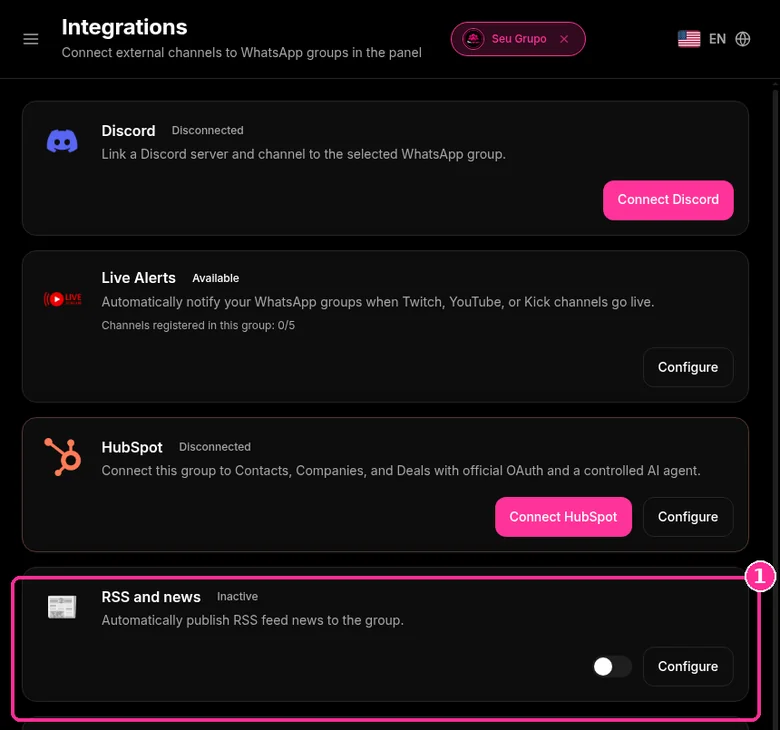
In the side menu, open Integrations ("Connect external channels to WhatsApp groups in the panel"). It has cards such as Discord, Live Alerts, HubSpot and RSS and news. The example below uses RSS. The screenshots below come from the real dashboard, in a test group called "Seu Grupo", with member names and contacts blurred. The numbers on the images follow the order of the clicks.
Before you start, the group must be connected to the 9bot dashboard and the bot must be a group admin in WhatsApp.
Step 1: Open RSS and news
- On the RSS and news card ("Automatically publish RSS feed news to the group"), click Configure.
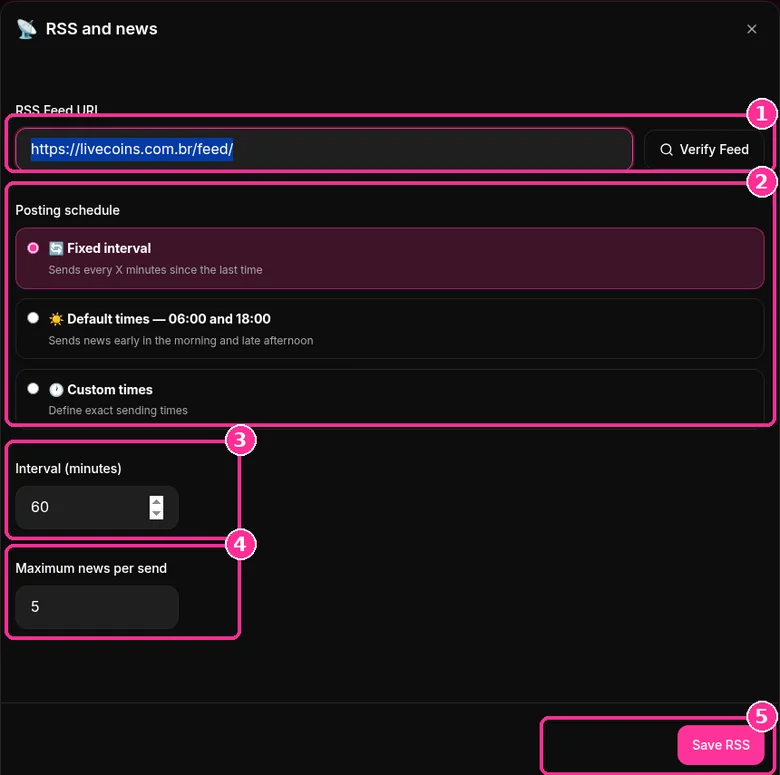
Step 2: Set up the feed
- Paste the RSS feed URL and click Verify Feed.
- Under Posting schedule, choose Fixed interval, Default times (06:00 and 18:00) or Custom times.
- Set the Interval (minutes) and the Maximum news per send.
- Click Save RSS.
Want to try it in your group? See the 9bot plans with a 7-day trial.
In short:
- WhatsApp has a native Event feature with RSVPs and an automatic reminder for people going.
- 9bot schedules reminders, answers questions by command and moderates the event group.
- Native events can't be forwarded and aren't visible to people who join later.
Why integrate WhatsApp with events?
Organizing large conferences, symposiums, or webinars and keeping registered attendees updated requires a monumental support effort. Confirmation e-mails and social media updates often have very low open rates, leading to communication gaps, long physical check-in queues, and attendees missing out on critical event moments.
WhatsApp is the perfect bridge. As the most widely used messaging app, it allows organizers to send precise information directly to the attendee's pocket, ensuring instant proximity and rapid reading.
By automating these communications intelligently, organizers save hundreds of hours of manual support and deliver a fully connected, interactive experience from start to finish.
The problem in practice
The lack of a fast flow of information before and during the event leads to attendee frustration and digital lines. Sudden changes in speaker slots, urgent venue updates, and sharing digital access tickets easily get lost in e-mail spam folders.
Moreover, networking and interaction among attendees remain stagnant without a dedicated, moderated space. Without the right controls, open chat groups quickly turn into dumps for spam and advertisements, damaging the value and image of your event.
Connecting WhatsApp directly to your ticketing platform automates entrance security and immediately boosts attendee networking.
What you will configure
By the end of this tutorial, you will have:
- An active API connection between your event platform and 9bot.
- Automated dynamic broadcasts for schedule updates and venue announcements.
- Custom self-service commands (such as `!schedule`) active for instant support.
- Reports panel configured to track message deliverability and read rates.
A pocket concierge for every attendee
Think of integrating WhatsApp with your event as hiring an Exclusive Pocket Concierge for each participant at your event.
Without integration (traditional communication), the entire event relies on a single, small information booth at the entrance of a massive convention hall, staffed by a single receptionist. If a participant needs to check their ticket, check the schedule of the next panel, or find the dining hall, they have to leave the room they are in, walk all the way to the lobby, and stand in a long queue. The receptionist gets overwhelmed, and the attendee misses the start of the speaker's presentation.
With 9bot integrated, it is as if each guest receives their own personal digital pocket assistant. Anywhere in the convention center, they can simply open WhatsApp and send `!schedule` or ask a question. The pocket concierge reads the database, delivers their ticket, warns them about schedule changes, and answers FAQs instantly without any physical lines, while the organizers focus on putting on the best show on stage.
Checklist of a connected event
- API Token generated securely and integrated with your event platform.
- Bot promoted to group administrator to enable active cloud automation.
- Custom support commands (`!schedule`, `!help`) created and saved.
- Behavioral moderation rules enabled to prevent spam in networking groups.
- Reports panel audited weekly during event operations.
Test in your group
- Using a test contact (not registered as an admin), send the `!schedule` or `!venue` command in the event group chat.
- Confirm if 9bot responds instantly with the complete speaker lineup.
- Simulate a new registration on your event platform and check if the webhook successfully triggers a confirmation message to your test number on WhatsApp.
If the command returned the correct details and the webhook sent the ticket without error, your pocket concierge is perfectly integrated and ready to launch.
How to create a WhatsApp event (native feature)
WhatsApp lets you create events inside community groups, and the feature is rolling out to regular groups. People who RSVP get an automatic notification when the event is getting close (Help Center: create events in community groups).
- Open the community group.
- Tap the paperclip (Android) or + (iPhone) and choose Event.
- Enter name, date and time. Optionally add a description (up to 2,048 characters), location, end time and a WhatsApp call link.
- Send it. Members reply whether they're going.
Limits of native events
- You can't invite people outside the group or forward the event to another chat.
- New members can't see events created before they joined; delete and recreate it if needed.
- With disappearing messages on, you may not be able to create events far in advance.
So native events handle RSVPs, while 9bot handles recurring reminders, automatic answers and late joiners. For reminder timing, see How to Schedule a Message in a WhatsApp Group: On Your Phone, With WhatsApp Business and With a Bot.
Read also

Frequently asked questions
How does event integration work in 9bot?
Is it safe to share registration data via API with 9bot?
Do participants need to install any new app?
Can I automate certificate delivery after the event?
Can participants talk to each other in networking groups?
How many speaker schedules or FAQ terms can I set up?
How do I create an event on WhatsApp?
Can I forward a WhatsApp event to another group?
Can people who joined later see the event?