How to Auto-Approve members automatically and Control WhatsApp Groups
Manage entries quickly and securely. Learn how to activate automatic member approval in 9bot to save time and shield your WhatsApp community against spam.
Why automate member approval?
Managing the entry of new participants into a rapidly growing WhatsApp group is a tiring task. As the flow of requests increases, it becomes impossible to review every profile manually without wasting precious time that could be spent engaging your community.
Queue automation solves this pain from end to end. It ensures absolute speed in welcoming participants, reduces the entry of fake profiles or spammers, and ensures that the administrator does not need to stay online or glued to their phone all day to keep the community running.
With clear rules and automatic filters, the group gains continuous traction, and you drastically reduce the manual effort of the support and moderation team.
The problem in practice
Without a structured entry funnel, WhatsApp groups are vulnerable to massive invasions of advertising bots and spammers. Malicious links and inappropriate sharing can be posted at any time, destroying the brand's reputation and scattering the attention of real members.
If you don't have control over who enters the community, the professional and safe environment is lost in a few hours. Worse yet, manual approval of dozens of members accumulates annoying delays, making legitimate users wait hours or days to access your community.
Auto-approval reduces moderation stress, enhances welcoming, and shields the group against automated spam bots.
What you will configure
By the end of this tutorial, you will have:
- An active automatic approval system based on WhatsApp's native pending list.
- Automatic safety filters and criteria for new members.
- A smart welcome message programmed for new members.
- A practical test to validate the entry flow.
Before you begin
- A WhatsApp group connected to 9bot.
- Access to the 9bot Dashboard.
- The correct group selected in the Groups tab.
- The bot promoted to administrator in the WhatsApp app.
- A draft of the community guidelines to configure in the welcome message.
Step by step in the Dashboard
Step 1: Select the group in the Dashboard
- Access the 9bot Dashboard.
- Click on the Groups menu in the side panel.
- Locate and select the community you want to automate and manage.
Step 2: Enable manual approval in WhatsApp settings
- On your phone, open the WhatsApp app and access the group settings.
- Tap Group Settings (or Chat settings).
- Enable the Approve new participants option.
Quick Checkpoint: If this option is not activated directly in your WhatsApp app, anyone who clicks the invite link will join the chat directly, bypassing 9bot's automatic protection filters.
Step 3: Enable Auto-Approval in 9bot
- In the Dashboard's side menu, access the Automations tab.
- Click on the Auto-Approval (or Access Control) section.
- Turn on the automatic approval toggle for pending requests and define the criteria for fast entry.
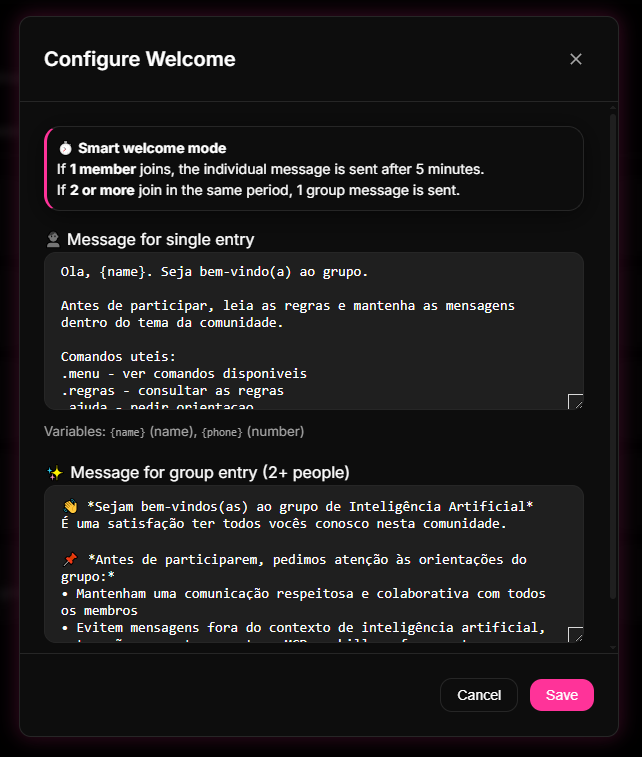
Step 4: Configure the automatic Welcome Message and save
- Still in the Automations menu, click on the Welcome Message section.
- Enable the feature and write a warm welcome text, including the basic guidelines and using dynamic tags like `{name}` to mention the new member.
- Click Save at the bottom of the page to apply all the new rules.
Quick Checkpoint: Remember to always click "Save" in the 9bot Dashboard before leaving the configuration screen. If you close the panel window without saving, auto-approval will not be activated on the bot's servers.
How it works in practice
Think of 9bot's auto-approval as the reception and guest list system of an exclusive VIP event or a corporate seminar.
Without automation (manual approval), the host of the event (the admin) would need to stand at the front entrance all night long, checking each guest's badge, confirming the details on a physical list, and opening the door person by person. The host would end up exhausted, missing the entire party, and guests would face long, frustrating lines.
By activating 9bot's auto-approval, it is like hiring a highly efficient digital receptionist. You hand over the entry criteria to them, and they take over the door. The smart receptionist checks credentials in fractions of a second, instantly opens the door for the correct participants, hands them the venue's rules (Welcome Message), and bars scammers immediately.
Checklist of a protected group
- "Approve new participants" option active in the WhatsApp group settings.
- Bot promoted to group administrator to have technical release privileges.
- Auto-Approval key saved and active in the Automations screen of 9bot.
- Welcome Message configured containing the rules and terms of coexistence.
- Moderation logs and reports consulted weekly to refine settings.
Test it now in your group
- Ask a test contact (without administrative privileges and who is not in the chat yet) to click on your group's invite link.
- Confirm that they were placed in WhatsApp's native queue (awaiting approval).
- Wait a few seconds and confirm if 9bot identified the request, approved the entry of the number automatically, and sent the welcome message mentioning the contact in the chat.
If the user joined the chat and received the message containing the rules without any administrator having to touch their phone to approve, your smart entry flow is active and correctly calibrated.
Read also
Frequently asked questions
How does automatic approval work on WhatsApp?
Do I need to keep my phone online to approve?
Can I ask new members questions before approving?
Can the bot kick unwanted members automatically?
What happens if the bot is not configured as an administrator?
Does 9bot notify administrators about new approvals?