9bot Workflows: how to automate processes in WhatsApp groups without code
A 9bot workflow is an automatic flow that starts with an event, such as a received message or a member joining, follows rules you set and runs actions in the group. You build it in the dashboard without coding, or ask an AI to create it through MCP.
How it works in practice

How to create a workflow in the 9bot dashboard
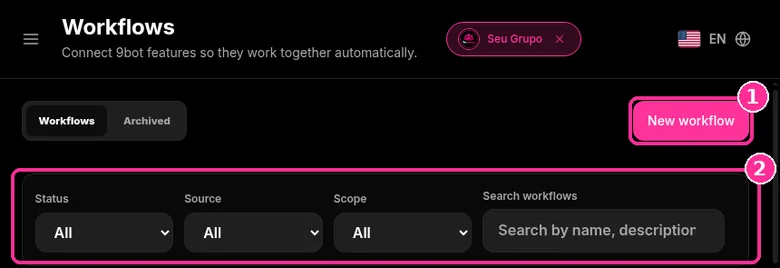
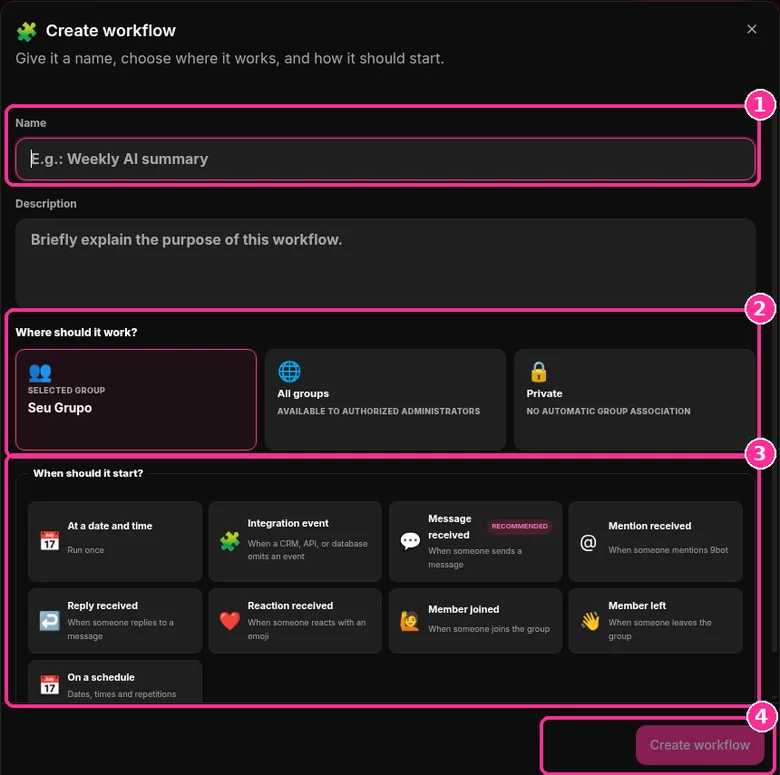
In the side menu, open Workflows ("Connect 9bot features so they work together automatically"). The screenshots below come from the real dashboard, in a test group called "Seu Grupo", with member names and contacts blurred. The numbers on the images follow the order of the clicks.
Step 1: Open the workflow list
- Use the Status, Source and Scope filters or the search to find a workflow.
- Click New workflow.
Step 2: Create the workflow
- In Name, give it a name, such as "Weekly AI summary", and describe the goal in Description.
- Under Where should it work?, choose a group, such as Seu Grupo, All groups or Private.
- Under When should it start?, choose the start trigger, such as a date and time or a received message.
- Click Create workflow.
Want to try it in your group? See the 9bot plans with a 7-day trial.
What is a workflow in 9bot
Direct answer: Workflows is the 9bot area that connects 9bot features so they work together automatically. When a task has several steps, conditions or exceptions, a workflow ties it all into one visual flow: an event starts it, rules pick the path and actions do the work in the group.
You create a workflow in the dashboard, under Workflows > New workflow, without writing code. You can also ask an AI like ChatGPT or Claude to create it through 9bot MCP.
How a workflow works: start, rule, action and monitoring
Start
Choose the event that triggers the flow, such as a message, a reaction, a member joining or leaving, a date or a time.
Rule
Set conditions so each person or situation follows the right path.
Action
Send messages, update groups, generate reports or trigger an integration.
Monitoring
Test the flow, handle failures and review every run in the history.
Each step is built visually. Once it is ready, you test the flow and see what happened in each run. More details on the 9bot features page.
Which triggers can start a workflow
In the Create workflow window, the question When should it start? offers these options:
- At a date and time
- Integration event
- Message received (marked Recommended)
- Mention received
- Reply received
- Reaction received
- Member joined
- Member left
- On a schedule
An integration event can come from an outside source, such as a feed. See a practical example in how to automate a WhatsApp channel with RSS.
Where a workflow runs: one group, all groups or private
In the same window, the question Where should it work? sets the scope of the flow:
- Selected group: the workflow applies to the group chosen in the dashboard.
- All groups: available to authorized admins.
- Private: no automatic link to groups.
How to track and organize your workflows
The Workflows page has two tabs, Workflows and Archived. To find a flow, use the filters:
- Status: All, Active, Inactive or Draft.
- Source: Dashboard, MCP or API. This tells you whether the flow was created in the dashboard, by an AI or through an integration.
- Scope: Groups, All groups or Private.
- Search workflow: finds a flow by name.
How to create workflows with AI through MCP
With 9bot MCP, a compatible AI such as ChatGPT, Claude or another MCP client can create workflows from a plain language request. The path is: you ask, the AI interprets, 9bot MCP checks permissions, groups, recipients and parameters, and Workflows creates the flow.
“Every Monday at 9am, generate an engagement report and send it to the admin.”
Before turning it on, the AI confirms the group, the recipient and the recurrence. The request becomes a visual flow you can review and manage in the dashboard. The connection uses OAuth, and you can limit the app to authorized groups.
Other requests you can make to the AI:
- Show the active Workflows.
- Turn off this Workflow.
- Show the Workflows with recent failures.
- Create a recurring Workflow to share links.
- Create a weekly report delivery.
To see how an assistant such as ChatGPT or Claude can run these routines with controlled permissions, read the guide to AI agents for WhatsApp community management.
If your team is evaluating MCP servers, compare the options in WhatsApp MCP: Meta vs 9bot.
Workflow examples for WhatsApp groups
Welcome by level
Trigger Member joined. 9bot asks the person for their level, the rule splits the answers and each one gets the right message. This is the flow in the simulation above.
Weekly report for the admin
Trigger On a schedule. Every Monday at 9am the flow generates an engagement report and sends it to the admin.
Recurring link sharing
Trigger On a schedule. The flow posts links in the group on the recurrence you choose.
Reply to a message
Trigger Message received. When a message matches your rule, the flow replies or alerts an admin.
Workflow, scheduling, command or broadcast: when to use each
Workflows are made for tasks with several steps, conditions or exceptions. For one step tasks, other 9bot features are quicker:
- One message at a set date and time: scheduling messages in the group.
- The same message in several groups: sending to multiple groups.
- A fixed reply when someone types a word: custom commands.
Read also

Frequently asked questions
What is a workflow in 9bot?
Where do I create a workflow in the 9bot dashboard?
Do I need to code to create a workflow?
Which events can start a workflow?
Can I ask ChatGPT or Claude to create a workflow?
How do I see if a workflow failed?
Can one workflow apply to all my groups?