How to Connect Content Portals to WhatsApp (2026 Guide)
Drive organic traffic to your website. Learn how to configure 9bot to automatically post news links from your portal directly to WhatsApp groups via RSS Feed.
Bringing Real-Time News Directly to Your Reader's Pocket
With the systematic reduction of organic reach across legacy social networks driven by black-box algorithms, news portals, editorial blogs, and content websites face major roadblocks to retaining loyal readers. Relying purely on search engine optimizations or hoping that readers manually visit your homepage every day is a losing strategy in the contemporary digital ecosystem.
WhatsApp represents the most direct, unobstructed channel available today. It is a clean screen, completely free of preference algorithms, which users open dozens of times a day. Delivering your fresh breaking news, daily bulletins, and major newsletters directly into structured reader groups or channels is the most effective way to drive consistent, explosive organic traffic spikes back to your portal.
However, manually updating news chats is a grueling operational task. Copying the link of every published article, writing engaging summaries, finding matching imagery, and pasting them across multiple groups consumes hours of work that could be spent on actual reporting. Automated RSS feeds exist to liberate editorial teams and deliver value to readers in record time.
The Problem in Practice
Relying on manual link distribution for news portals results in major traffic leaks and administrative exhaustion:
- Chronic delays in news alerts: Breaking news losing its critical momentum ("scoop") when human moderators are too busy to manually post links into the community groups.
- Spammed links without context: Group chats flooded with dozens of raw links without introductions or moderation are quickly muted and ignored by members.
- Broken link layouts: Rushed copy-pasting of URLs often fails to load preview cards or images on WhatsApp, tanking Click-Through Rates (CTR) and harming journalistic credibility.
By automatically connecting your portal to the chat, news cards reach your audience while they are hot, multiplying daily organic referrals.
What You Will Configure and Solve
In this step-by-step integration guide, you will learn how to configure an automated RSS Feed system on your 9bot Dashboard so you can:
- Detect and broadcast new articles from your site automatically in seconds.
- Control posting frequency to avoid spamming members with floods of posts.
- Route and segment feeds to different groups based on specific topics or categories.
- Track click-through and growth metrics to align your editorial strategy.
Before You Begin
- An active RSS/XML news feed on your website (e.g., `yoursite.com/feed`), compatible with standard CMS like WordPress or Medium.
- A WhatsApp group successfully connected to your 9bot panel.
- Administrative access to the 9bot Dashboard.
- Administrative permissions granted to the bot in your WhatsApp group settings.
Step-by-Step Dashboard Setup
Step 1: Link Your RSS Feed under Automações
- Log in to your 9bot Dashboard and select the target group for your news feed.
- Navigate to the Automações tab in the sidebar menu and select the RSS Feed module.
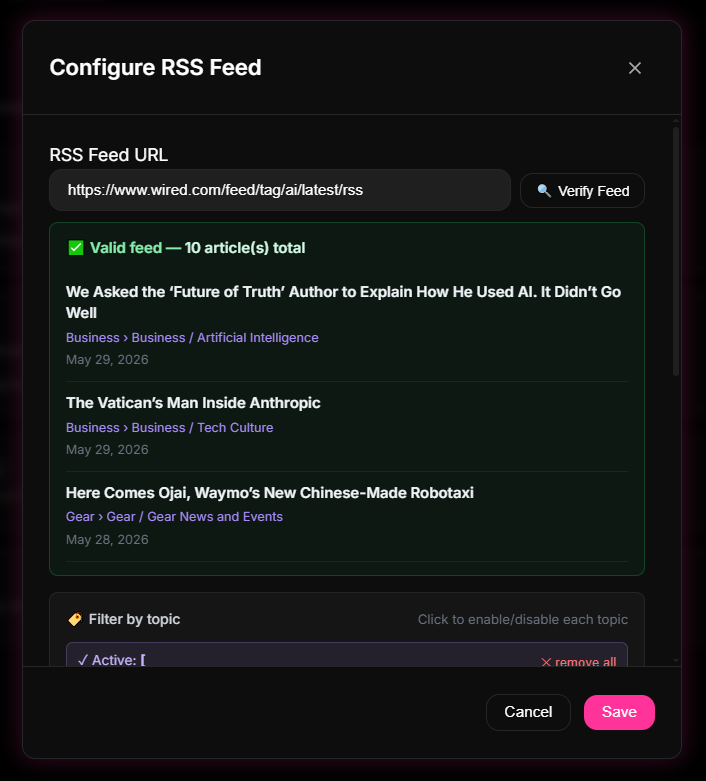
- In the provided field, paste your site's XML/RSS Feed URL.
- Click the Verificar Feed (Verify Feed) button to ensure the platform reads the XML structure successfully without certificate errors.
Step 2: Define Group Targets and Delivery Rules
- On the same RSS Feed page, select one or more target Grupos (Groups) for the automated broadcasts.
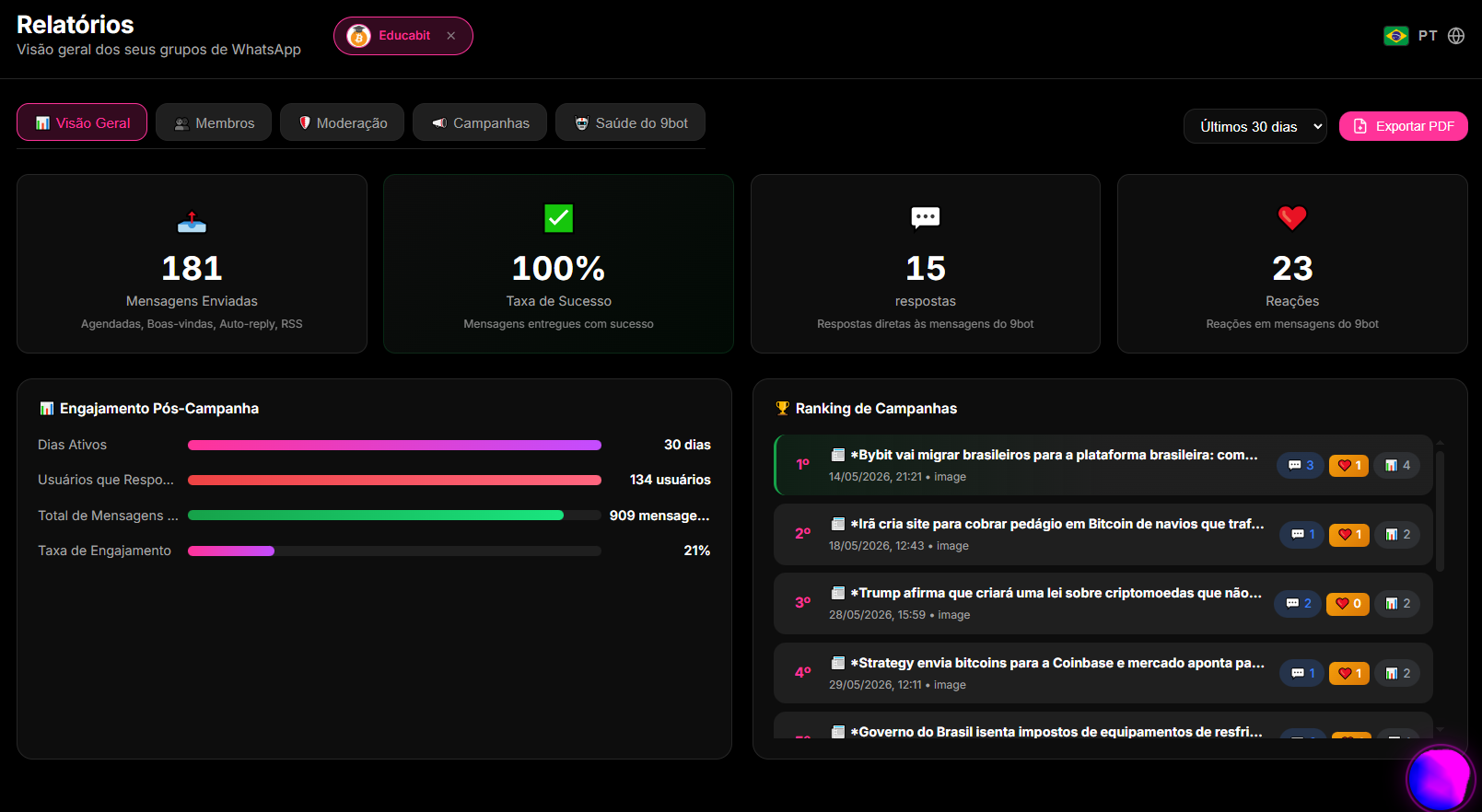
- Calibrate the scanning frequency. You can select standard daily bulletin times (such as 06:00 AM and 06:00 PM) or specify a frequent interval in minutes (e.g., every 30 minutes).
- Set the maximum number of articles to post per scan to prevent overwhelming the group. Design the message template and save.
Quick Checkpoint: Make sure to run a quick test post and monitor the Grupos tab to confirm that the bot has administrative message-posting permissions enabled.
Step 3: Monitor Traffic and Clicks under Relatórios
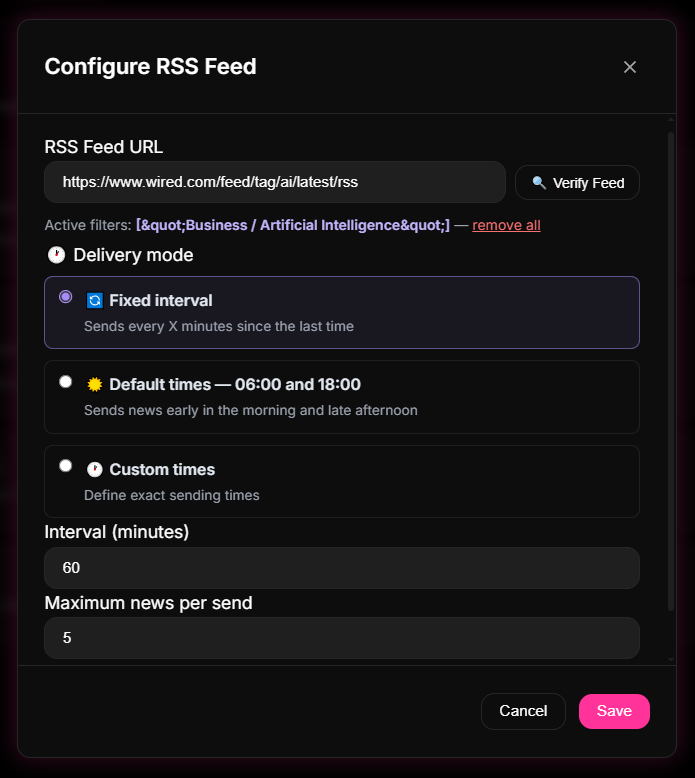
- Regularly check the Relatórios (Reports) menu in the sidebar.
- Click Visão Geral (Overview) or Membros (Members) to audit the health of your bot.
- Analyze consolidated KPIs, including total clicks generated, growth in group participants, and member reactions. Use these metrics to adjust posting schedules.
Quick Checkpoint: If CTR drops during specific times of the day, use advanced category filters on your XML RSS URL so that specialized interest groups only receive highly targeted topics.
How it works in practice
Sharing news manually from a portal to dozens of WhatsApp groups is like copying and pasting links from a CMS dashboard, shortening URLs one by one, and posting them individually into 50 different chats every hour. With 9bot, it's like deploying a seamless cloud API webhook bridge. The moment your writer clicks "Publish" in your CMS (like WordPress or a proprietary system), the server triggers a webhook directly to 9bot. The bot formats the news, attaches the correct tracking tags (UTMs), and broadcasts the update concurrently across all authorized WhatsApp groups instantly. Data flows like fiber optics, with zero manual delay.
Test Your Setup Now
- Publish a quick test article under a secondary category of your website containing a dynamic link.
- Confirm that 9bot successfully scans your site and delivers the formatted news card to your test group within minutes.
- Click the generated link and verify that the referral visit registers correctly on your site analytics and the Dashboard's traffic reports.
If the news card posted beautifully on schedule and logged the click on your dashboard metrics, your automated cargo boats are fully operational and sailing toward your audience!
Read also
Frequently asked questions
What is content portal integration via Feed RSS on 9bot?
Can automated RSS posting lead to group bans on WhatsApp?
Can I segment different website categories to specific WhatsApp groups?
Can I disable automated RSS updates during night hours?
Does the RSS integration feature work on all website platforms?