How to automate live stream alerts on WhatsApp
Learn how to connect Twitch, YouTube and Kick live stream alerts to your WhatsApp groups with 9bot, sending automatic notifications the moment you go live.
How it works in practice
Direct answer: To automate live stream alerts on WhatsApp, use 9bot. In the Dashboard, open Integrations > Live stream alerts, add your Twitch, Kick or YouTube channel URL and choose which WhatsApp groups should get the alert. The bot monitors the channel status and sends a custom alert with the stream link as soon as you go live, with no manual work.
Why WhatsApp matters for live stream engagement
When a creator, streamer or community admin goes live, how fast viewers show up in the first few minutes makes a real difference. Streaming platforms tend to push streams that get an early spike of viewers. That's where WhatsApp groups become a strategic tool: they gather your most engaged fans and give you a channel people actually read right away.
9bot's automation removes the manual announcement step. The moment you start streaming, the system detects it, builds the alert and sends it to all your groups. Your audience arrives right away and you never have to look away from your streaming setup.
The bottlenecks of promoting streams by hand
Promoting streams manually in your groups causes real productivity and engagement problems:
- Broken focus: pausing your pre-stream setup (audio, webcam and overlays) to copy links and type announcements in several groups.
- Late notifications: manual posting takes time, so viewers only arrive after the key opening moments of the stream.
- Inconsistency: forgetting to alert some groups or sending messy, inconsistent messages.
- Post-stream clutter: outdated links and open, noisy chats left in the groups after the stream ends.

Setting up stream alerts in the Dashboard
9bot simplifies alert distribution by connecting directly to the streaming platforms. Follow these steps to set up automatic alerts:
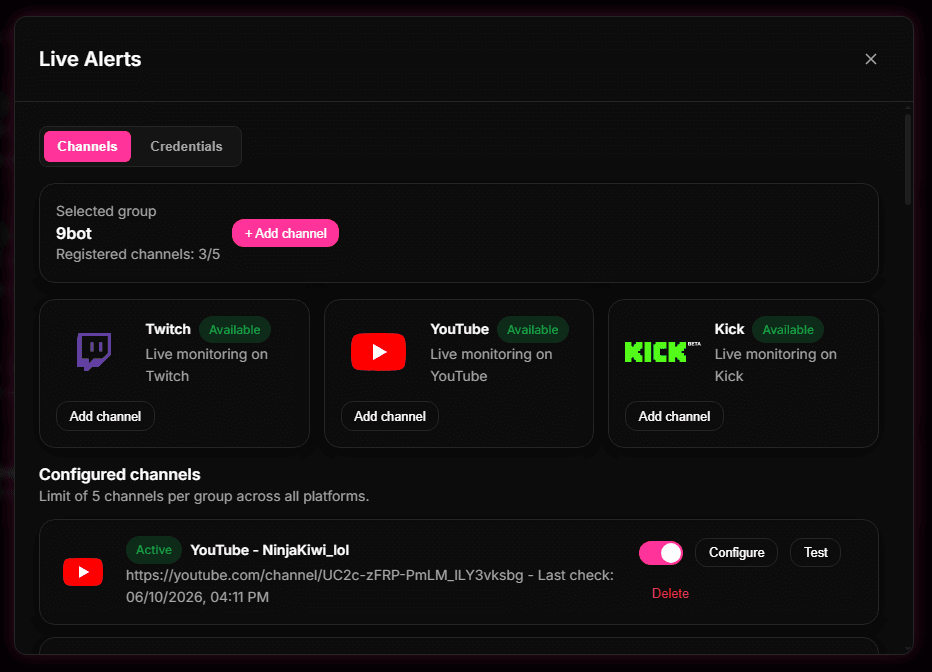
Step 1: Connect your streaming platform in the 9bot Dashboard
- Open the 9bot Dashboard and go to Integrations > Live stream alerts.
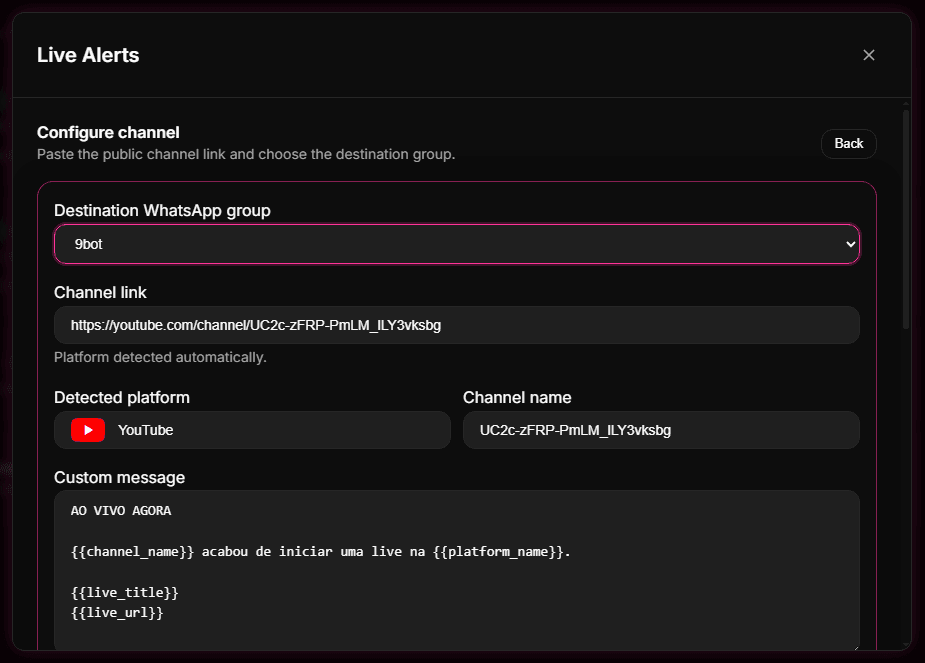
- Click to add a new channel and paste your Twitch or Kick profile URL or your YouTube channel URL.
- The system detects the platform automatically and checks that the channel is valid.
Step 2: Customize the alert message and frequency
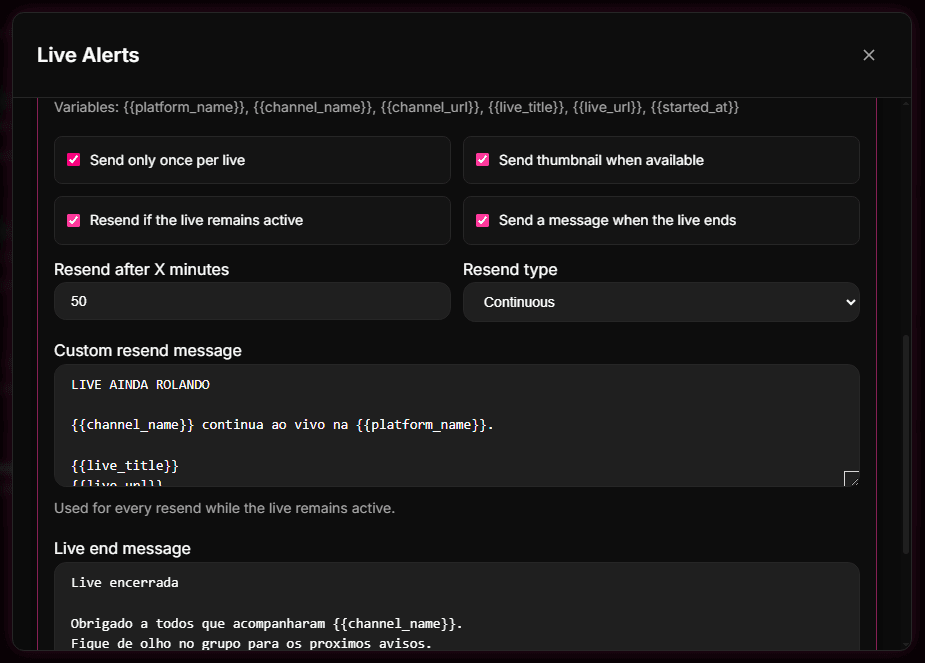
- Customize the alert using dynamic variables such as the channel name, stream title and stream link.
- Set how often reminders are re-sent if your stream runs long.
- Add optional end-of-stream messages to update the group when you go offline.
Setup checkpoint: Set the reminder timer to a safe interval (at least 60 minutes) to keep groups tidy and avoid notification overload.
Step 3: Choose target groups and test
- Select which connected WhatsApp groups should receive the stream alerts.
- Click the manual test button in the Dashboard to send an alert to the selected group right away.
- Check on your phone that the format, link and image of the test message arrived correctly.
Delivery stability and chat moderation during the stream
Posting links to many WhatsApp groups very quickly can trigger WhatsApp's anti-spam systems and put the number at risk of restrictions. 9bot reduces that risk by spacing out sends with delays and queue control (rate limiting), so stream alerts go out at a steadier pace. No tool can guarantee zero risk, so only send alerts to groups that want them.
To boost engagement, you can also have the bot act on the group chat when the stream starts. 9bot can open the group to member messages when the stream begins and close it again when it ends, concentrating the conversation exactly while you're live.
Automatic live alerts, like an LED sign
Promoting streams by hand is like having a billboard on the street and climbing a ladder every time you go live to paste a new sheet with the stream link and title, then running to the local radio station to read the announcement on air. It eats up valuable time, the streamer is tired before the show starts and viewers miss the beginning of the stream.
With 9bot, it works more like an LED sign wired to your camera. The moment the stream goes live, a sensor detects the signal and updates every screen in town at once. 9bot checks your stream status in the background and updates your WhatsApp groups immediately, so you can stay focused on your content.
Live stream alert setup checklist in 9bot
Hands-on test: alerts and delivery logs
- In the 9bot Dashboard, open Integrations > Live stream alerts and add a test channel (it can be your main channel).
- Set up a short alert message and choose a secondary test group as the target.
- Start a short test stream or click the manual alert button in the Dashboard and check that the notification reaches the group right away.
Tip: after the test, open the delivery logs in the Dashboard. If the status shows as sent with a timestamp, your automatic live stream alerts are ready to go!
Read also

FAQ
What is automated live stream promotion on WhatsApp?
It means sending your stream link to your WhatsApp groups automatically as soon as you go live on Twitch, YouTube or Kick, without stopping to post messages by hand.
How does 9bot know I'm live?
9bot continuously checks the streaming platforms (such as Twitch and YouTube) for your channel status. As soon as it detects that you're online, it sends the alerts.
Can I customize the alert text?
Yes. In the Dashboard you can write your own text for the start of the stream, mid-stream reminders and the end of the stream, including dynamic variables for the link and title.
Can automated stream alerts get my WhatsApp number banned?
Any automated sending carries some risk under WhatsApp's rules, so nobody can promise zero risk. 9bot reduces it with built-in delays in the sending queue; keep the risk low by alerting only groups that asked for it and avoiding frequent reminders.
Can I close the group chat and open it only during the stream?
Yes. You can set 9bot to change the WhatsApp group permissions, allowing messages when the stream starts and closing the group to members when it ends.