WhatsApp job openings group admin guide
A guide for admins of job groups, recruiters and professional associations who post openings to hundreds of members.
How it works in practice

Step by step in the 9bot dashboard
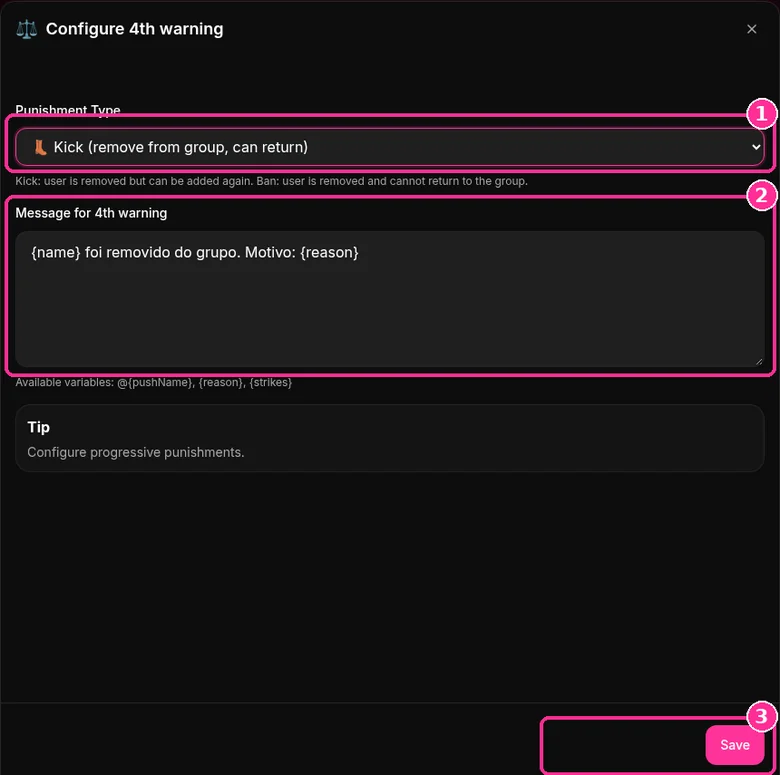
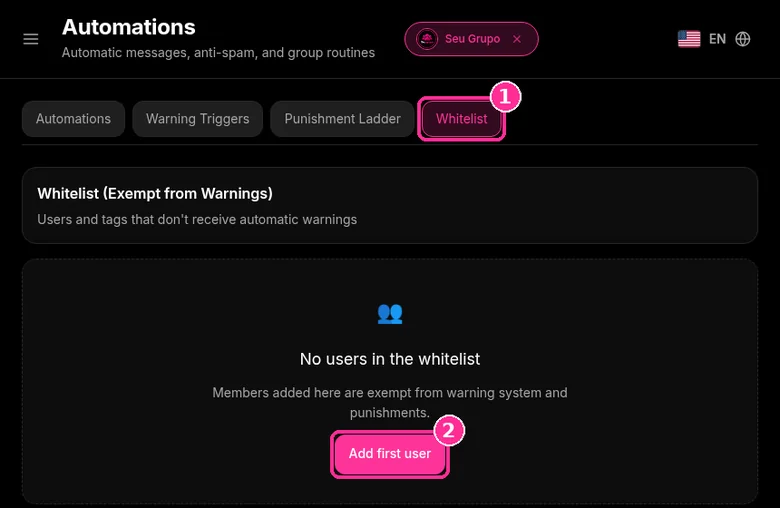
In the side menu, open Automations. The Warning Triggers, Punishment Ladder and Whitelist tabs control when 9bot warns and what happens next. The screenshots below come from the real dashboard, in a test group called "Seu Grupo", with member names and contacts blurred. The numbers on the images follow the order of the clicks.
In job groups, add typical job scam terms, such as registration fee or upfront payment, to Forbidden Words.
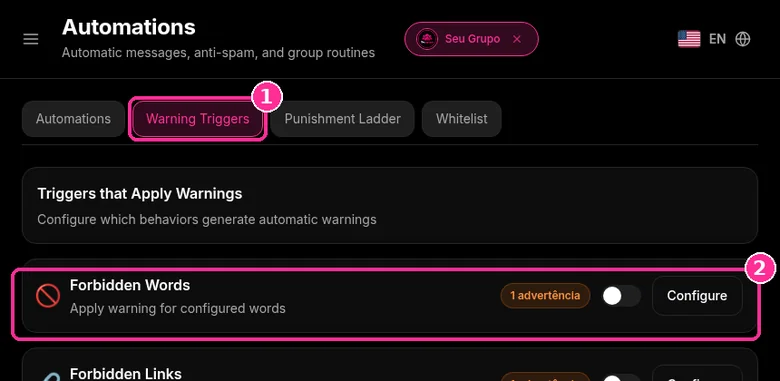
Step 1: Pick the trigger
- Open the Warning Triggers tab ("Triggers that Apply Warnings").
- Find the trigger, for example Forbidden Words or Forbidden Links, and click Configure.
Step 2: Set up the trigger
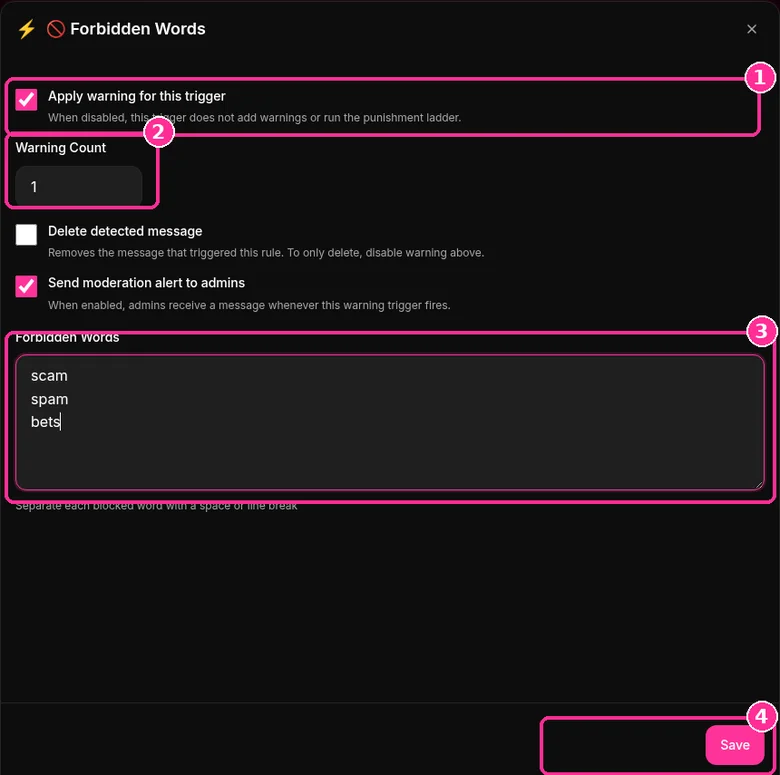
- Tick Apply warning for this trigger.
- In Warning Count, set how many warnings each hit adds.
- If you want, tick Delete detected message and Send moderation alert to admins.
- Write one word per line in the word field and click Save.
Step 3: Review the Punishment Ladder
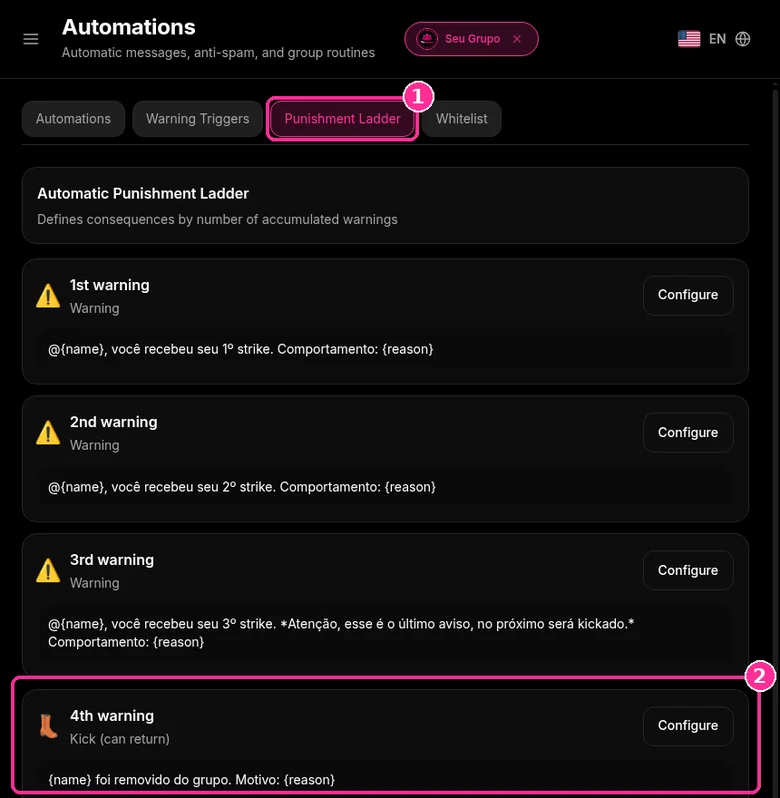
- Open the Punishment Ladder tab.
- By default, the 1st, 2nd and 3rd warnings send a notice and the 4th warning applies Kick (remove from group, can return).
Step 4: Adjust a step
- Click Configure on the step you want to change.
- Choose the Punishment Type and edit the message. The {name} and {reason} variables go into the text.
- Click Save.
Step 5: Exempt who needs it
- On the Whitelist tab, click Add first user to free someone from automatic warnings.
Want to try it in your group? See the 9bot plans with a 7-day trial.
Direct answer: A job openings group works best with three rules: only admins or approved recruiters post, every opening follows a fixed template (role, company, city or remote, requirements and official application channel) and links outside known domains are removed. Groups hold up to 1,024 members; beyond that, a community with groups by field or region is easier to organize. The main threat is fake openings that ask for payment, bank details or sign ups on unknown sites.
In short:
- Restrict posting to admins or approved recruiters.
- Standardize the posting format and the application channel.
- Remove suspicious links and warn about jobs that ask for payment.
Recommended setup
- In group settings, let only admins send messages, or promote approved recruiters to admin.
- Turn on approval of new members to screen profiles.
- Pin the rules and the job template.
- Above 1,024 members, create a community with groups by field.
Permissions in detail: participant permissions.
Standard posting template
| Field | Why require it |
|---|---|
| Role and level | Avoids repeated questions |
| Company | An opening with no identified company is a warning sign |
| City or remote | Filters candidates |
| Requirements | Reduces off profile applications |
| Application channel | Corporate site or email, never a payment or fee |
Common scams and how to stop them
- Jobs that charge a registration, training or material fee.
- Requests for bank details, passwords or verification codes.
- Paid "tasks" for likes or reviews that later require a deposit.
- Shortened links to forms with no company identification.
Never ask for or encourage sharing a WhatsApp verification code. See how to handle member spam.
CVs and personal data
CVs contain personal data protected by laws such as the GDPR and the LGPD. Ask candidates to apply through the company channel, not in the group, and to never post CVs in the chat. See what data an admin can collect.
Automating moderation
9bot removes links outside the allowlist, shows the job template with .template and sends a welcome with the rules. 7-day trial; with the coupon FIRST9, monthly plans are 50% off for the first 3 months after the trial.
Red flags of fake job posts in the group
Fake job posts tend to repeat the same signs: they ask for payment to join the process, promise high pay for little work, push you to another app through an odd link, ask for documents or bank details at first contact or name no company or location. As admin, list these signs in the rules, require the company name in every post and remove anyone who insists. More guidance in how to avoid scams in WhatsApp groups.
For candidates: how to find a job group you can trust
- Check who runs it: a serious group says in its description who is responsible (agency, association, local council, recruiter) and how to reach them.
- Look at the job format: role, company, city and application channel in every post. A job with no company name and "DM me" is a warning sign.
- Protect your number: in large groups everyone can see your phone number. Check Settings > Privacy for who sees your photo and who can add you to groups.
- Send your CV only through the job's channel: a company email, careers site or recruiting platform. Never post ID documents in the group.
I fell for a job scam. What now?
- If you paid anything, call your bank right away and ask them to try to stop or reverse the transfer.
- Report it to the police or your local fraud reporting service.
- Report the number in WhatsApp: open the chat, tap the name and use Report.
- Send screenshots to the group admins so they can delete the post and remove the sender.
Read also

FAQ
At which warning does 9bot remove a member?
How do I create a job group on WhatsApp?
How many people fit in a job group?
How do I spot a fake job?
Can candidates send CVs in the group?
How do I stop scam links in the group?
Are job offers on WhatsApp legitimate?
How do I spot a fake WhatsApp job group?
I fell for a WhatsApp job scam. What should I do?
Can a job group charge me to apply?