5 Common Mistakes in WhatsApp Group Automation (2026 Guide)
Avoid administrative headaches. Learn the 5 most frequent mistakes in WhatsApp group automation and how to use 9bot to keep your chat safe, active, and human.
The Excitement and the Hidden Traps of Group Automation
The rapid growth of digital communities, the relentless traffic of messages, and the constant search for an organized environment lead hundreds of group administrators to turn to automation solutions. The promise of having a virtual helper active 24 hours a day is highly attractive, especially for news groups, content distribution channels, or business chats that depend on constant interactions on WhatsApp.
However, the impulse to automate everything without a prior plan is usually the perfect recipe for generating massive administrative headaches. When automation is rushed or overused, it can quickly alienate members, expose sensitive user data, and kill the spontaneous discussions that make group chats so valuable in the first place.
To reap the operational benefits of virtual assistants without harming your community's engagement, you must understand the limits of the technology. Effective automation works as a silent supportive layer in the background, not as a replacement for genuine human connections.
The Problem in Practice
Poorly planned or excessive automation workflows create severe bottlenecks in WhatsApp group management:
- Dehumanizing the Conversation: Overly robotic messages or intrusive automatic greetings to every single new member make the chat feel artificial, cold, and unwelcoming.
- Losing Editorial Direction and Control: Relying blindly on bot filters without maintaining active human leadership opens the door to chaotic arguments and dilutes the community's identity.
- Exposing Security and Privacy: Integrating unverified automation platforms or granting excessive permissions leaves your members' phone numbers and logs vulnerable to leaks.
Automation should support the group's structure, never override the authentic human voice that keeps the chat alive.

What You Will Configure and Resolve
In this operational guide, you will learn to restructure and calibrate your management routines in the 9bot Dashboard to:
- Select the ideal tasks for automation while keeping the chat natural.
- Balance automatic entry workflows with active human co-moderation.
- Tailor the tone of voice and welcome routines to your members' profile.
- Secure your group's settings by restricting sensitive command privileges.
Before You Begin
- Full administrator access to your 9bot Dashboard.
- An active WhatsApp group connected to your 9bot panel.
- The 9bot helper bot added and promoted to Admin in your respective group.
- A basic set of group guidelines ready to share with your members.
Step-by-Step Dashboard Configuration
Step 1: Limit Automation to Essential Operational Workflows
- Access your 9bot Dashboard and open the Automations menu.
- Review all active welcome message rules. Make sure the bot is not responding with huge paragraphs to every minor member interaction.
- Keep operational workflows active, such as automated member approvals and basic security filters (blocking harmful links or banned words), to save your team from constant manual labor.
- Turn off any automated reply templates that try to simulate a real human conversation, ensuring your group stays transparent and authentic.
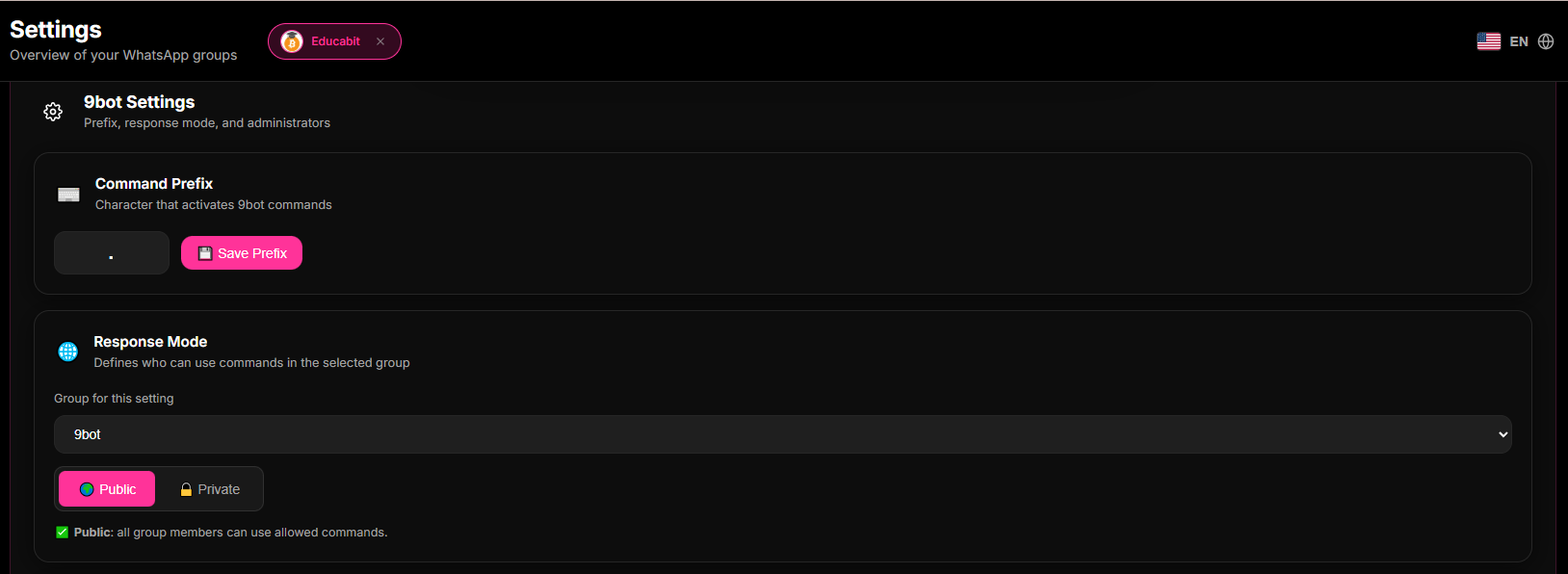
Step 2: Restrict Sensitive Command Privileges in the Panel
- On the left sidebar of the Dashboard, open the Commands tab and click on Custom Commands.
- Locate the custom commands that handle sensitive community settings, global announcements, or configuration rules.
- Edit the settings for each sensitive command in the panel and check the box to restrict execution strictly to administrators on the WhatsApp group list.
- Save the changes to shield your group against accidental triggers or malicious commands by normal members.
Security Warning: Leaving sensitive commands open to all members creates severe vulnerabilities that can compromise the order of the community.
Step 3: Audit and Adjust Workflows Using Real Metrics
- Open the Reports > Overview menu in the 9bot Dashboard once a week.
- Track the engagement metrics to evaluate if automatic notifications or scheduled posts are prompting replies or silencing the chat.
- Compare the group's activity before and after enabling security filters, adjusting the moderation strike sensitivity so legitimate members do not feel overly restricted.
- Adjust command variables and scheduling times based on the actual timezone and peak activity hours of your community.
Configuration Warning: Do not configure blind automations. Regular monitoring is the only viable method for keeping the community in perfect harmony.
How it works in practice
Automating groups without configuring safety rate limits is like installing a high-speed assembly line in a factory without any emergency stop buttons or quality sensors. If a single spam user triggers commands non-stop, the bot processes the replies in loops, flooding the chat and driving away real members. With 9bot's custom rate limits and cooldown configurations, you guarantee that the automation system operates smoothly, executing commands precisely and maintaining absolute technical stability.
Test It in Your Group Right Now
- Attempt to trigger an administrative setup command (such as `/rules` with parameter edits) using a secondary test account that is not an admin in the group.
- Verify that the 9bot assistant immediately blocks the execution, flagging the lack of admin privileges.
- Post a suspicious test link from the non-admin account and ensure the active moderation filters catch the post and execute the safety workflow smoothly.
If the restricted command was blocked for non-admins and the test link was removed immediately, your smart group entrances are secure and ready to operate!
Read also

FAQ
What is WhatsApp group automation?
Which mistakes should I avoid when automating groups?
How do I automate WhatsApp groups safely?
Is it worth it to automate WhatsApp groups?
What tools should I use to automate groups?