How to create custom commands to engage your WhatsApp group
Automate interactions and keep your community active. Learn how to create custom commands in 9bot to engage your members without overwhelming your moderation team.
How it works in practice
About this guide: this is the tutorial on how to create a custom command. For the built-in admin commands, see WhatsApp group admin commands for moderation and management. For ideas on what to build, see 12 creative command ideas for your WhatsApp group.
The challenge of keeping communities active and engaged
Anyone who manages digital communities or runs content portals on WhatsApp knows how difficult it can be to keep conversations productive and dynamic. As the group grows, the influx of new members increases and chat interactions become much more complex. Keeping everyone well-informed, active, and aligned requires continuous effort from the administrators.
Most of the time, however, what we see are silent groups where few members interact, or, on the other extreme, disordered environments dominated by spam and off-topic discussions. The moderation role becomes exhausting when administrators have to answer the same basic questions repeatedly ("What are the rules?", "Where can I see the latest updates?", "How do I join the poll?").
To unlock the true potential of a group and guarantee spontaneous engagement from participants, you must go beyond purely manual management. Automating high-value responses and building structured pathways for members to trigger interactions themselves is the key to a healthy, self-regulating group.
The problem in practice
Without the help of structured automation tools, administrators face severe operational bottlenecks:
- Operational overload: Manually answering repetitive questions drains valuable hours that could be spent planning strategic content.
- Disinterest and quiet members: Groups lacking dynamic activities or instant replies quickly slide into oblivion, causing participants to mute and eventually abandon the chat.
- Communication breakdowns: Important announcements pinned to the chat easily get lost in the sea of new messages, leaving members out of the loop and misaligned with group rules.
Interactive automation is the only bridge connecting a busy administrator to a vibrant, integrated community.

What you will configure and resolve
In this premium operational guide, you will learn how to design, configure, and activate automatic commands in your 9bot Dashboard to:
- Automate answers to frequently asked questions and basic support.
- Share news, updates, and relevant links instantly.
- Create native surveys and polls to feed group interest.
- Provide an interactive menu of options to guide the member experience.
Before starting
- Full administrative access to the 9bot Dashboard.
- An active WhatsApp group connected to your panel.
- The 9bot helper promoted to administrator in the respective group.
- A simple plan for 3 to 5 essential commands for your community (e.g., rules, contact, updates).
Step-by-step in the Dashboard
Step 1: Configure the custom commands structure
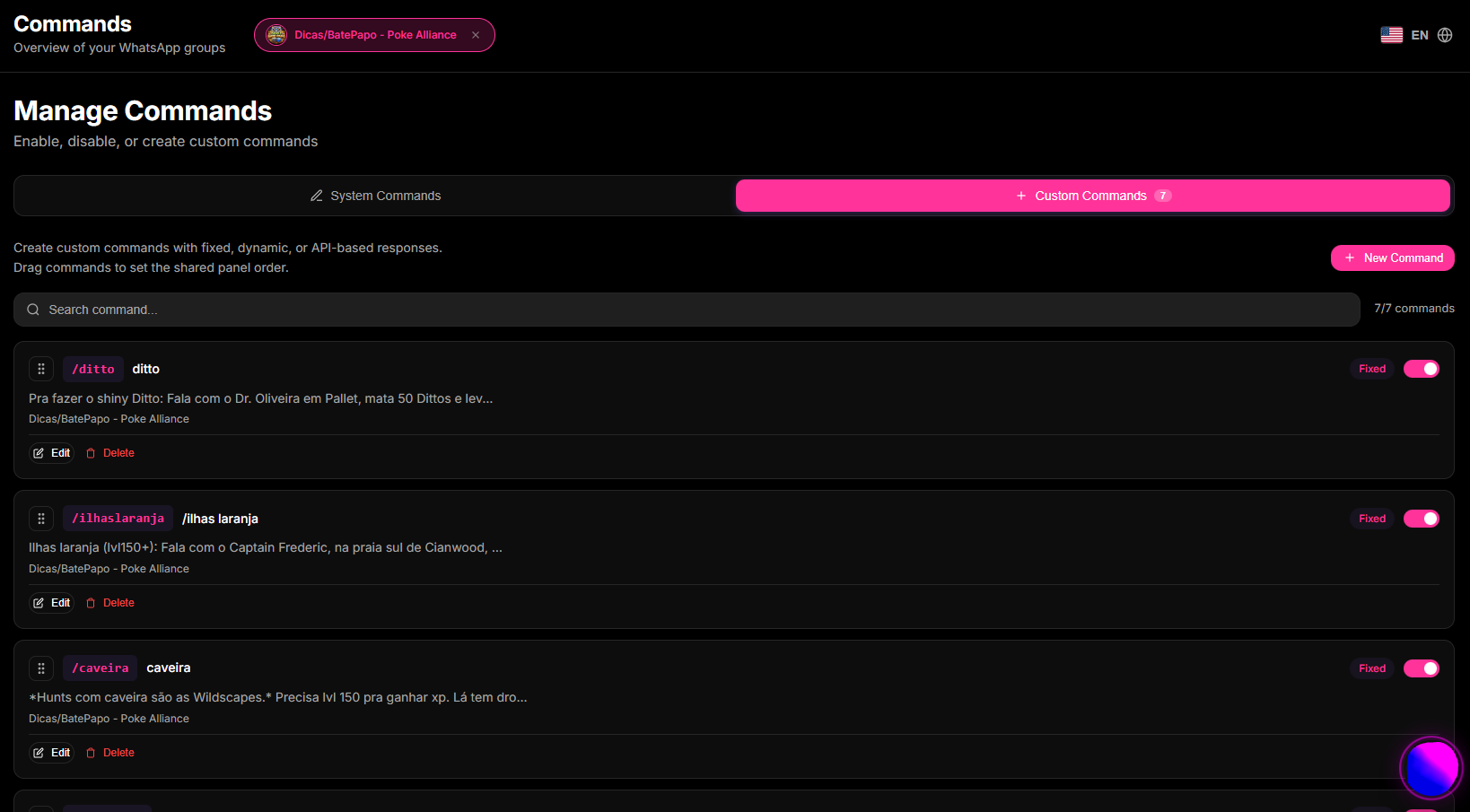
- Access your 9bot Dashboard, navigate to the sidebar menu, and select Commands > Custom Commands.
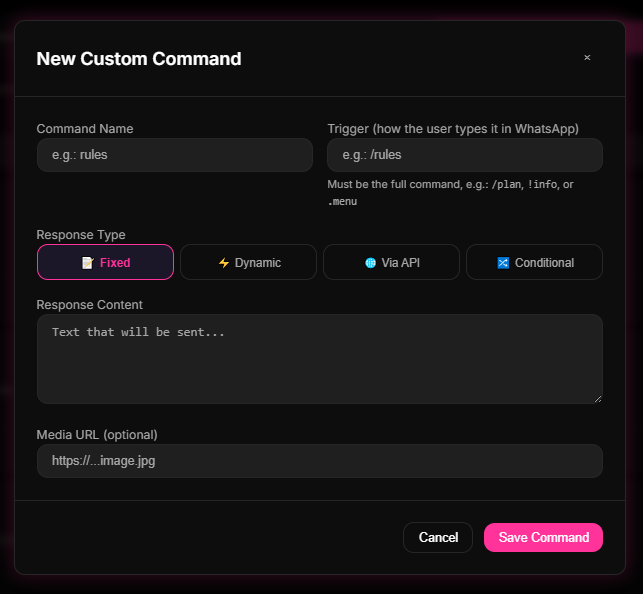
- Click New Command or the addition icon in the top right corner.
- Define the trigger (the keyword) for the command. Use short, easy-to-remember terms preceded by slashes or simple symbols (e.g., `/rules`, `/help`).
- Select the type of reply the bot will send (formatted text, image with caption, or redirect link).
Step 2: Design rich replies and configure automation rules
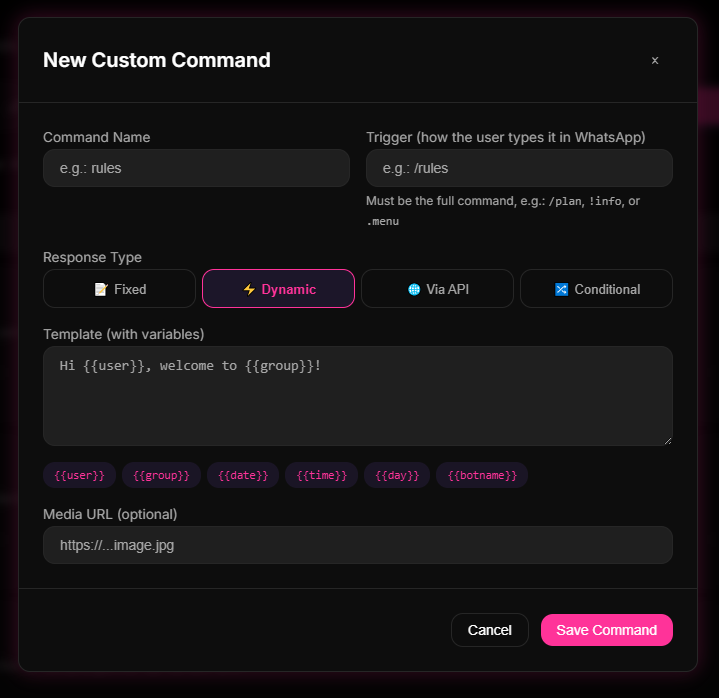
- In the New Command modal, fill in the content field with a direct, educational, and engaging reply.
- Use native WhatsApp styling (bold, italics) to highlight vital information and insert clean destination links.
- If you want to send an attachment or illustrative image, upload the media directly in the command settings.
- Save the configuration and run a test in a private chat with the bot by typing the trigger you created.
Reply Warning: Keep custom replies short. Overly long texts clutter the chat and decrease participants' interest in reading the contents.
Step 3: Activate the Custom Menu for simplified navigation
- In your 9bot control panel, open the Commands > Custom Menu tab.
- Create an interactive guide message summarizing the group's main options (e.g., "Welcome! Type `/rules` for regulations, `/news` for updates, and `/vote` for polls").
- Enable shortcuts or button menus integrated within the interface to simplify life for new members.
- Adjust moderation filters in the Automations tab to ensure spammers cannot use the triggers to flood the chat.
Security Warning: Always combine your Anti-Spam filters with high-engagement commands. This prevents users from looping the same triggers indefinitely.
Commands as a 24/7 self-service line
Think of custom commands as an intelligent digital self-service menu (IVR) integrated directly into your WhatsApp. Instead of your team having to manually answer the same repetitive questions (like rules, support links, or guidelines) every time a new member joins, 9bot works like a 24/7 digital kiosk. When a user types a simple trigger (like `/rules`, `/news`, or `/vote`), the bot instantly responds with the corresponding digital message—rules formatted in bold, the latest news link, or a native interactive poll. Built-in rate limits prevent trolls from flooding the chat, keeping the group active, clean, and operational without human burnout.
Test it now in your group
- Access your 9bot Dashboard and create a simple custom command with the trigger `/tip` and an inspiring tip about your market.
- Using a test account or through a co-admin, type `/tip` in your WhatsApp group.
- Verify that the bot replies instantly with the correct text and layout.
- Check the moderation logs on your 9bot Dashboard to ensure the command execution was properly logged in the statistics system.
If the command replied instantly and the log appeared in your panel, your smart digital interface booth is active and your community is ready to soar!
Read also

Frequently asked questions
What are custom commands on WhatsApp?
How do I create custom commands in groups?
Which are the best commands to engage groups?
Is it safe to use automatic commands on WhatsApp?
How should I promote commands to group members?