How to remove inactive members from a WhatsApp group (and when it's worth it)
How to find out who has gone quiet, give notice before removing anyone, clean up without causing friction and keep the group from filling up with "ghosts" again.
How it works in practice

Step by step in the 9bot dashboard
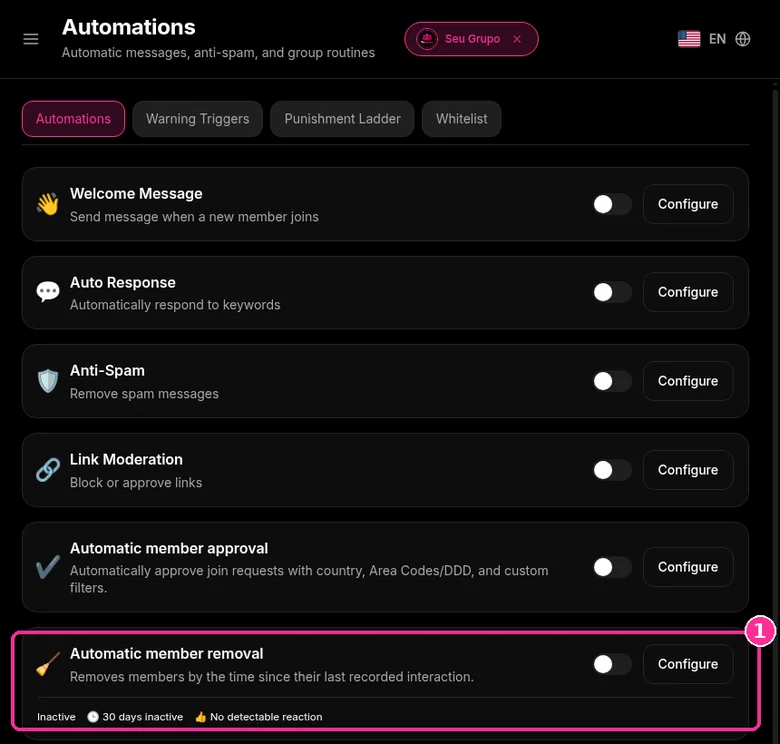
In the side menu, open Automations and find Automatic member removal ("Remove members by the time since their last recorded interaction"). The screenshots below come from the real dashboard, in a test group called "Seu Grupo", with member names and contacts blurred. The numbers on the images follow the order of the clicks.
With the warning and grace period on, inactive members get a chance to respond before they are removed.
Step 1: Open the automation
- On the Automations tab, click Configure on the Automatic member removal card.
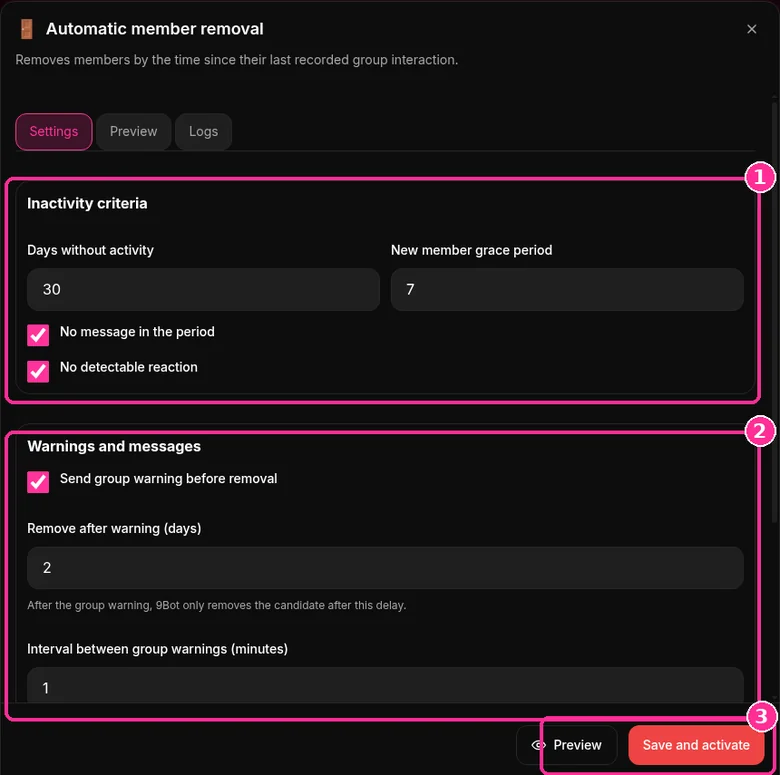
Step 2: Set the criteria
- Under Inactivity criteria, set Days without activity (30 in the example) and New member grace period (7).
- Tick No message in the period and, if you want, No detectable reaction.
- Under Warnings and messages, tick Send group warning before removal and set Remove after warning (days).
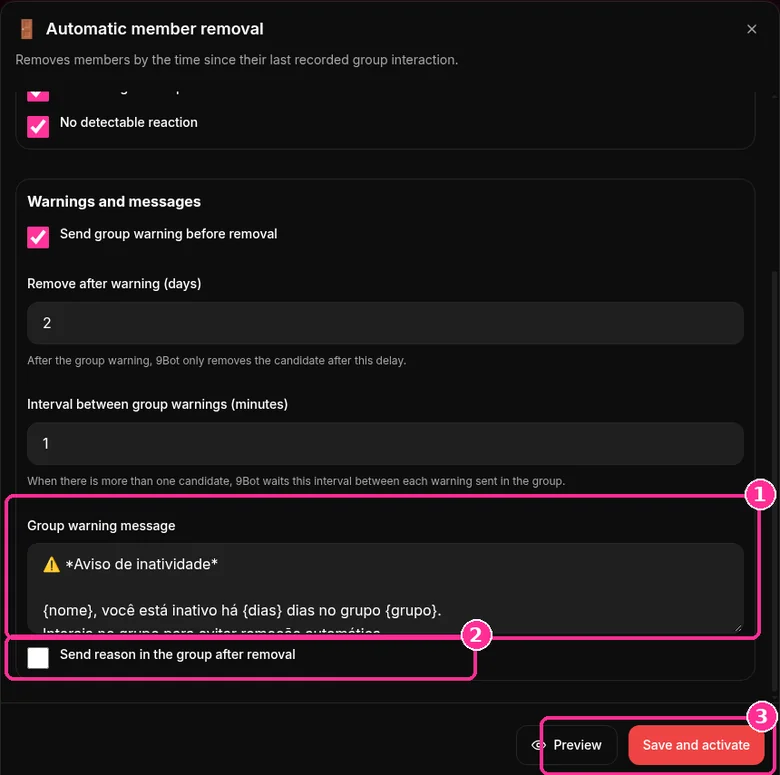
Step 3: Review the message and activate
- Edit the Group warning message. {name}, {dias} and {grupo} go into the text.
- Tick Send reason in the group after removal if you want the reason posted.
- Use Preview to see who would be removed and click Save and activate.
Want to try it in your group? See the 9bot plans with a 7-day trial.
Direct answer: WhatsApp has no feature that automatically removes inactive members from a group. Admins need to identify inactive members (for example, through read info on their own messages, since read receipts can't be turned off in groups), warn the group with a deadline for anyone who wants to stay, and then remove people one by one from the group info screen. A group bot can help identify inactive members, warn them first and handle removals using rules you set.
If the group is over for good, the right move is to delete the WhatsApp group for everyone — different from just leaving or removing inactive members.
Does WhatsApp remove inactive members automatically?
No. WhatsApp has no setting to remove people from a group because they don't post or read. What it does have is something else: WhatsApp deletes inactive accounts, meaning accounts that haven't connected to the app for a long time. The US version of the Help Center says 365 days; other versions, such as the UK one, say 120 days. When this happens, you may see the notification "WhatsApp profile removed automatically".
That applies to the whole account, not to the group. A member who only reads and never posts still has an active account and stays in the group. So cleaning up is the admin's job.
When it's worth removing inactive members
Not every quiet member is a problem. In many groups, most people read and few people post, and that's normal. Use this table to decide:
| Situation | Remove them? |
|---|---|
| The group is close to the 1,024-member limit and people want to join | Yes: every idle spot is a spot someone else can't use |
| Members who haven't read anything in months | Usually yes, with notice |
| Members who read but don't post | Usually not: they're consuming your content |
| A work or class group with people who changed roles or left | Yes: it's also a privacy issue |
| A small group of friends | Rarely: the social cost usually outweighs the benefit |
If the whole group has gone quiet, the problem may be the group dynamic rather than the members. Before cutting anyone, see how to deal with a silent group. If the issue is space, also see WhatsApp limits in 2026.
How to identify inactive members
WhatsApp doesn't show a list of inactive members, but it gives you some clues:
- Message info: tap and hold one of your messages in the group and open Message info to see who read it and who only received it. According to the Help Center, read receipts can't be turned off in group chats, so this information is reliable for recent messages.
- Polls and reactions: people who never vote, react or reply for months are likely inactive.
- Removed profiles: the "profile removed automatically" notice points to an account that no longer exists.
Doing this by hand in large groups isn't realistic, which is why most admins of bigger communities rely on automated reports. 9bot, for example, generates reports on inactive members and on the best times for engagement.
Separate "doesn't read" from "doesn't post". The first group probably won't miss the chat; the second may be your most loyal audience.
Give notice before removing anyone
Removing people without warning leads to hard feelings, private "why was I removed?" messages and sometimes reports. A notice with a deadline avoids that and even reactivates some members. A template you can copy:
📢 Group housekeeping notice
To make room for people who want to take part, we'll be removing inactive members.
If you want to stay, just react to this message with 👍 by Sunday (date X).
Anyone who doesn't confirm will be removed, no hard feelings. If you change your mind, you can rejoin through the invite link.
Pin the message during the notice period and send one reminder before it ends. People who react stay; people who don't, leave. Simple, transparent and easy to explain if someone complains.
How to remove a member from a group, step by step
Only admins can remove members. On your phone:
- Open the group and tap its name to open group info.
- Tap the member you want to remove.
- Choose the option to remove them from the group and confirm.
On a computer, the steps in the Help Center: how to add and remove group members are: click the group subject, hover over the member, click the options icon and then Remove > Remove.
Take it slow. The Help Center describes removing one member at a time. Clean up in stages, double-check the list first and keep the invite link available for anyone who wants to come back.
How to automate inactive member removal with 9bot
If you manage large groups or several groups, manual cleanup takes hours. 9bot has an inactivity removal feature that follows the same logic as this guide: it identifies idle members, warns them first and frees up space using safe rules you define. Reports show who is drifting away, so you can act before the group goes cold.
Pair the cleanup with member approval, which in 9bot works with filters, daily limits and history, so the open spots go to people who actually want to take part. To track group health day to day, see daily group monitoring.
After the cleanup: how to keep the group active
Removing inactive members treats the symptom. To avoid repeating the cleanup every month:
- welcome newcomers and explain the rules right away;
- create rituals: a weekly poll, a daily topic, a Friday recap;
- measure what works: engagement by time, topic and format. These group metrics that matter help you decide;
- review inactive members every quarter, always with notice.
Paid VIP groups require strict control of who joins and leaves; the guide on Paid WhatsApp group: how to set one up, charge a subscription and remove non-payers covers access, renewals and removing members who did not pay. When the problem is one specific person, see how to handle difficult members.
Removing an inactive member from a community
In communities, an admin can remove a member from the whole community, which also removes them from every linked group, according to the Help Center. If the person owns a linked group, unlink that group first. To remove someone from a single group only, do it from Group info as in the steps above.
Before removing: inactivity may be fatigue
Many members who look inactive have simply muted the group because message volume got high. Before a cleanup, review the pace: bundle notices at fixed times, combine information into one message and mention everyone only when urgent. After a few weeks, those still not reading can get the cleanup notice. See how to reduce notifications and group fatigue.
To keep students active after the first week, see the retention protocol for a WhatsApp student community.
Read also

FAQ
Does 9bot warn before removing an inactive member?
Does WhatsApp remove inactive members from groups automatically?
How long before WhatsApp deletes an inactive account?
How can I tell who isn't reading group messages?
Can I remove several members at once?
Do I need to give notice before removing inactive members?
Can removed members come back?
Does removing someone from the community remove them from its groups?
Why can't I remove someone from the community?
Is an inactive member always uninterested?
What should I do before removing inactive members?