WhatsApp limits in 2026: how many people fit in each format
The official numbers for groups, communities, broadcast lists and channels, what happens when a group is full, and which option to pick so you can keep growing without losing control.
How it works in practice

Step by step in the 9bot dashboard
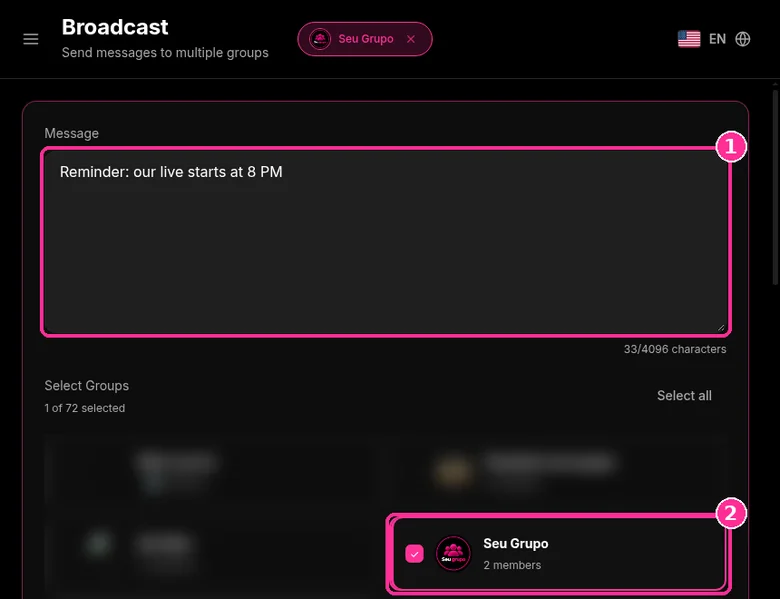
In the side menu, click Broadcast ("Send messages to multiple groups"). The same message goes out right away to every group you tick. The screenshots below come from the real dashboard, in a test group called "Seu Grupo", with other group names blurred. The numbers on the images follow the order of the clicks.
When a group fills up and you open a second or third one, 9bot Broadcast sends the same notice to all of them at once.
Step 1: Write the message and pick the groups
- In the Message field, type your text. The counter below shows the 4096 character limit.
- Under Select Groups, tick each group that should receive the message, or use Select all.
- Check the "X of Y selected" counter before moving on.
Step 2: Send the broadcast
- Scroll to the end of the group list.
- Click Send Broadcast. The message is sent immediately.
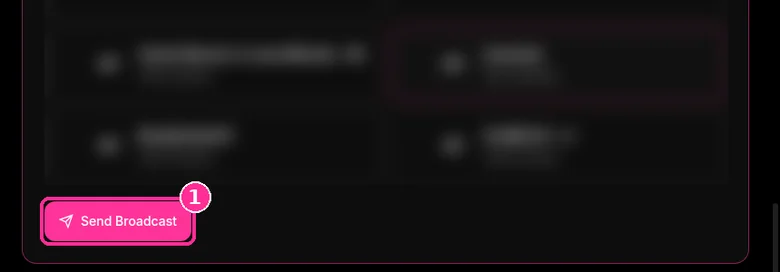
Important: the Broadcast screen does not schedule. To pick a date, time or repetition, use 9bot Schedules, which also lets you tick several groups.
Send only to groups that expect that notice and avoid repeating the same text many times a day. Want to try it in your group? See the 9bot plans with a 7-day trial.
Direct answer: In 2026, a WhatsApp group can have up to 1,024 members (1,025 including the creator). A community brings together up to 100 groups and up to 2,000 members in total. Each broadcast list takes up to 256 contacts, and only people who saved your number receive it. Channels have no follower limit, but only admins can post. When a group is full, your options are to remove inactive members, open a second group, organize everything in a community or move announcements to a channel.
WhatsApp limits in one table
Numbers checked in the WhatsApp Help Center on October 9, 2026. WhatsApp changes these limits from time to time, so double-check before planning a large project.
| Format | Limit | Who can post |
|---|---|---|
| Group | 1,024 members (1,025 with the creator) | Everyone or admins only, depending on permissions |
| Community | Up to 100 groups and 2,000 members in total | Admins only in Announcements; in groups, it depends on permissions |
| Broadcast list | 256 contacts per list, as many lists as you want | Only you; replies arrive in private chats |
| Channel | No follower limit | Admins only (the owner can invite up to 16) |
| Forwarding a message | Up to 5 chats at a time | — |
| Group voice or video call | 32 people | — |
Two details that often surprise people: a group name can have up to 100 characters, and new members get at most the 100 most recent messages from the last 14 days, and only if the person adding them chooses to send message history (Help Center: add and remove members).
WhatsApp group limit: 1,024 members
The current cap is 1,024 members, or 1,025 including the group creator. There's no limit on how many groups you can create, but WhatsApp may ask you to slow down: if you add too many people to groups in a short time, you may have to wait 24 hours before adding more people or creating new groups.
Once a group reaches the limit, nobody else can join, not even with the invite link. One of the reasons the WhatsApp Help Center gives for "can't join group" is that the group has reached its maximum size. In community groups, people can request to join and wait until someone leaves or is removed.
Tip: large groups work better with Approve new members turned on. That way you decide who takes each spot, instead of letting the invite link fill the group on its own. See how to approve members automatically.
WhatsApp communities: up to 100 groups and 2,000 members
A community is an umbrella that brings related groups together. When you create one, WhatsApp automatically creates an Announcements group, where only community admins post and members can react and reply in a thread. According to the WhatsApp Help Center, the limits are: If you are starting from zero, first create the WhatsApp group and set its permissions.
- up to 100 groups per community;
- up to 2,000 members in total, counting every group and Announcements;
- once the community is full, nobody new can join until someone leaves;
- reactions are turned off in communities with more than 1,025 members;
- you can't create a community in the WhatsApp Business app, only in regular WhatsApp.
One important privacy point: members only see the phone numbers of people in the same group as them. That makes communities a good fit for schools, residential buildings and companies with several departments.
Broadcast lists and channels: limits for one-to-many messages
A broadcast list sends the same message to up to 256 contacts per list, and you can create as many lists as you like. Each person receives it as a private message from you, and only people who have saved your number get it (WhatsApp Help Center). Broadcast lists don't work on WhatsApp Web or desktop, and they're not meant for group conversations.
A channel is a different format: it's public, has no follower limit and only admins post. Followers can't see each other's numbers or the admins' numbers. The channel owner can invite up to 16 admins to help (Help Center: how to create a channel). It's the right format for mass announcements, not for conversation.
What to do when your WhatsApp group is full
Before opening another group, think about what people actually do there. If most members only read announcements, the problem isn't the limit, it's the format.
| Situation | Best option |
|---|---|
| Many inactive members taking up spots | Remove inactive members with advance notice and clear rules |
| Active conversation and more people want in | Open a second group with the same rules and numbered names (e.g. "Group 1", "Group 2") |
| Several groups about the same topic | Bring them together in a community and use Announcements for what applies to everyone |
| Most people only need announcements | Create a channel and keep groups for conversation |
| Audiences with different interests | Split by topic and use segmented communication |
When you open a new group, copy the setup of the first one: description, rules, permissions and welcome message. With 9bot, you can reuse templates and settings in other groups without starting from scratch, and member approval works with filters and daily limits. If you're moving a lot of people at once, follow the step-by-step guide to import members without losing control. Before sending in volume, check the WhatsApp Business message limit per day so you do not put the number at risk.
Don't rush it: adding hundreds of people at once or sending the same message to many groups draws the attention of WhatsApp's anti-spam systems. Spread new members over several days and prefer invite links with approval.
Large groups need more security
The closer you get to the limit, the more likely spammers and scammers are to get in. A few settings make sense for any large group:
- only let admins edit group settings;
- turn on Approve new members and reset the invite link if it leaks;
- have more than one admin to cover different hours;
- use automatic link and word filters so you don't depend on manual monitoring.
The guide to security settings for large groups covers each of these options in detail.
When the goal is to deliver the same content to many members, compare this with the model described in WhatsApp broadcast list: limits, how to create one and when to switch to a group.
For operations running several groups under one brand, the article How to create a community in WhatsApp Business: what is allowed, steps and limits shows how to organize structure and moderation.
For campaigns with a fixed opening date, the article WhatsApp Launch Groups: How Many Groups You Need and How to Run Them explains how to capture, warm up and close the groups.
Calculator: when will your group fill up?
Enter today's members, how many join per month and how many leave. The calculator shows in how many months the limit is reached, how many extra groups you would need in 12 months and whether moving to a community makes sense.
Month by month estimate using the rates you enter. If the group is only for notices, compare it with the cost of a WhatsApp Business broadcast.
Read also

FAQ
Can I schedule a broadcast in 9bot?
How long can a 9bot Broadcast message be?
What is the WhatsApp group member limit in 2026?
How many people can join a WhatsApp community?
What is the broadcast list limit?
Do WhatsApp channels have a follower limit?
What happens when a group reaches the limit?
Can I create a community in WhatsApp Business?
How many people can join a WhatsApp group?
What should I do when a WhatsApp group is full?
How many admins can a community have?
What happens when a community is full?
Why won't WhatsApp let me add more people to the group?